Advanced Settings
S
Swiftspeed TeamWhen to Use Advanced Settings
The Advanced Settings page in the sidebar holds power-user knobs that most apps never need to touch: build orientations, native namespace, About page content, AI service keys for BYOK setups, custom URL schemes. If you are not sure whether you need these, you probably do not. The defaults work for the vast majority of apps.
Where It Lives
Open the app in the editor.
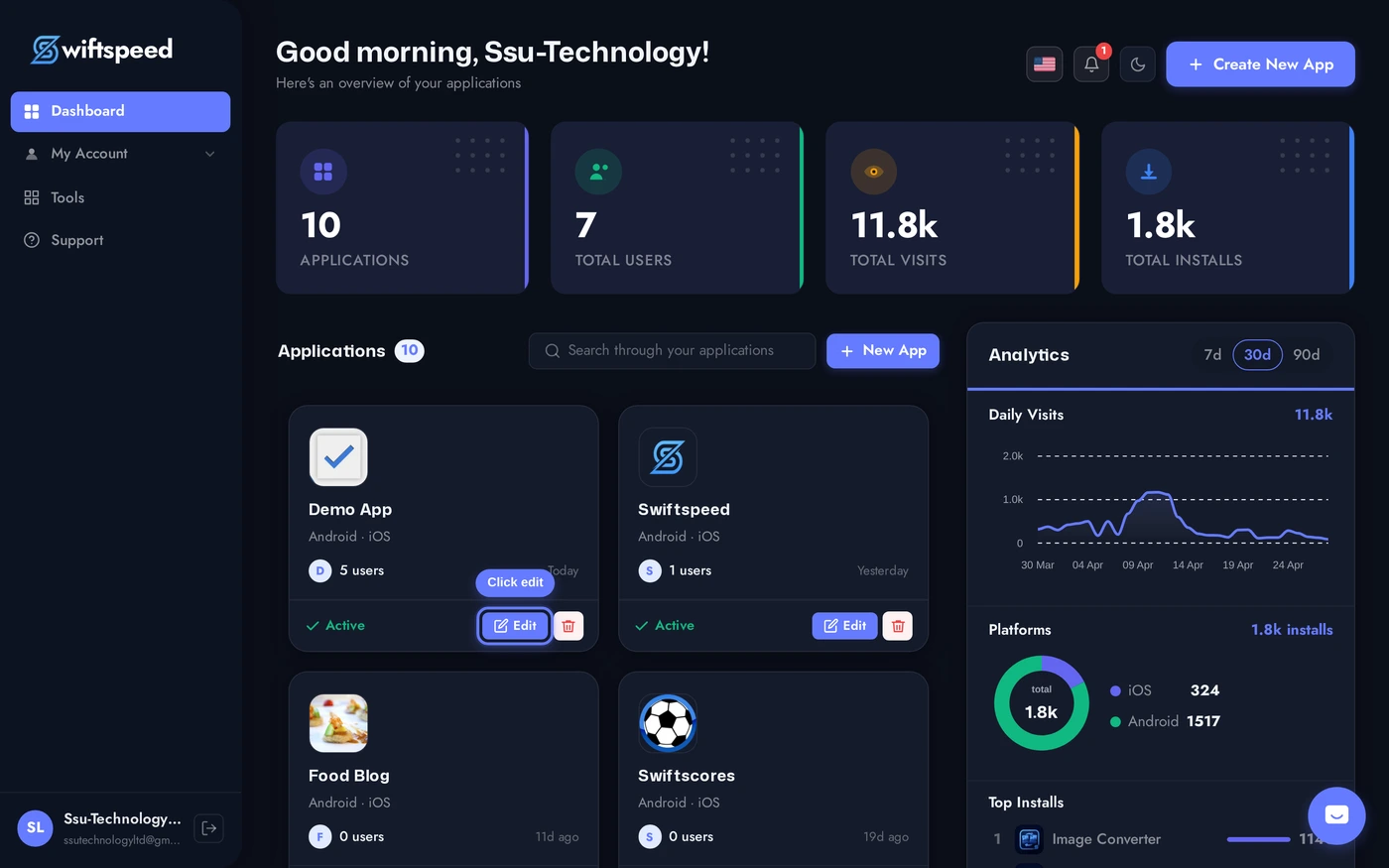
Sidebar > Settings > Advanced. Several cards stack vertically, each handling a specific override.
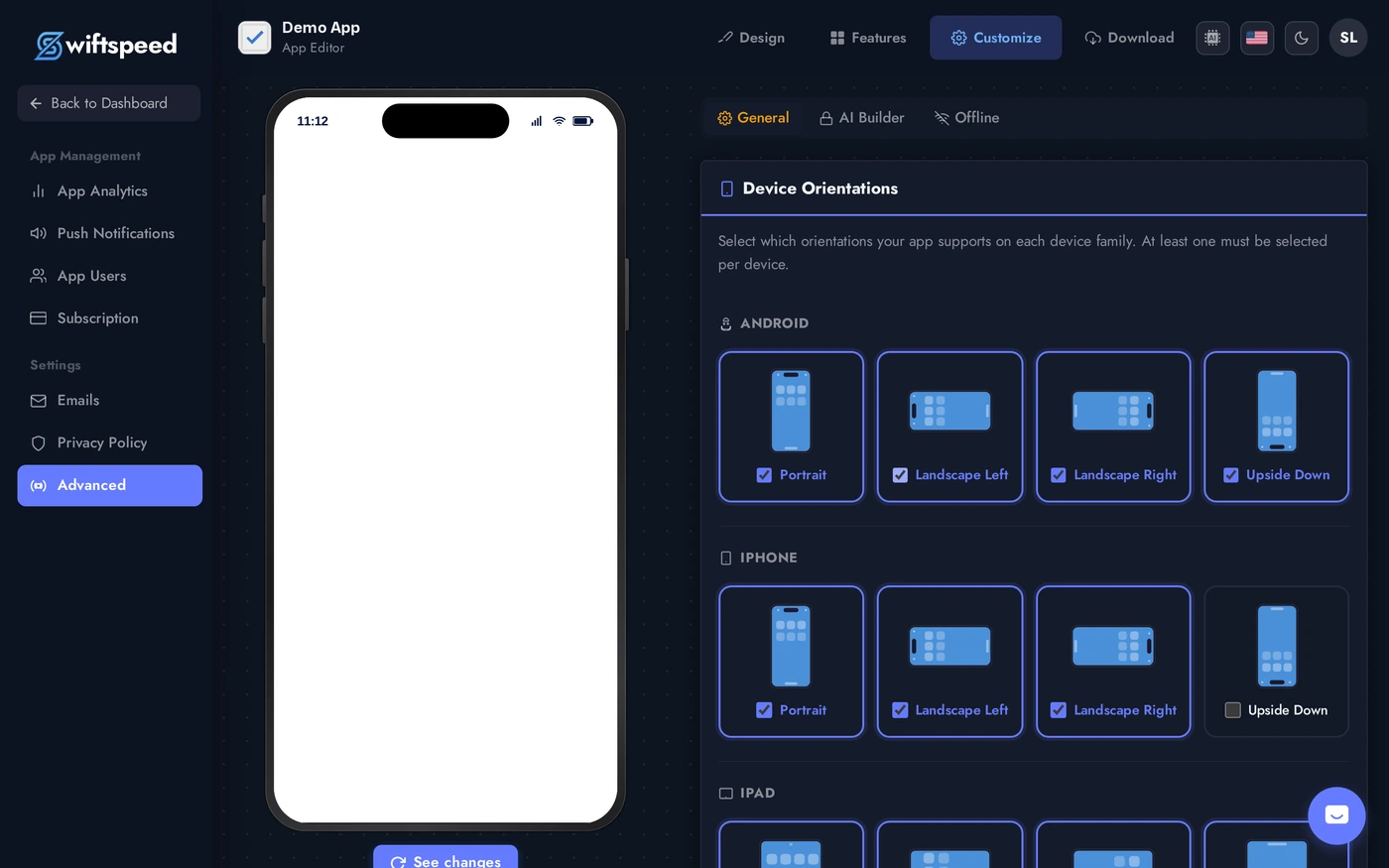
Build Orientations
- Phone orientations: portrait, landscape left, landscape right, upside down. Default is portrait-only on phones.
- Tablet orientations: separate setting for iPad / Android tablets. Default is all four orientations on tablets.
- Use case: lock to portrait for content apps and forms (the default). Allow landscape for video apps, racing games, drawing tools, anywhere a wider view helps.
- Trade-off: each enabled orientation increases QA surface area. Test in every orientation you allow before publishing.
Native Namespace
- What it is: the Java/Swift package name (e.g.
com.yourbrand.appname). Identical to the bundle ID for most apps. - Default: auto-generated from the application ID and your account. Don't change this unless you have a specific reason.
- Use case for changing it: migrating an existing native app into Swiftspeed and keeping the same package name so existing installs continue receiving updates.
- Permanent once published: changing the namespace after the app is in the store creates a new app from the platforms' perspective. Existing customers stop getting updates.
About Page
- Custom About content shown inside the app on the About / Info screen.
- Plain text + basic formatting. Used for company info, version + build number, credits.
- Optional. Most templates have a sensible default.
AI Service Keys (BYOK)
- Bring Your Own Key: paste your own OpenAI / Anthropic API key for AI features (AI Chat, AI Builder, AI-driven content generation).
- Use case: your customers should pay for their own AI usage, not yours. Common for white-label apps and high-volume customer apps.
- Default: Swiftspeed's shared key with metered usage. Free at small scale; rate-limited above the included quota.
- Setup: paste the key, save. The editor and the published app immediately use the BYOK key for every AI request.
Custom URL Schemes
- What they do: define how the app responds to deep links (e.g. tapping
yourapp://product/123from another app or website opens product 123 inside your app). - Setup: register the scheme in the Advanced Settings card. The editor adds it to your iOS Info.plist and Android manifest on the next build.
- Universal Links + App Links: more advanced (https URLs that open in your app), require domain verification + DNS setup. Documented separately.
Tips
- Treat Advanced Settings as read-only by default. If you don't know what a setting does, leave it alone. Most issues come from changing things without understanding the impact.
- Document any non-default change in your team's handover notes. "Why is the orientation set to landscape?" is a question someone will ask in 6 months.
- Test changes in a development build before pushing to App Store. Native overrides surface bugs that the in-editor preview cannot replicate.
- BYOK is the right call for apps with predictable AI usage. If you do not know the volume, start on the shared key and migrate later.