App Access Control
Three Levels of Access Control
The App Access page in Settings has three levels of control, from broadest to most granular:
- Global lock: a password the user must enter on first launch before they see any app content. Useful for staff apps, beta-only apps, paid memberships behind one shared password.
- Feature-level lock: per-feature toggle to require login OR a specific entitlement before the feature opens. Lets you mix free + premium features in the same app.
- Per-user grants: explicit allow-list of customer accounts that get access to locked features. Used when you want to give specific people premium access without charging.
Where It Lives
Open the app in the editor.
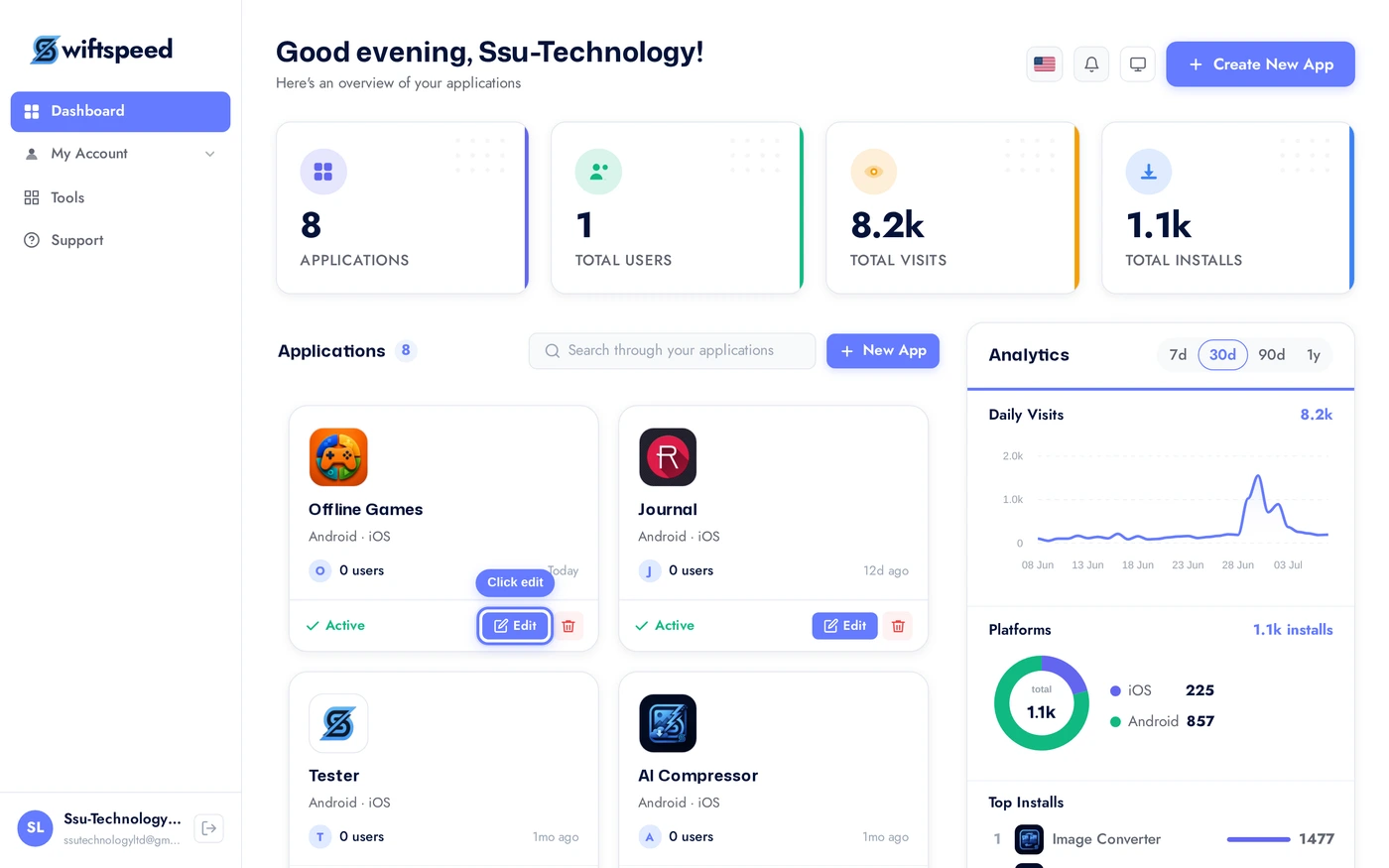
Sidebar > Settings > App Access. Three cards: Global Lock (app-wide password), Locked Features (which features require account / grant), User Grants (explicit allow-list per customer).
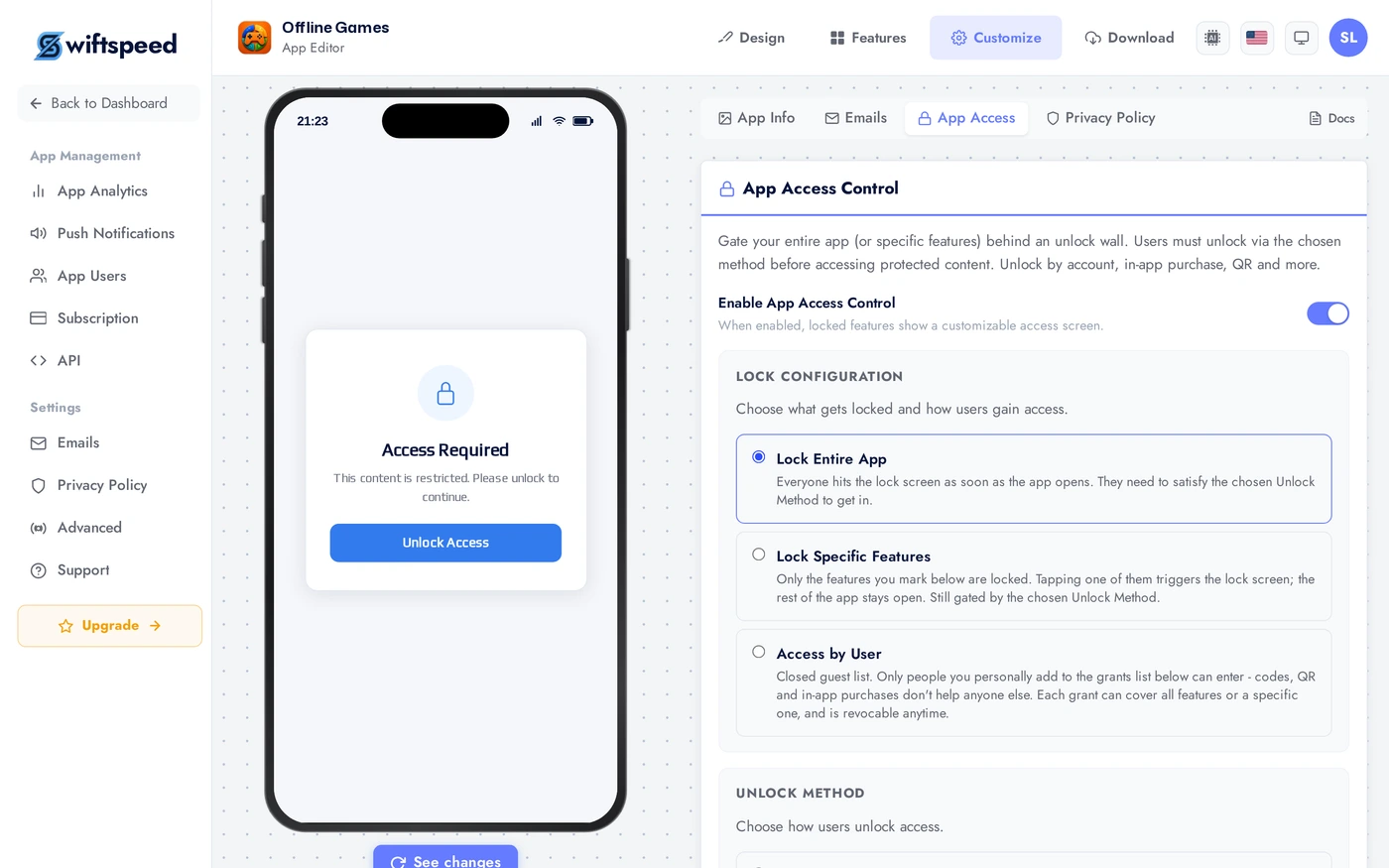
Global Lock
- Set a password in the Global Lock card. The app shows a password screen on launch; users must enter the password to proceed.
- Use case: internal apps for one company (everyone shares the password), member-only apps (rotate password monthly via email), beta builds (lock until launch day).
- NOT a substitute for real authentication. Anyone with the password gets in. For per-user accounts use the My Account feature.
- You can disable + re-enable any time. Disabling immediately removes the gate for everyone (including users who already entered).
Locked Features
- Per-feature toggle: each feature in the locked list shows a "locked" overlay until the user signs in (My Account) AND has been granted access.
- Use case: free articles + premium course videos. Articles open for everyone, video lessons need a paid account that you grant via the User Grants list (or via webhook from your subscription system).
- Customer experience: tap a locked feature, see "Sign in to access this", redirect to login, after login see "Request access" or "Upgrade to view" (depending on whether you allow self-service request).
User Grants
- Allow-list: search for a customer by name or email, click "Grant access". They immediately get access to every locked feature.
- Bulk grant: import a CSV of emails or paste a list. Useful for migrating existing premium customers from another platform.
- Revoke: click the X on any granted user to remove access. Effective immediately on their next request.
Grandfather Existing Users
The Grandfather existing users card lets you keep your current users on free, permanent access while charging only people who sign up later. This is the clean way to introduce a paywall to an app that already has an audience, without punishing the users who were there first.
On the App Access page, turn on Enable App Access Control, then scroll to the Grandfather existing users card (just above User Grants). Pick a cut-off date in the "Free access for users registered before" field. Every customer whose account was created before that date keeps full access automatically, with no grant needed. Only users who sign up on or after the date hit your lock (code, subscription, or whichever unlock method you chose).
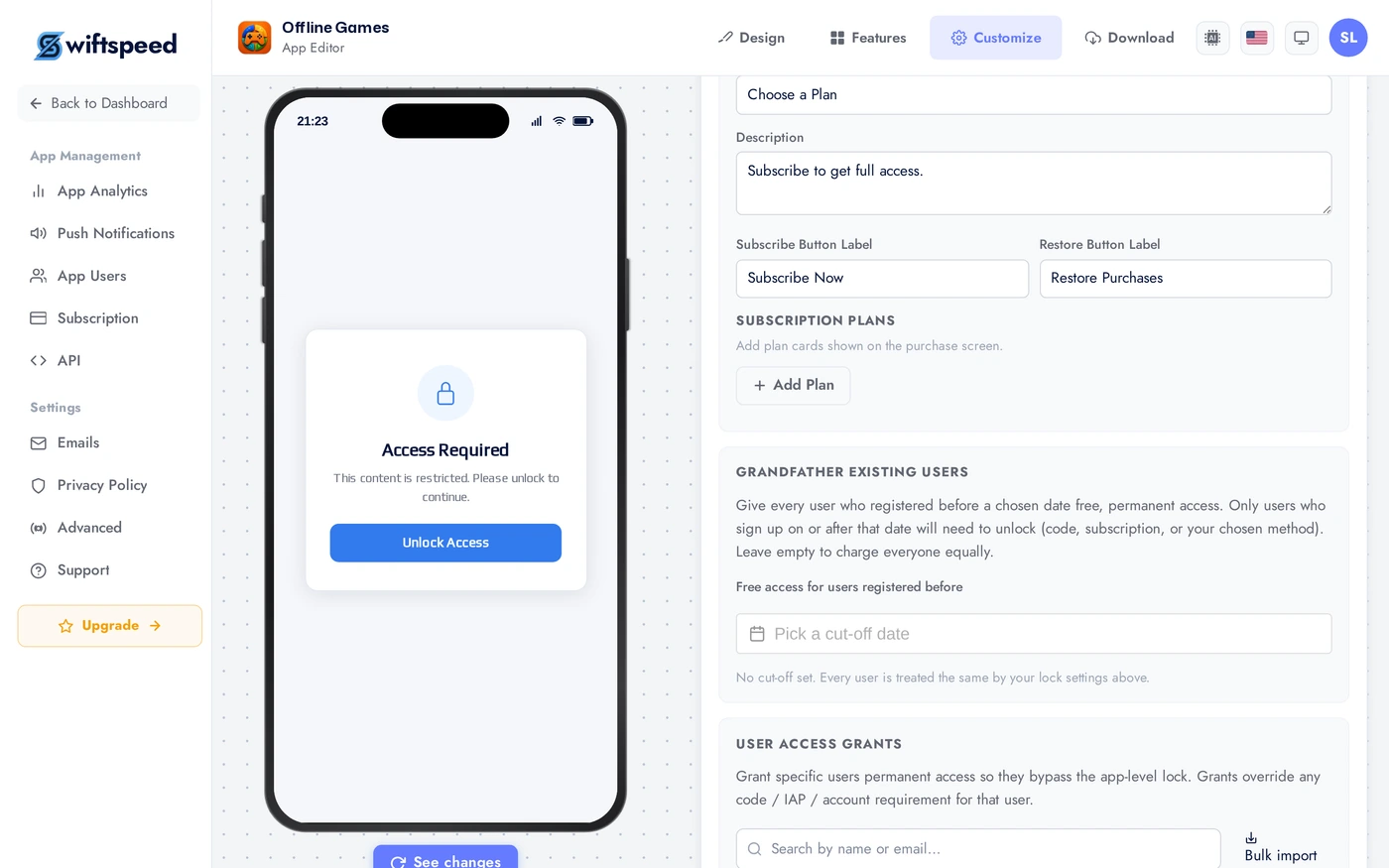
- How the date works: the cut-off compares against each customer's account creation date. Registered before the date = free forever. Registered on or after = must unlock.
- Leave it empty to turn it off. With no date set, everyone is treated the same by your lock settings, no one is grandfathered.
- Common use case: your radio or content app has been free for months and has a loyal base. You now want to charge new listeners. Set the cut-off to today, and your existing listeners never see the paywall, while new sign-ups do.
- Works with every unlock method. Grandfathering sits in front of the lock, so it applies whether new users unlock with a code, an in-app subscription, or an account grant. Existing users skip all of it.
- No per-user work. You do not need to add your existing users to the User Grants list one by one, the date handles them all at once. Use User Grants only for specific people you want to comp after the cut-off (for example, an influencer or a partner).
- Clear the date any time with the Clear cut-off date button to remove grandfathering and re-apply your lock to everyone.
Combining the Three
- Global Lock + Locked Features = paying-customer-only app. Everyone enters the global password to even see the app, then must have a per-feature grant to use premium features.
- No Global Lock + Locked Features = freemium. Anyone can install and browse free features; locked features prompt for sign-in + grant.
- No Global Lock + No Locked Features = fully public app. Default for most apps.
Tips
- App Store / Play Store reviewers need a way in. If you ship with a Global Lock, include the test password in the App Review notes. Otherwise the reviewer rejects the app for being unusable.
- Don't use Global Lock as a paywall. Apple specifically rejects apps where a price-of-entry is a global password. Use IAP / Subscriptions for that.
- Bulk grant via CSV is the clean migration path when moving paid users from another platform. Avoid manually adding 500 users one at a time.
- Audit the User Grants list quarterly. Revoke access for users who churned, downgraded, or left the company. Stale grants are a quiet revenue leak.