Booking Feature
What is the Booking Feature?
The Booking feature is a native appointment-booking page inside the mobile app. Customers pick a service from your menu, see available time slots on a calendar, choose a time, and confirm. The booking lands in the editor for you to manage, and the customer gets an email + push notification confirming the booking.
It works for any business that takes appointments: salons, clinics, consulting, classes, repairs, restaurants taking reservations, anything where time slots matter. Multi-store apps can have separate calendars per location, and deposits can be required at booking time using your existing payment gateways.
Adding the Booking Feature to Your Mobile App
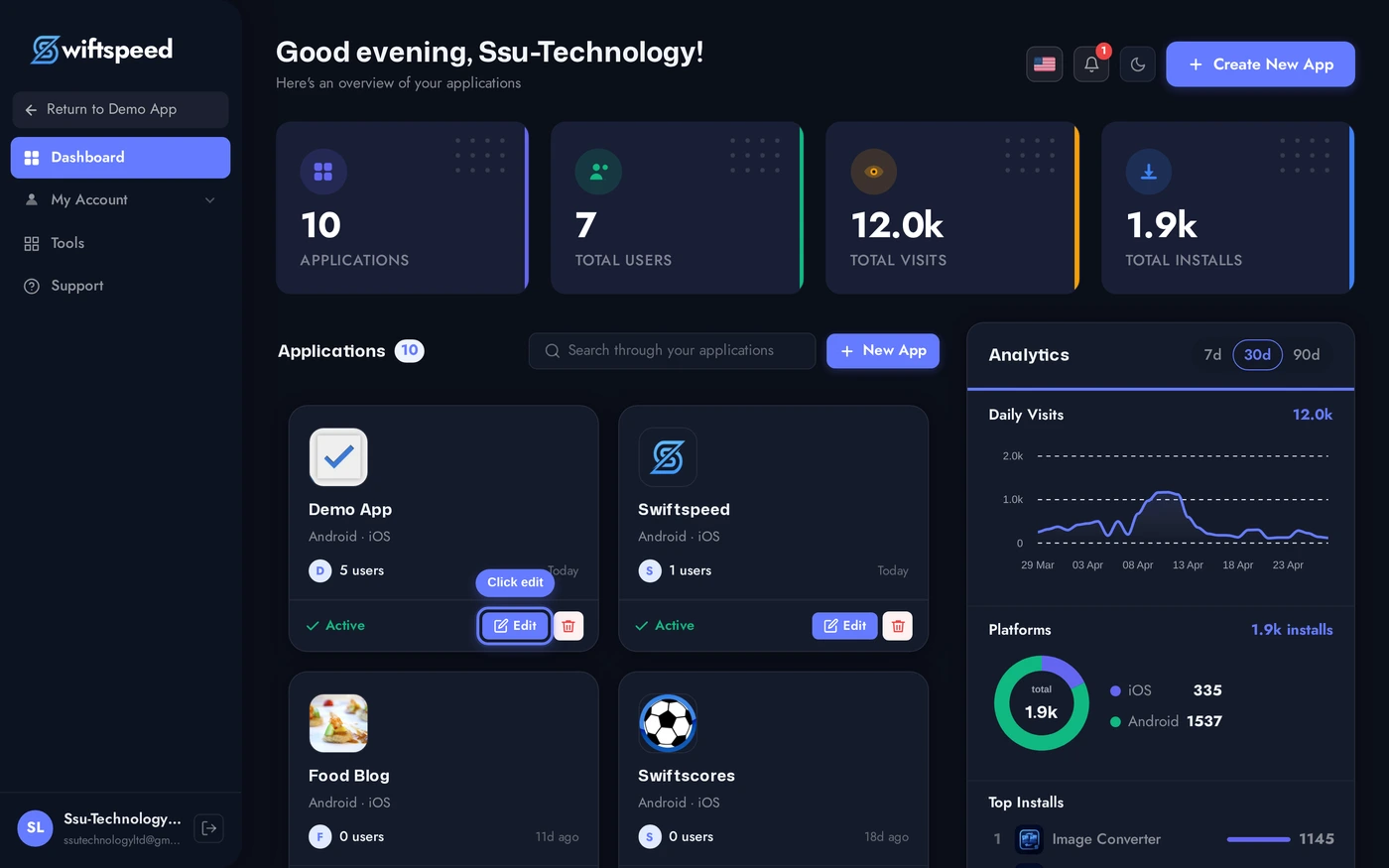
Click the edit pencil on the mobile app you want to add booking to.
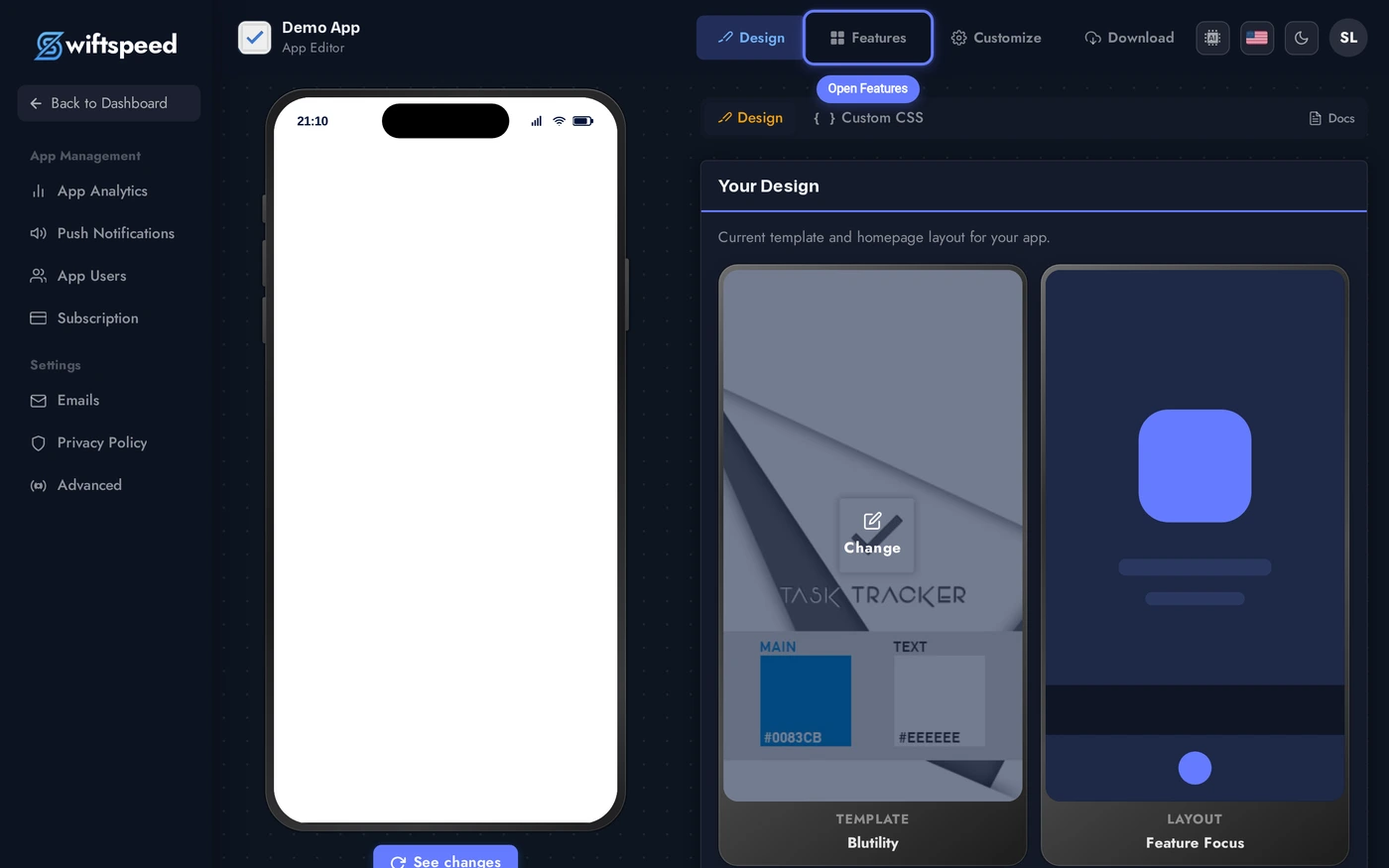
Click Features in the top bar.
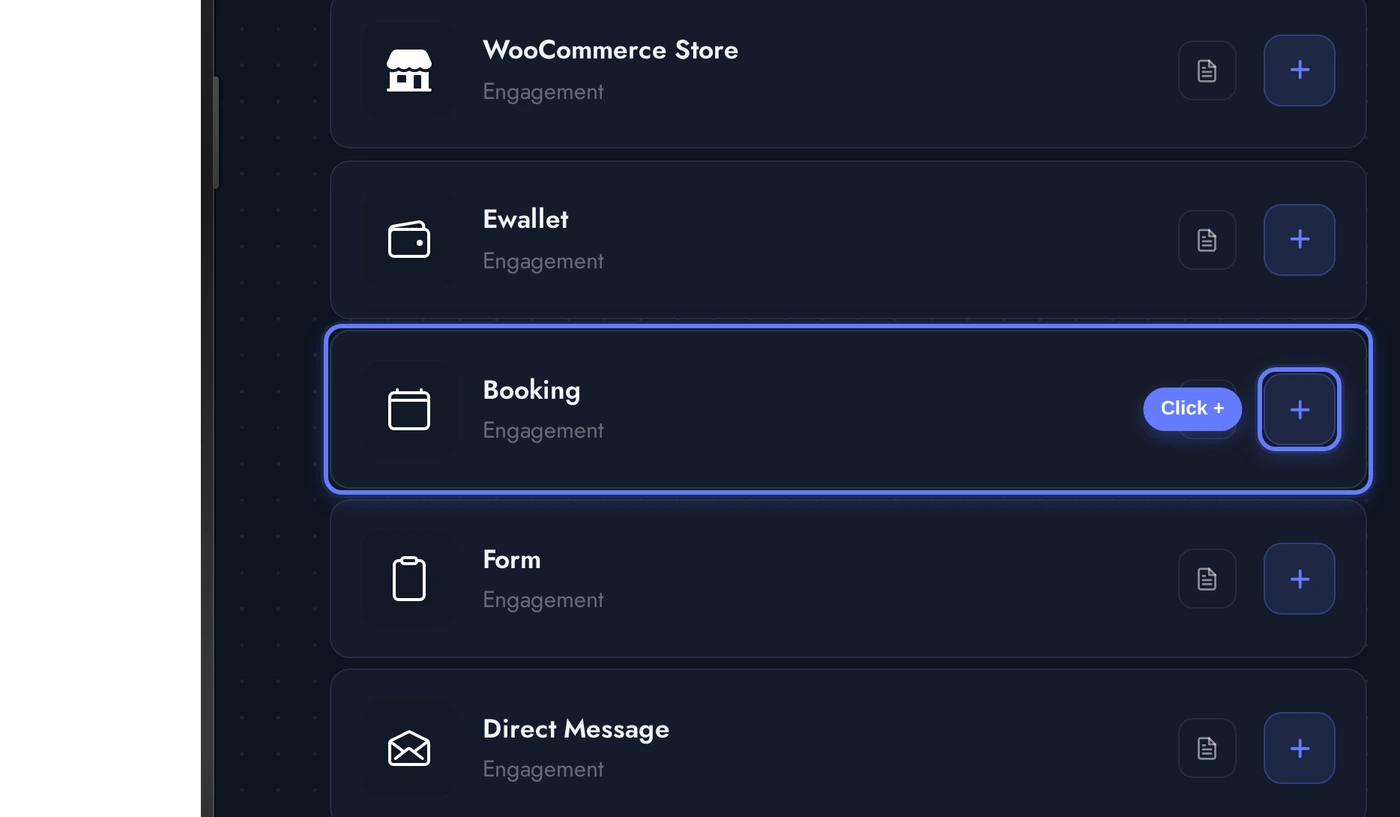
Find the Booking card and click the + button. The native booking page is added, ready for you to configure stores, services, and availability.
The Editor: Stores, Services, Availability
When the Booking editor opens, several cards stack vertically. The data flows: Store > Service > Availability > Booking.
Build the configuration top-down: add a store, add services to it, set the availability schedule, optionally turn on deposits. The editor autosaves on every change.
- Store: a physical or virtual location that takes bookings. Multi-store businesses get one entry per location with its own calendar and staff.
- Services: the bookable items. Each service has a name, description, duration (15min, 30min, 1hr, etc.), price (optional, used for deposit calculation), and which stores offer it.
- Availability: the calendar. Per store, set opening hours, recurring blocks (e.g. "Mondays 9am to 5pm except 1pm to 2pm lunch"), and one-off closures (holidays, days off).
- Bookings: incoming bookings appear here in real time. Status workflow: Pending > Confirmed > Completed (or Cancelled). The customer sees the status update and gets a push at each transition.
- Notifications: editable email templates for booking confirmation, reminder (24h before), and cancellation. Both customer-facing and admin-facing.
- Payment (optional): require a deposit at booking time. Uses the same Stripe / PayPal / WooCommerce gateways the rest of the app uses, no separate config.
How Customers Book
On the phone, the booking flow is three taps:
- Tap 1: open the Booking page, see services list (or store list if multi-store).
- Tap 2: pick a service, see the calendar with available slots highlighted in green.
- Tap 3: pick a slot, confirm. Optional payment step if deposits are enabled.
After confirming, the customer sees their bookings in their account tab and gets push reminders 24 hours before each appointment. Bookings can be cancelled by the customer up to a configurable lead time (default 4 hours) before the slot.
Live Preview of the Booking Page
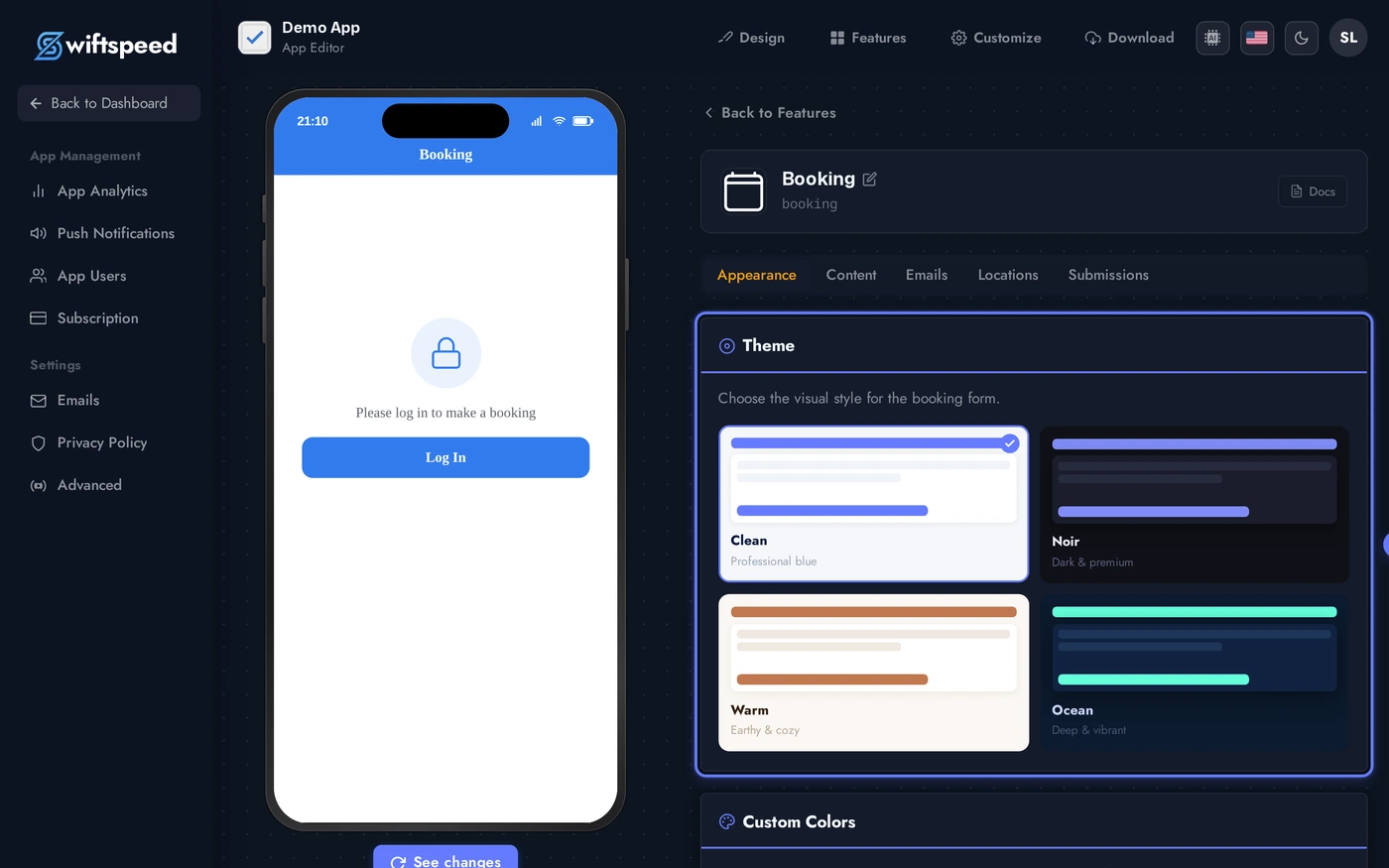
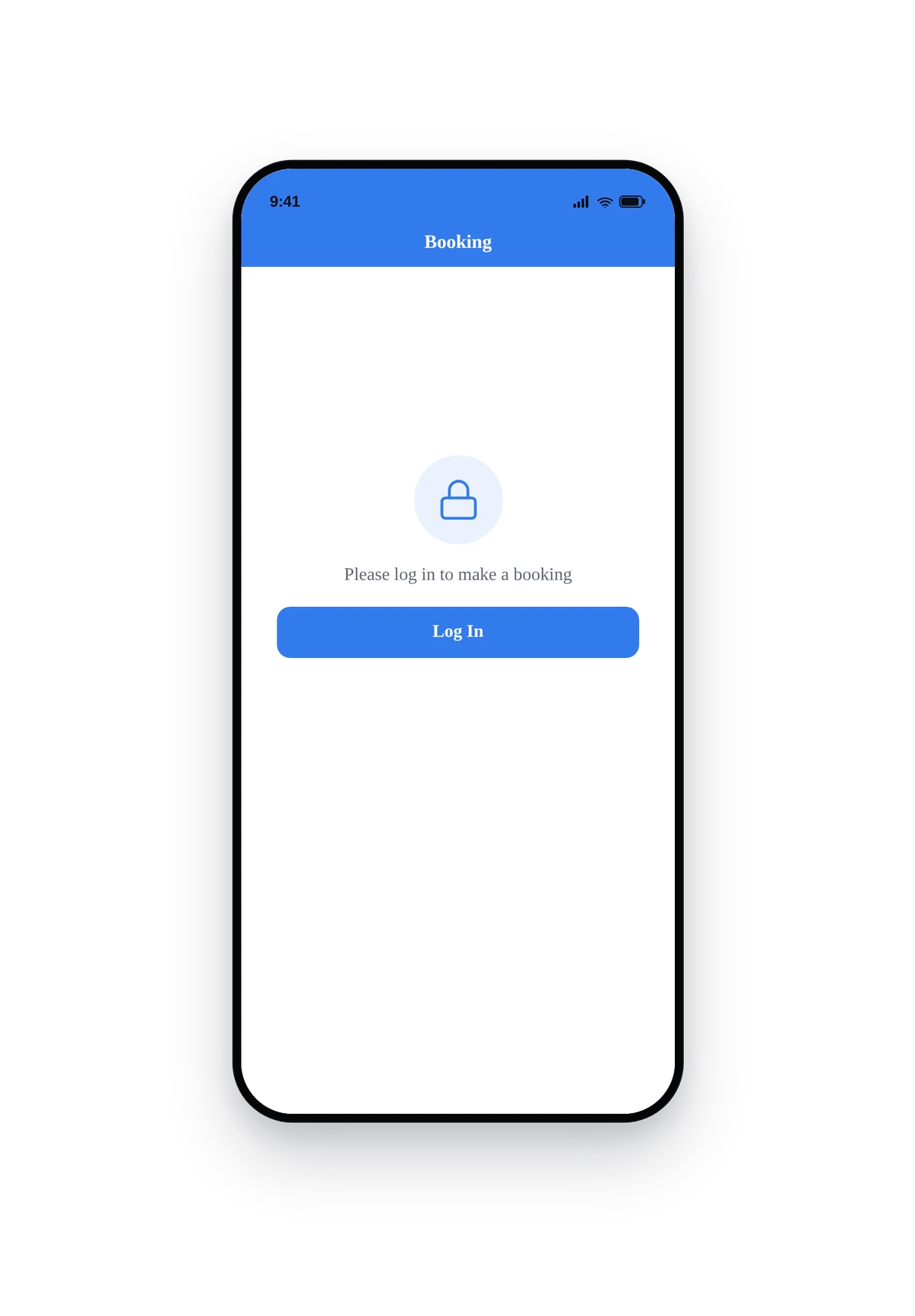
Here is how the booking page renders inside a real phone (services list view, before any services are configured):
The native booking entry screen. Once you add services in the editor, they appear here as tile cards. Tapping a service opens the calendar slot picker.
Tips and Best Practices
- Service durations should match reality. A 30-minute haircut booking that actually takes 45 minutes throws every following slot off. Be generous, customers prefer empty buffer minutes to running late.
- Always set a cancellation lead time. Default 4 hours is reasonable. Less than 1 hour invites no-shows; more than 24 hours is rigid. Pick what fits your business.
- Deposits reduce no-shows. A small deposit (10-20%) at booking time has been shown to cut no-shows by half compared to free cancellation.
- Multi-store apps need clear store names. "Downtown" beats "Store 2" because customers see the names in the picker.
- Reminder emails matter more than confirmation emails. Most customers know they booked, fewer remember the time. Send the 24-hour reminder at the right time of day for your audience.
- Booking-required-login is on by default. Customers must be signed in to book. The My Account feature is auto-added when you add Booking, no separate setup needed.
- Sync with your existing calendar. If you already use Google Calendar or another tool for scheduling, treat the in-app bookings as authoritative and copy them over manually, or set up a webhook to push them automatically.