Customer Account Feature
What is the Customer Account Feature?
The Customer Account feature (labelled My Account in the editor) gives the mobile app a complete native authentication experience: registration with email and password, optional OTP email verification, login with optional 2FA, password reset, and a profile screen where the user can update their info and sign out. It is the foundation for any feature in the app that needs to know who the user is, the WooCommerce checkout, the Audio Streaming guest screen, the E-Wallet, Booking with deposits, and AI Chat conversations all read from the same customer database the My Account tab manages.
You do not always need to add this feature manually. The editor auto-adds it when you add another feature that requires login (Audio, Ewallet, Inbox, AI Chat, Quiz, Booking, WooCommerce, Sell Online). Adding it explicitly is the right move when you want the account tab to be visible on the home tab bar regardless of whether other gated features are present.
Adding Customer Account to Your Mobile App
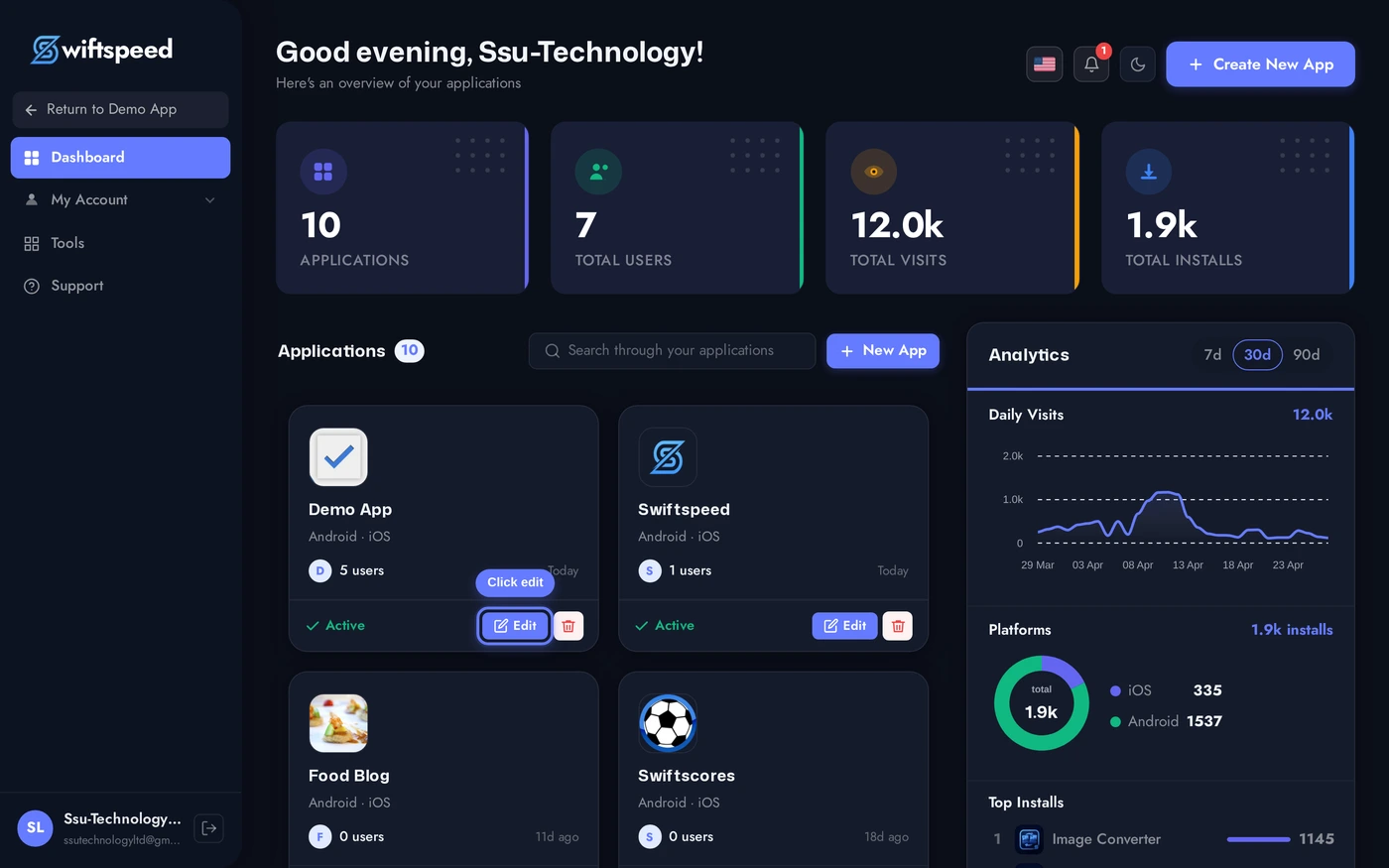
Click the edit pencil on the mobile app you want to add user accounts to.
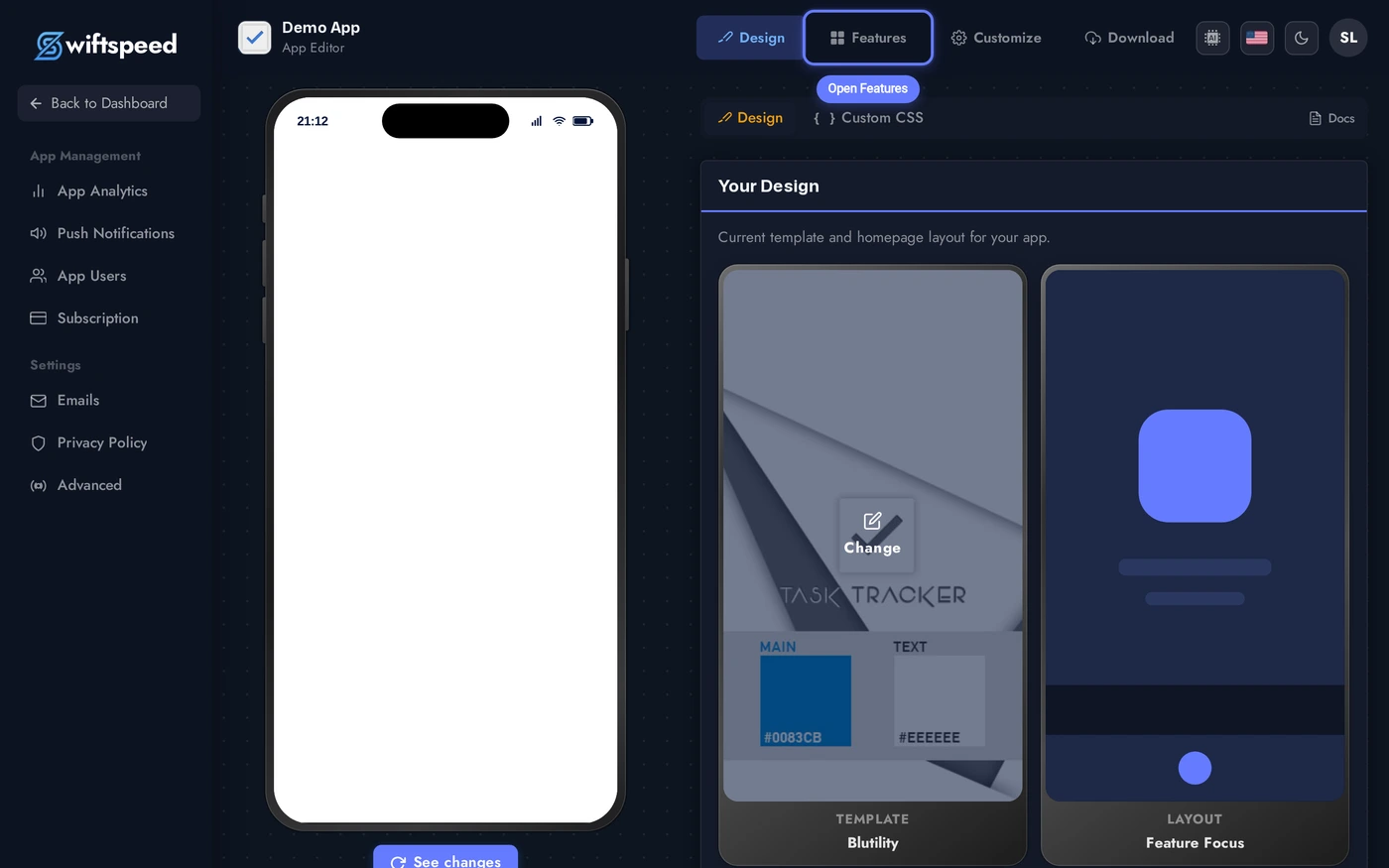
Click Features in the top bar of the App Editor.
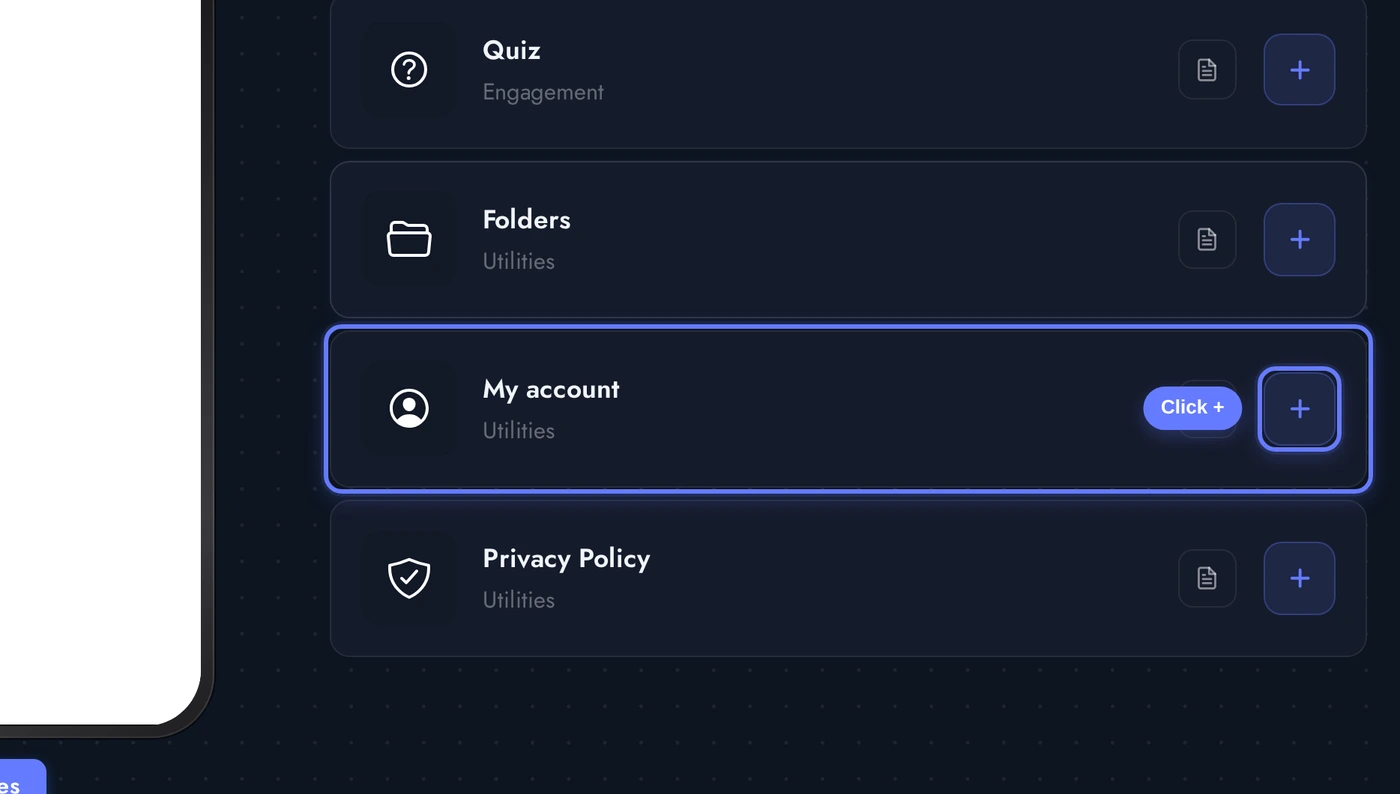
Find the My account card and click the + button. The account tab is added to the home tab bar of the mobile app, ready for users to register or log in.
The Editor: Theme and Colors
The Customer Account editor focuses on visual customization. Authentication itself works out of the box, the editor only controls how the login, register, OTP, profile, and password-reset screens look.
Every color is independently overridable so the auth screens match the rest of your app exactly. Most apps just pick a theme and override the accent color, full granular control is there if you need it.
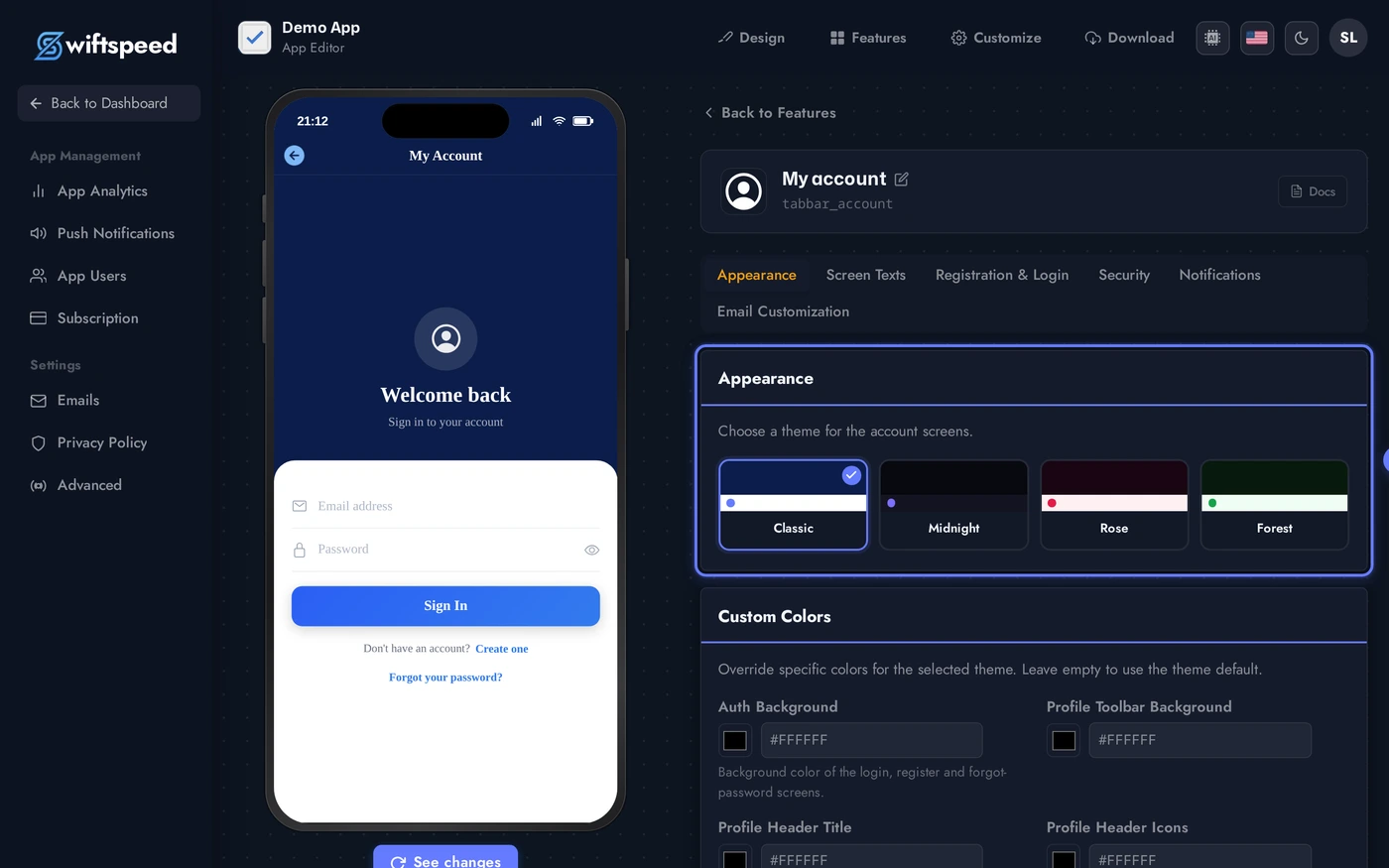
- Appearance / Theme: pick a base theme (light or dark) that styles the entire account flow.
- Toolbar Colors: the native header bar at the top of every account screen (background, title, icons, border).
- Profile Colors: the actual profile page after login (background, profile-card surface, primary text, secondary text).
- Auth Screen Backgrounds: per-screen background overrides for Login, Register, OTP verification, and Forgot password. Useful when each screen needs different brand imagery.
- Hero, Title, Subtitle Colors: the welcome graphic and copy at the top of the auth screens.
- Field Colors: form input borders, icons, text, placeholder, focus state. Used across all four auth screens for consistency.
Live Preview of the Profile Tab
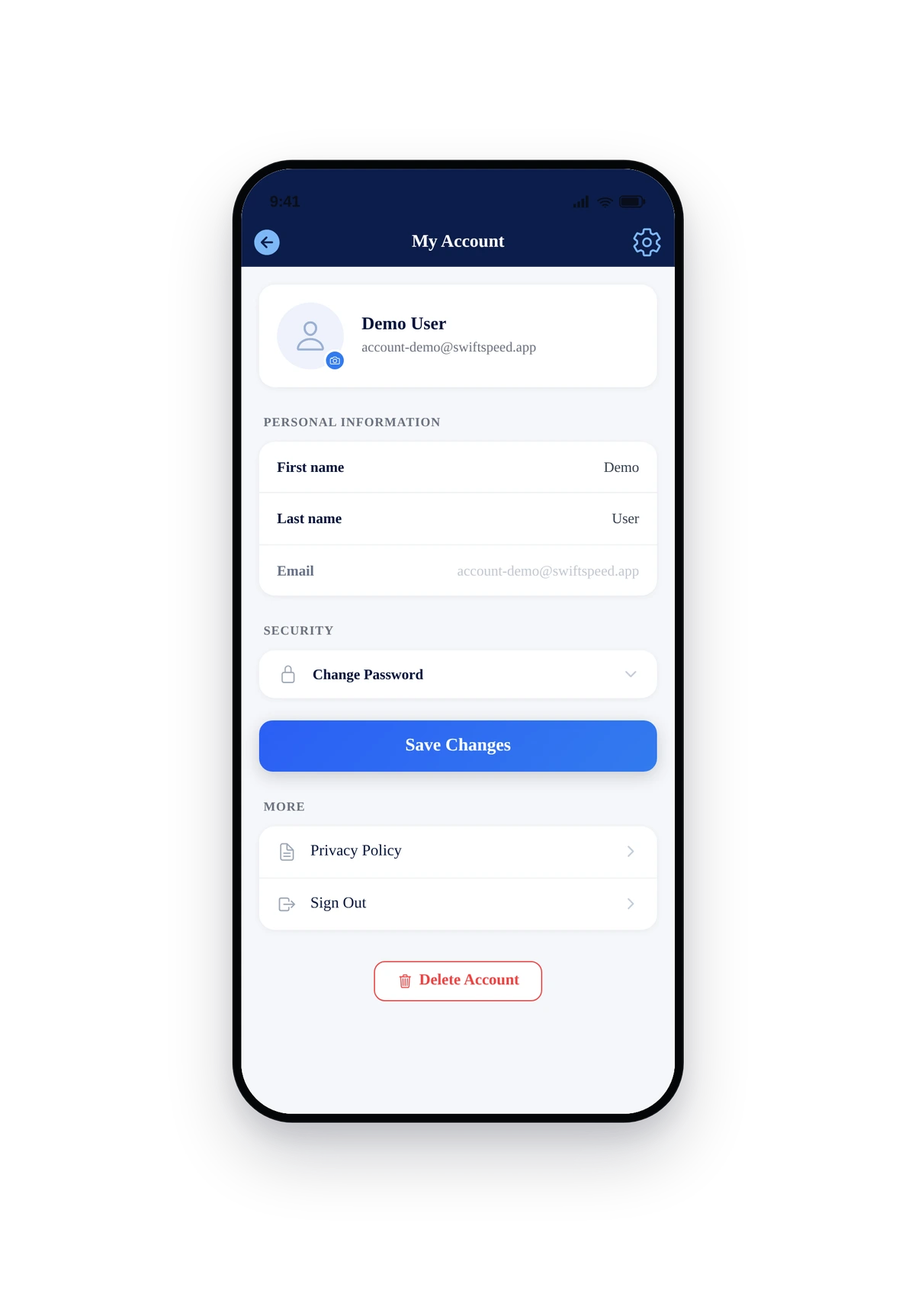
Here is how the account tab looks for a logged-in user. The preview signs in a demo customer programmatically so the screenshot shows the profile screen instead of the login form:
This is the actual native UI. Logged-in users see their profile, account actions (edit details, change password, log out), and any rewards / wallet balance the customer is connected to. Logged-out users see the welcome screen with sign-in / register buttons. Both flows are fully native, no in-app browser.
Authentication Flow (How It Works)
- Register: email, password, firstname, lastname. The editor optionally requires email verification (OTP sent to the email, 6 digits, expires in 30 minutes).
- Login: email + password. Optional 2FA with email OTP for accounts where the user enables it.
- Forgot password: email-based reset link, single-use, 1-hour expiry. The native flow handles every state including the success and "link expired" screens.
- Profile: edit firstname, lastname, email (re-verification required), change password, sign out. Customers can also delete their account if you have data deletion enabled in your privacy settings.
- Sessions: tokens stored in
localStorageon iOS / Android keychain equivalent. Persistent until the user signs out or revokes sessions from the website. - OAuth / SSO: Google and Apple sign-in are available behind subscription tier; configured at the app-level under Settings, not per-feature.
Tips and Best Practices
- Auto-add saves you a step. If your app already has Audio, Ewallet, WooCommerce, or any other gated feature, the account tab is added automatically. Manually adding it on top is harmless (the system enforces only-once), but unnecessary.
- Most apps only need to set the accent. Pick a theme, override the accent color, leave the rest. Twelve hours of color tweaking can usually be replaced by ten minutes of accent-only customization.
- Email verification is recommended. OTP signup catches typos and reduces support load. Turn it off only when you have a strong reason (e.g. extreme onboarding friction concerns).
- Never expose customer data on the home tab. The account tab handles all PII display itself. Don't paste customer info into the description of other features.
- The tab label is editable per-app. Rename "My account" to "Profile" or "Account" or your brand-specific term in the home tab settings if you prefer.