Direct Message Feature
What is the Direct Message Feature?
The Direct Message feature gives the mobile app a native chat thread between every user and the app admin team. Users tap Inbox, type a message, and the admin sees it in the editor. Admins can reply directly from the Conversations tab and the user gets a push notification plus an email if they have notifications enabled.
It is the simplest way to add customer support to a mobile app without standing up a separate help-desk service. No third-party SDK, no widget code, just a chat tab inside the app and a Conversations workspace inside the editor.
Adding Direct Message to Your Mobile App
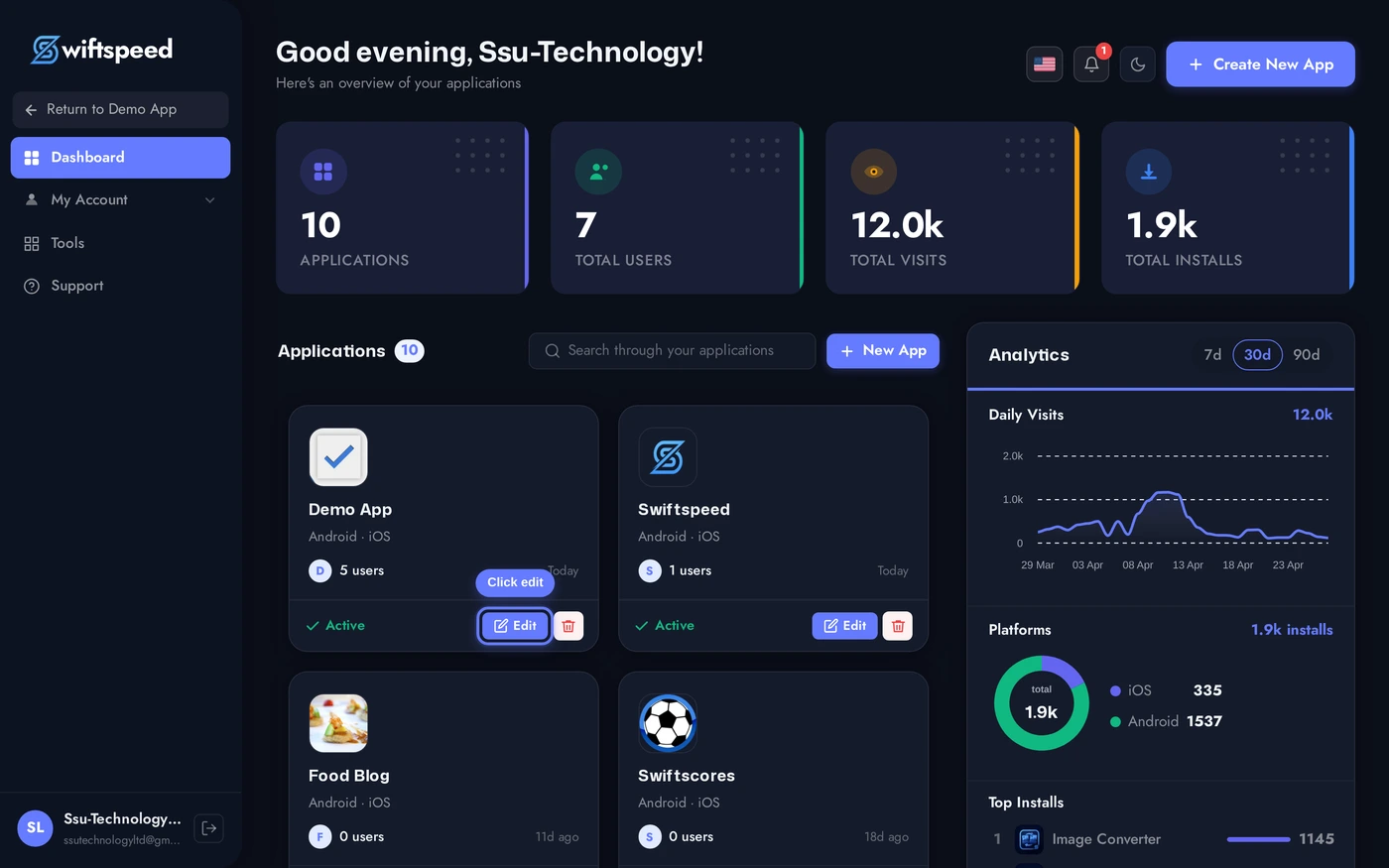
Click the edit pencil on the mobile app you want to add an inbox to.
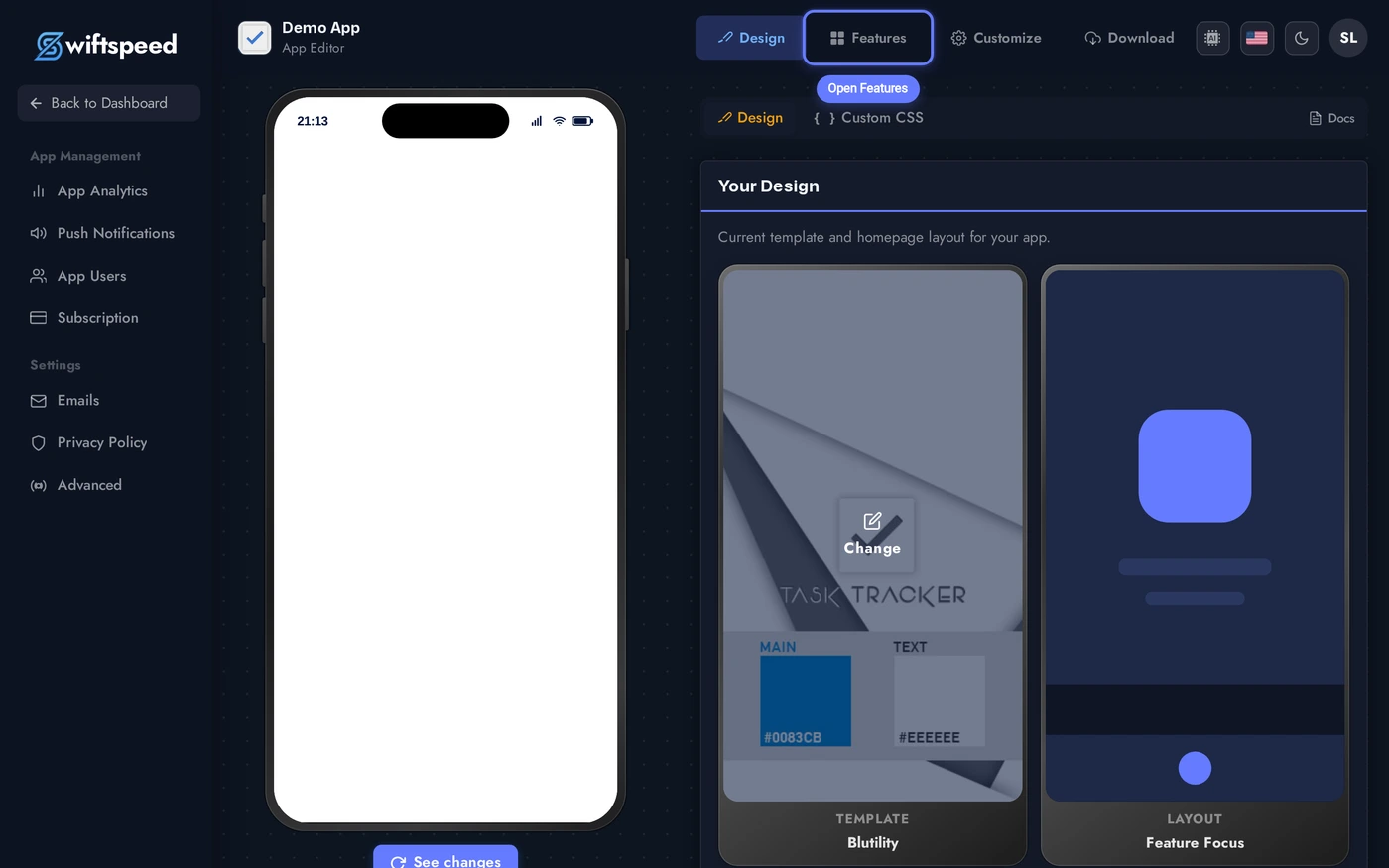
Click Features in the top bar of the App Editor.
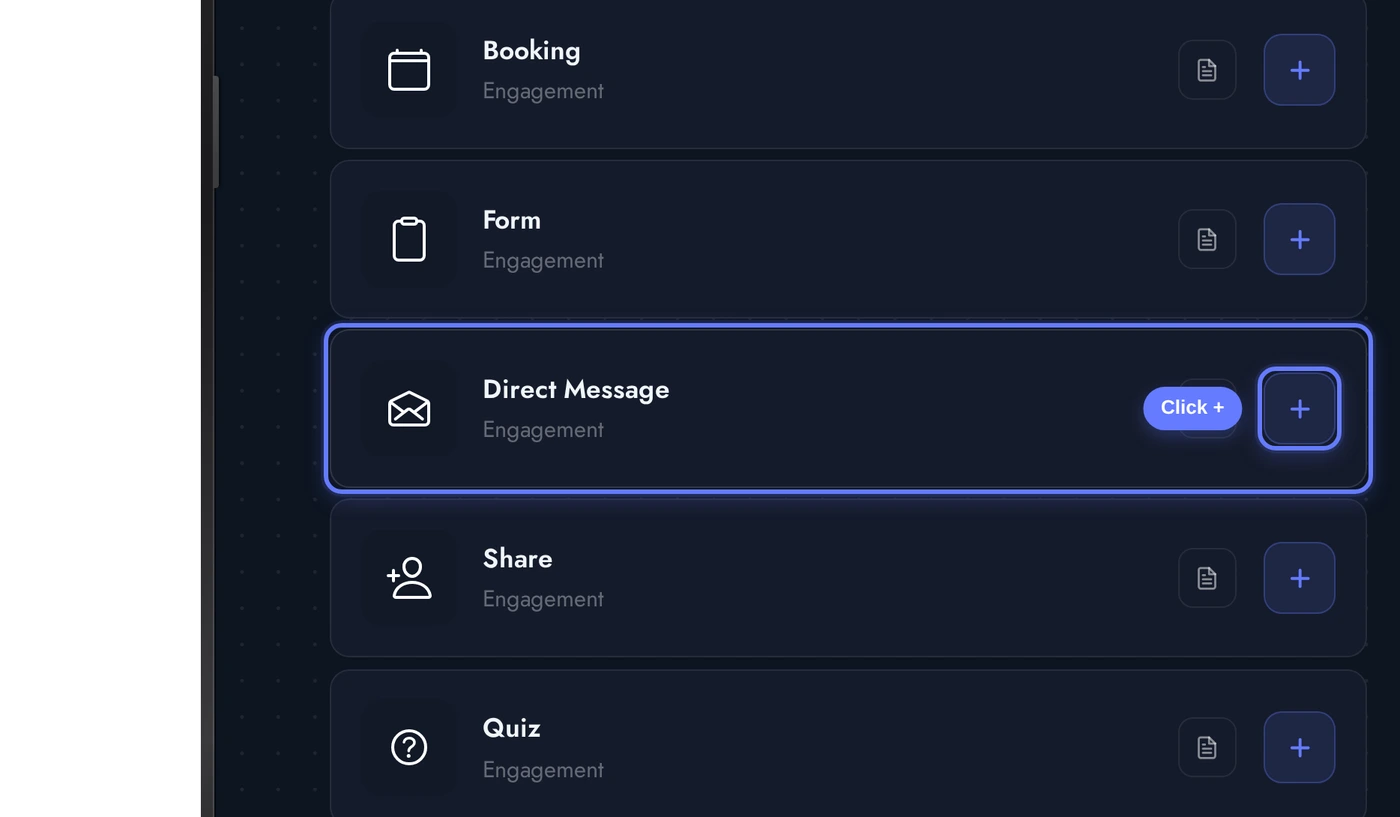
Find the Direct Message card and click the + button. The native inbox is added to the app, and the My Account tab is auto-added if it was not already present (sending messages requires the user to be logged in).
The Conversations Tab
When the Direct Message editor opens, the Conversations tab is the default workspace. This is where admin replies originate. Three sections:
New apps start with no conversations. As soon as the first customer sends a message from the inbox tab in the mobile app, it appears here for admin reply. The status workflow (Open / Pending / Closed) is identical to a help-desk ticket system, simpler.
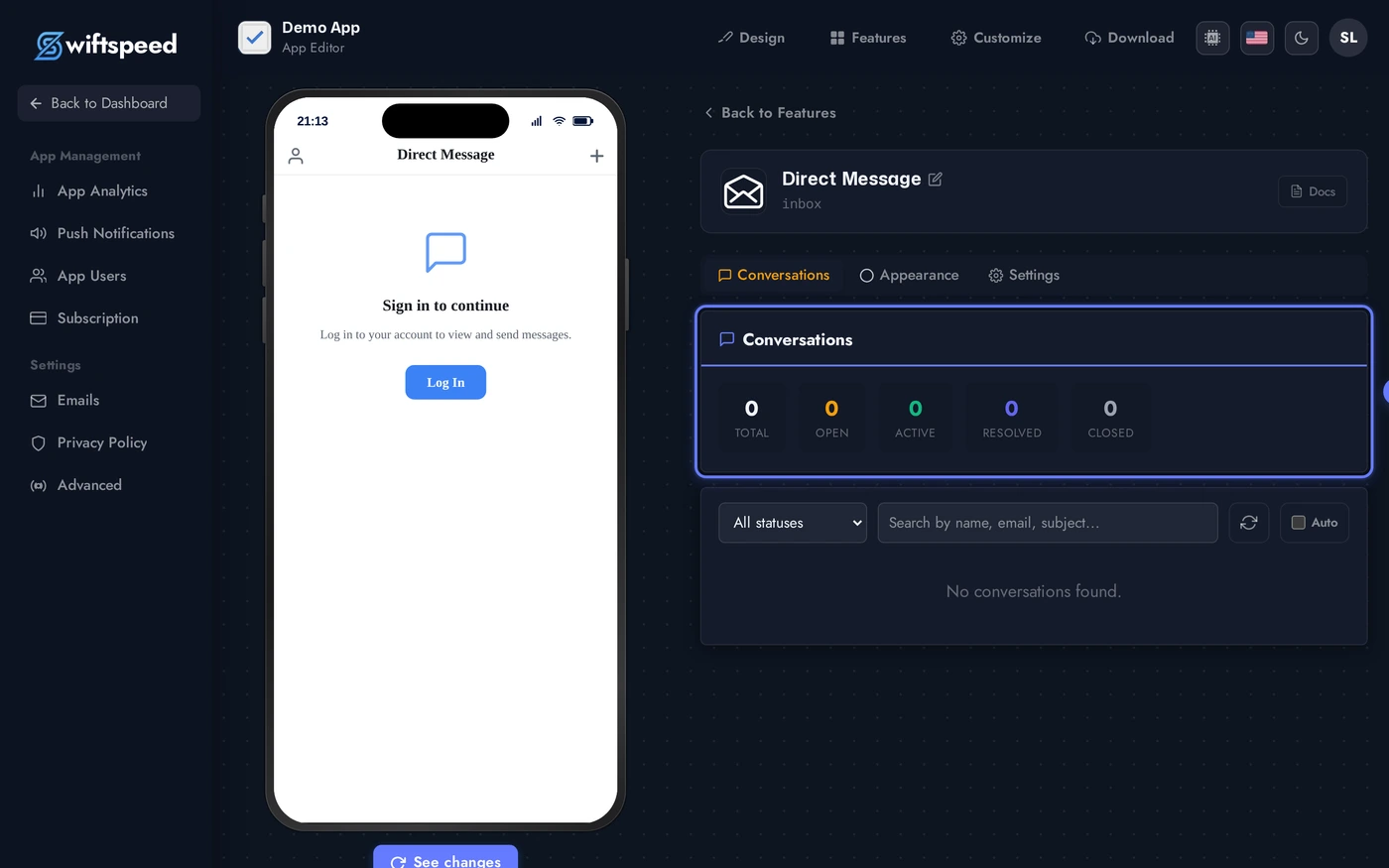
- Filter and search: filter by status (Open, Pending, Closed), search by customer name or email, sort by activity.
- Thread list: every conversation between a customer and the admin team, ordered by most recent activity. Each row shows the customer avatar, latest message preview, and unread count.
- Reply pane: click any conversation to open the full thread on the right. Type a reply and press Send. The customer gets a push + email notification. Status dropdown at the top of the thread lets admins mark conversations Open / Pending / Closed.
Appearance Tab (Theme and Custom Colors)
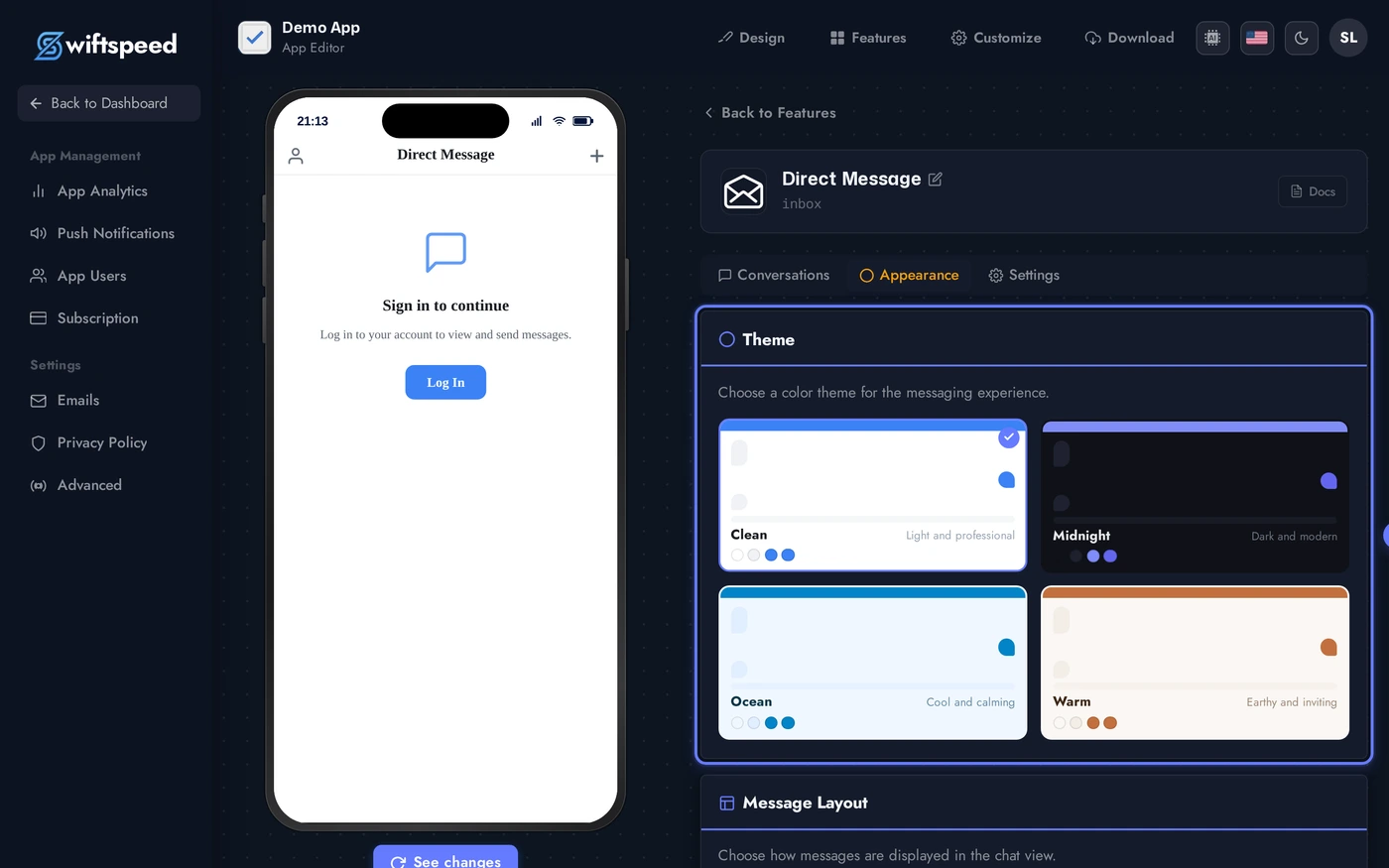
The Appearance tab styles the customer-facing inbox. Pick a theme for an instant look, then refine with Custom Colors. The welcome card at the top of the customer's inbox (title + subtitle + new-chat button label) is also editable here.
The welcome card is the first thing a user sees when they open the inbox tab and have no active conversation. Customise the title (e.g. "Talk to us"), subtitle (e.g. "We usually reply within an hour"), and the New Chat button label.
Settings Tab (Notifications)
The Settings tab controls who gets emailed when a new message comes in. Two notification flows:
Set the admin notification email to a real, monitored inbox. Most teams use support@yourdomain or a dedicated alias. The customer-facing email subject and body are the touchpoint customers actually read, treat them like marketing copy.
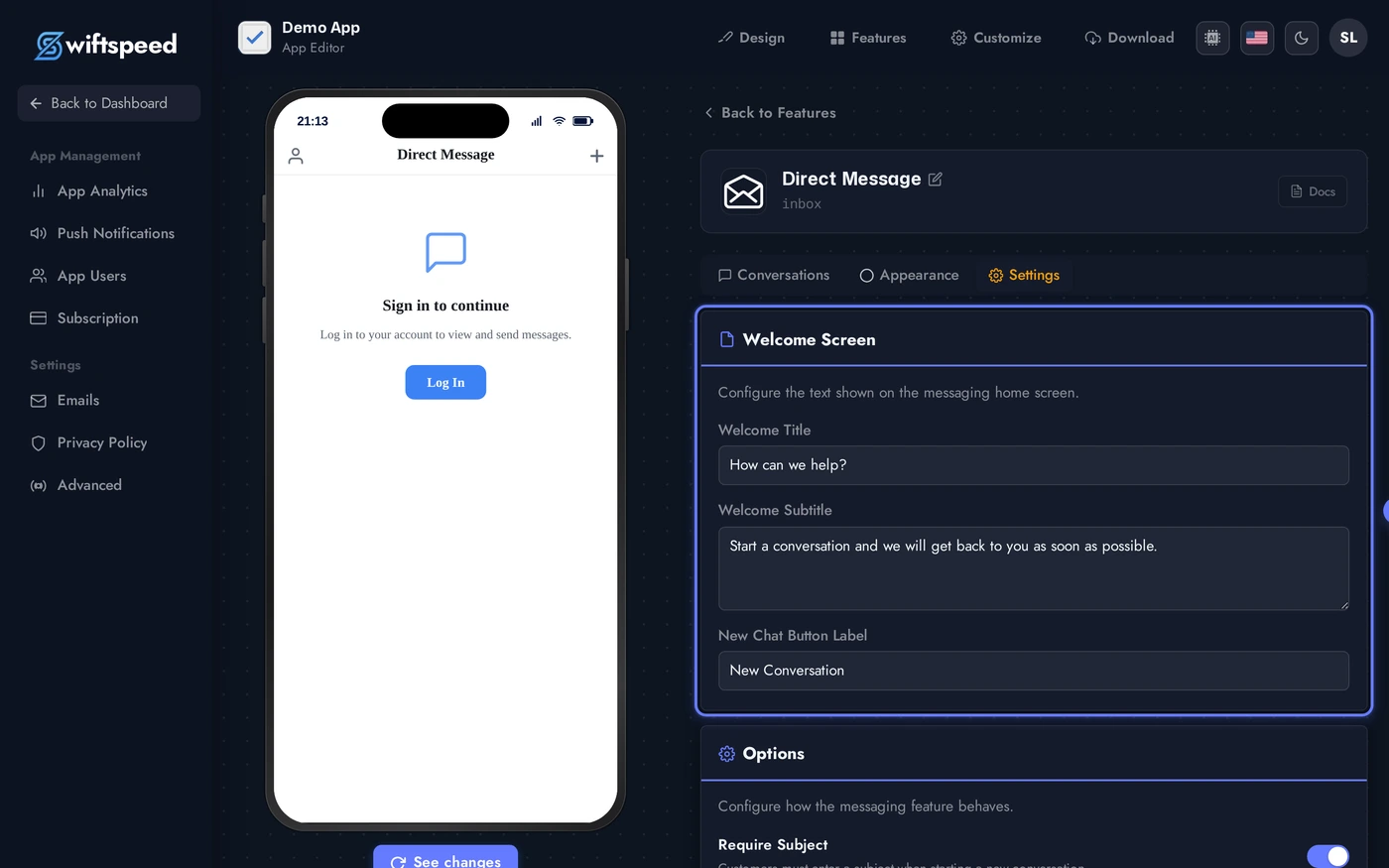
- To the admin: when a customer sends a new message, the admin gets an email at the address you configure here. Subject and body are templated and editable.
- To the customer: when the admin replies, the customer gets an email + push. Subject and body templates are independently editable so you can match brand voice.
- Reply latency note: emails are sent within 30 seconds of the admin clicking Send. Push delivery latency depends on the network.
Live Preview of the Customer Inbox
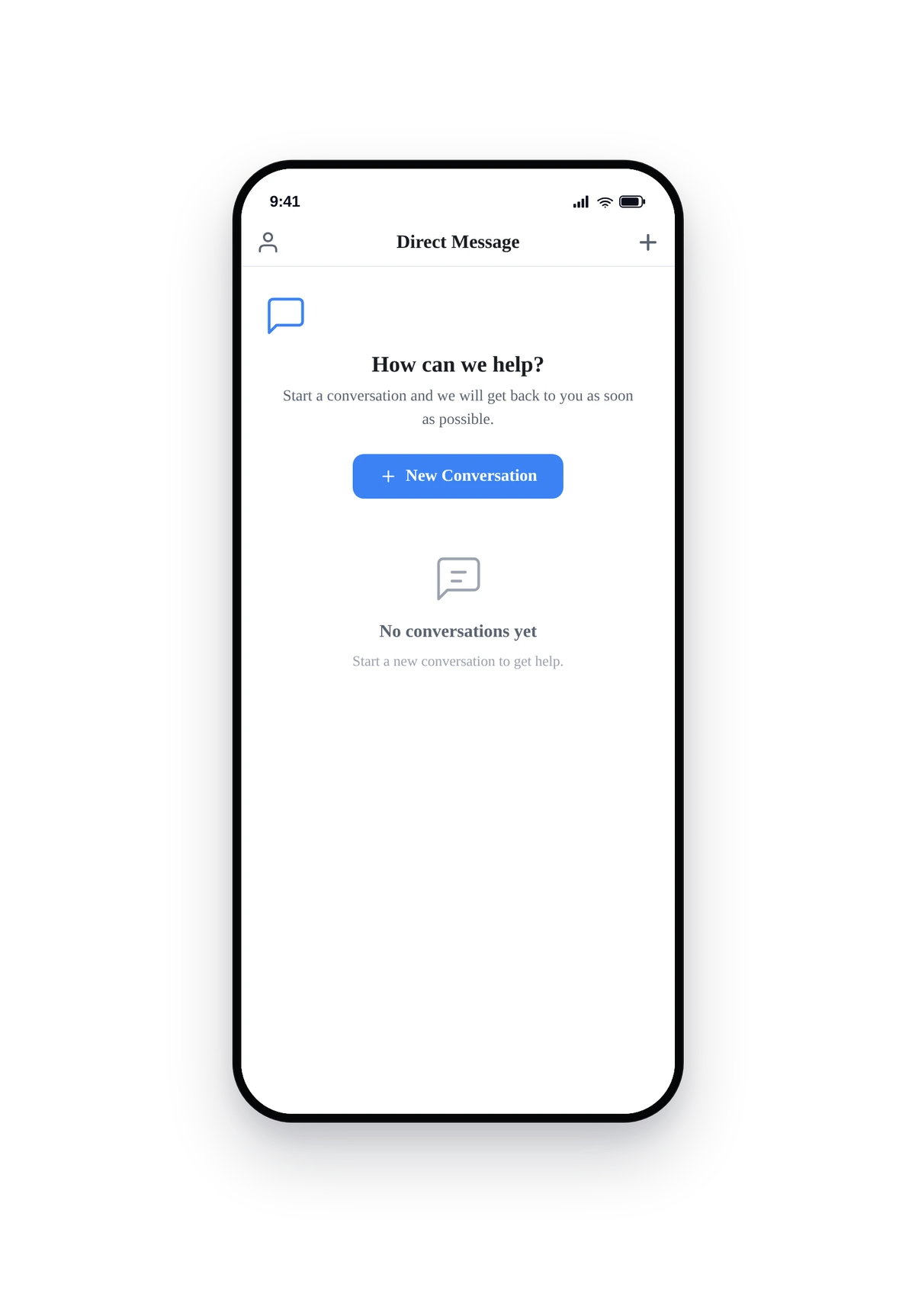
Here is how the inbox looks for a logged-in customer who has not started any conversations yet:
This is the actual native UI. Logged-in users see the welcome card you customised in Appearance and a New Chat button that opens a thread to admin. Replies arrive via push notification and stay synced when the user returns.
Tips and Best Practices
- Set a realistic reply expectation in the welcome card. "We usually reply within an hour during business hours" beats vague "Get in touch with us" because it sets a clear contract.
- Use a real admin email. Customer messages route there. A typo means missed messages and frustrated users.
- Status workflow matters. Open = needs admin attention, Pending = waiting on customer, Closed = resolved. Keep the queue tidy or it becomes overwhelming.
- Customise both email subjects. The customer subject is the open-rate driver, generic subjects get ignored. The admin subject helps you triage faster ("New message from John about Booking #1234").
- Push delivery requires the user to have allowed notifications. Email is the always-on fallback. Both fire, redundancy is intentional.