Email Settings and SMTP Configuration
S
Swiftspeed TeamWhy Configure Email?
Your mobile app sends transactional emails: registration OTPs, password resets, booking confirmations, contact form replies, push notification fallbacks. By default Swiftspeed sends them from noreply@swiftspeed.app. Customers using your app see the Swiftspeed brand in their inbox, which is fine for testing but unprofessional for production. Configure your own from-address and SMTP credentials so emails come from noreply@yourbrand.com.
Where It Lives
Open the app in the editor.
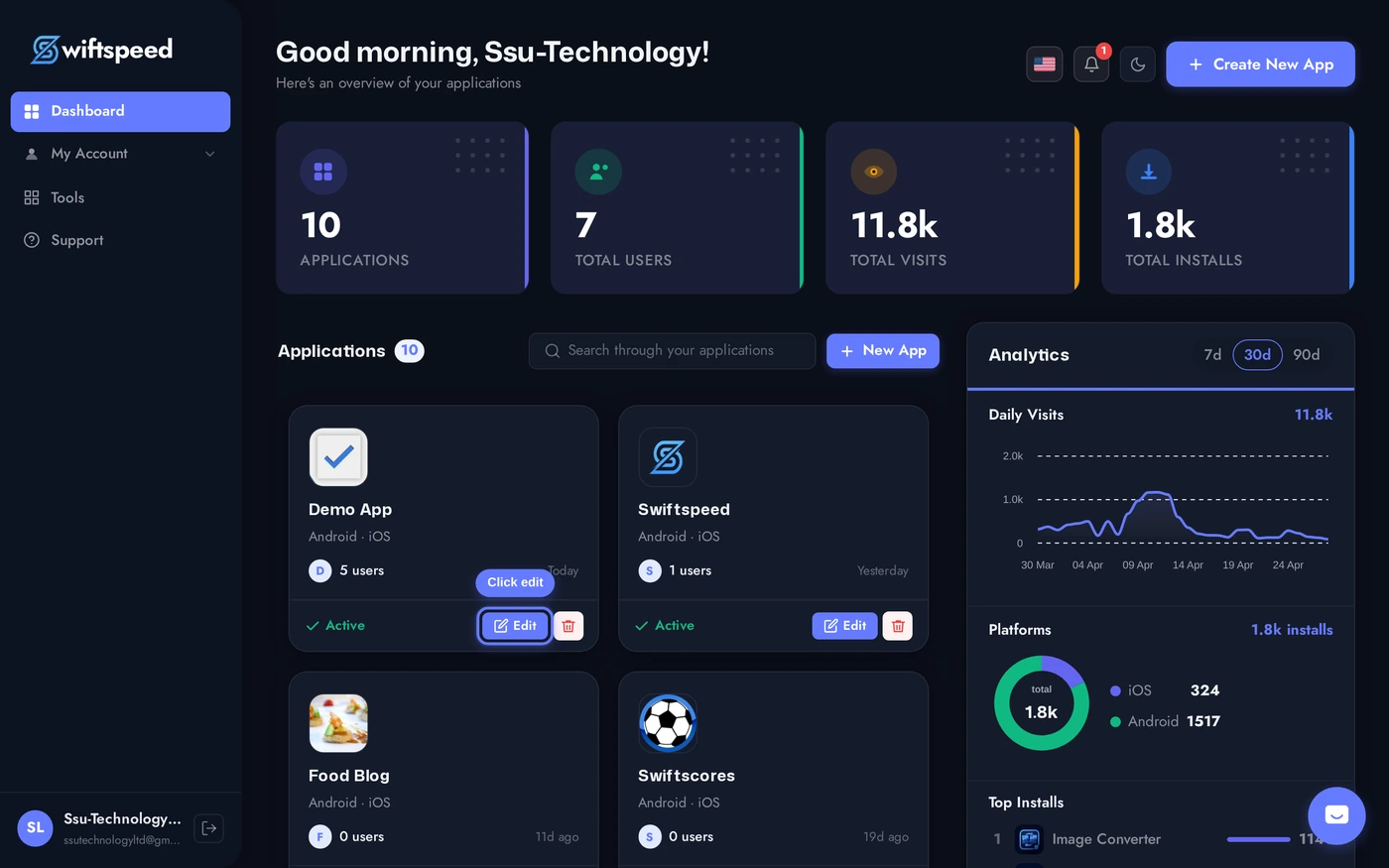
Sidebar > Settings > Emails. Two cards: From Address (the visible email and reply-to) and SMTP (the credentials Swiftspeed uses to actually send).
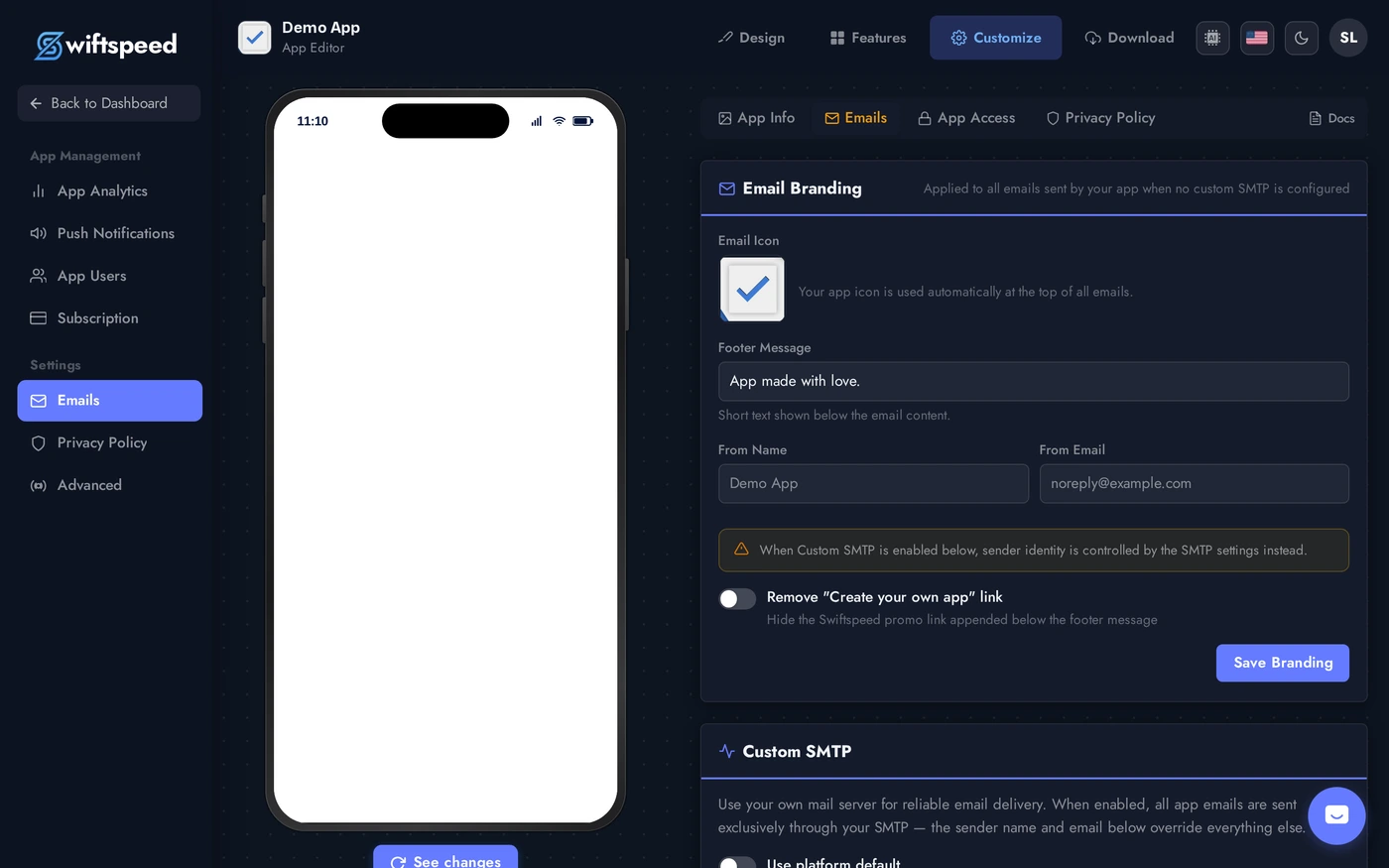
From Address
- From email: the address that appears in your customers' inboxes. Use a real, monitored mailbox at your own domain (e.g.
noreply@yourbrand.com). - From name: friendly display name (e.g.
Your Brand). Shows next to the email subject in most inbox views. - Reply-to: where customer replies actually go. Often a different address (
support@yourbrand.com) than the noreply send-from.
SMTP Credentials
- Host: your SMTP server (e.g.
smtp.sendgrid.net,smtp.gmail.com,smtp.mailgun.org). - Port: typically 587 for STARTTLS or 465 for SSL/TLS.
- Encryption: TLS (port 587) or SSL (port 465). Pick the one your provider documents.
- Username + Password: SMTP login credentials. For most providers (SendGrid, Mailgun, Amazon SES) this is an API key, not your account password.
- Save and Test: the editor sends a test email to your account email when you save, so you immediately know if the credentials work.
Recommended Providers
- SendGrid (free tier: 100 emails/day): easiest API setup, great deliverability.
- Mailgun (free tier: 5000 emails for first 3 months): developer-friendly, strong analytics.
- Amazon SES ($0.10 per 1000 emails): cheapest at scale, requires AWS account + DNS setup.
- Postmark (paid): premium for transactional only, very low latency.
- Avoid using personal Gmail / Outlook for production: they rate-limit aggressively and can get your sending account suspended for "machine-generated email".
Tips
- Set up SPF + DKIM + DMARC on your sending domain. Without these DNS records, Gmail / Outlook flag your emails as spam. Most providers (SendGrid, Mailgun) walk you through the DNS setup.
- Test the OTP flow after saving. Register a new customer in your app, watch the email arrive. If the OTP email lands in spam, your domain authentication is incomplete.
- Keep the SMTP password secret. It is stored encrypted in Swiftspeed but treat it like any production credential, rotate it if you suspect a leak.
- Reply-to should be a real human inbox, not noreply. Customers will hit reply when they have questions, do not throw their reply into a black hole.