Folder Feature
What is the Folder Feature?
The Folder feature is how you group multiple pages of your mobile app under a single tile on the home tab. Tap the folder, the tile expands into a list of the features inside it. This is the easiest way to keep the home tab tidy when an app has more than 4 or 5 features, instead of stacking every page as its own home tile, you cluster related ones (Contact + About + Hours, for example) inside a folder.
Folders support custom themes (minimal, bold, glass, etc.), nested sub-folders, optional cover images per folder, and an in-folder search bar. Every page you can add to the home tab can be moved into a folder, and you can move pages between folders without losing their data.
Adding a Folder to Your Mobile App
Click the edit pencil on the mobile app you want to organise with folders.

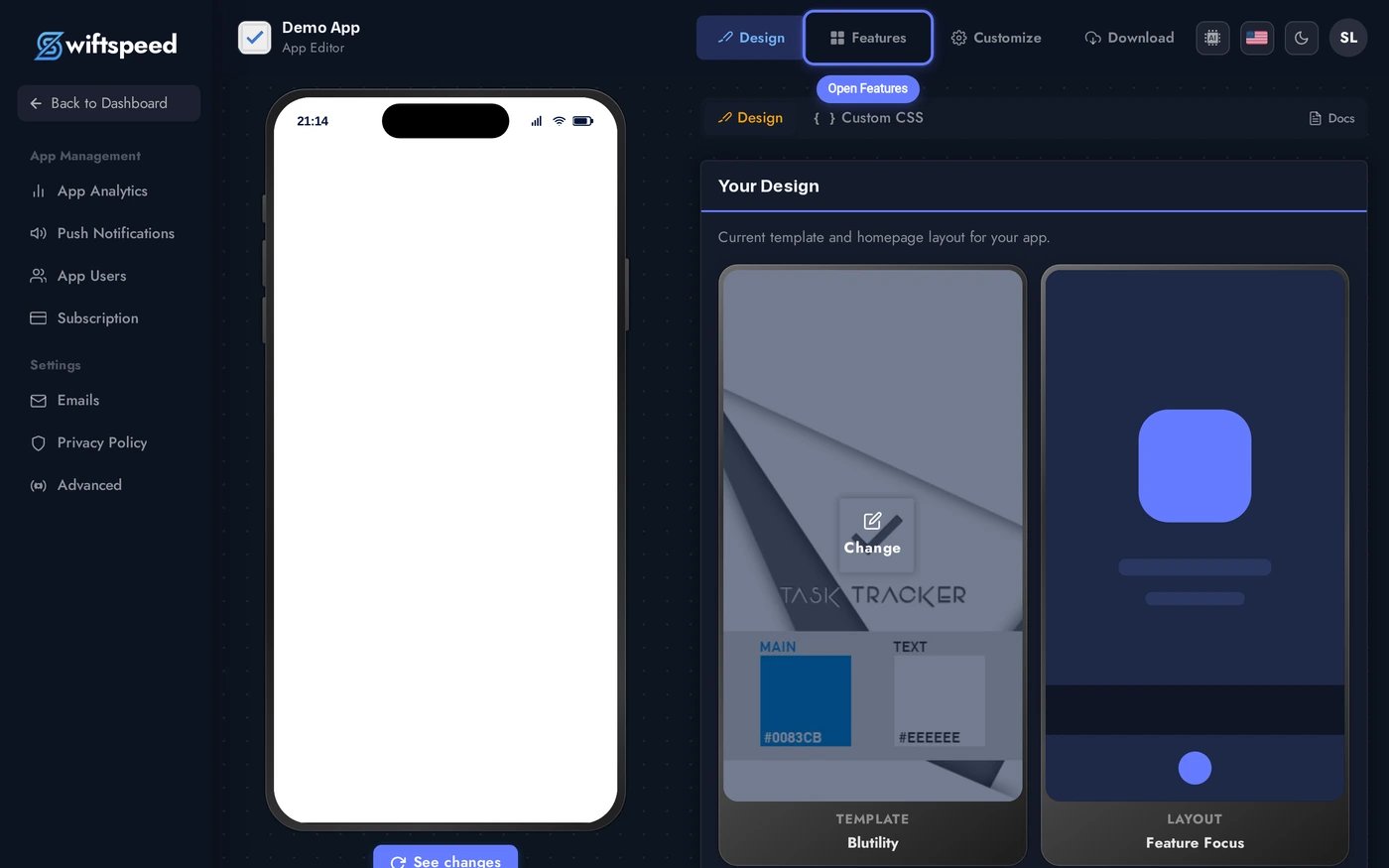
Click Features in the top bar of the App Editor.
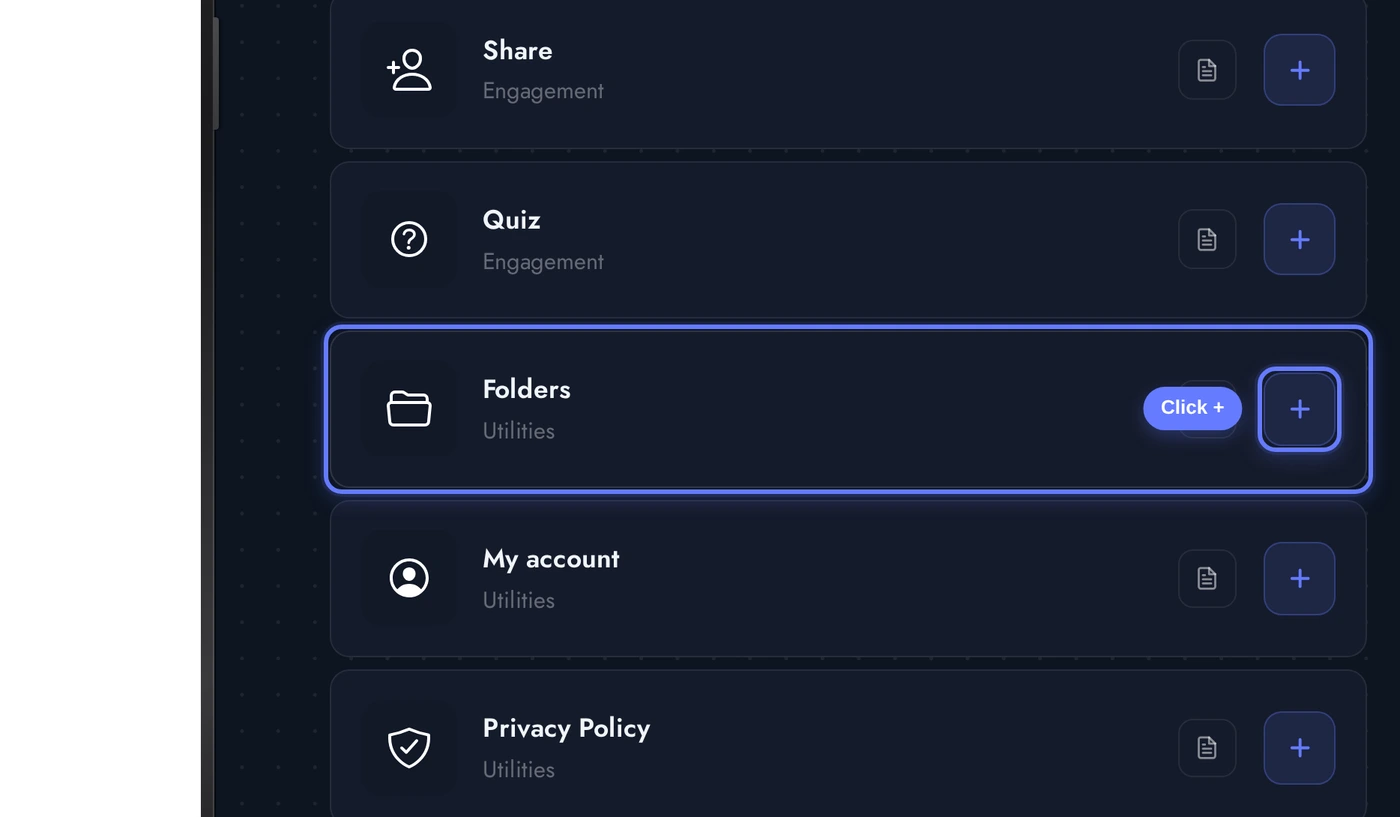
Find the Folders card and click the + button. A new folder is added to the home tab.
The Folder Editor
When the Folder editor opens, three cards stack vertically:
The editor autosaves every change. Click any theme card to switch the visual style of this folder, the live phone preview updates without a re-build.
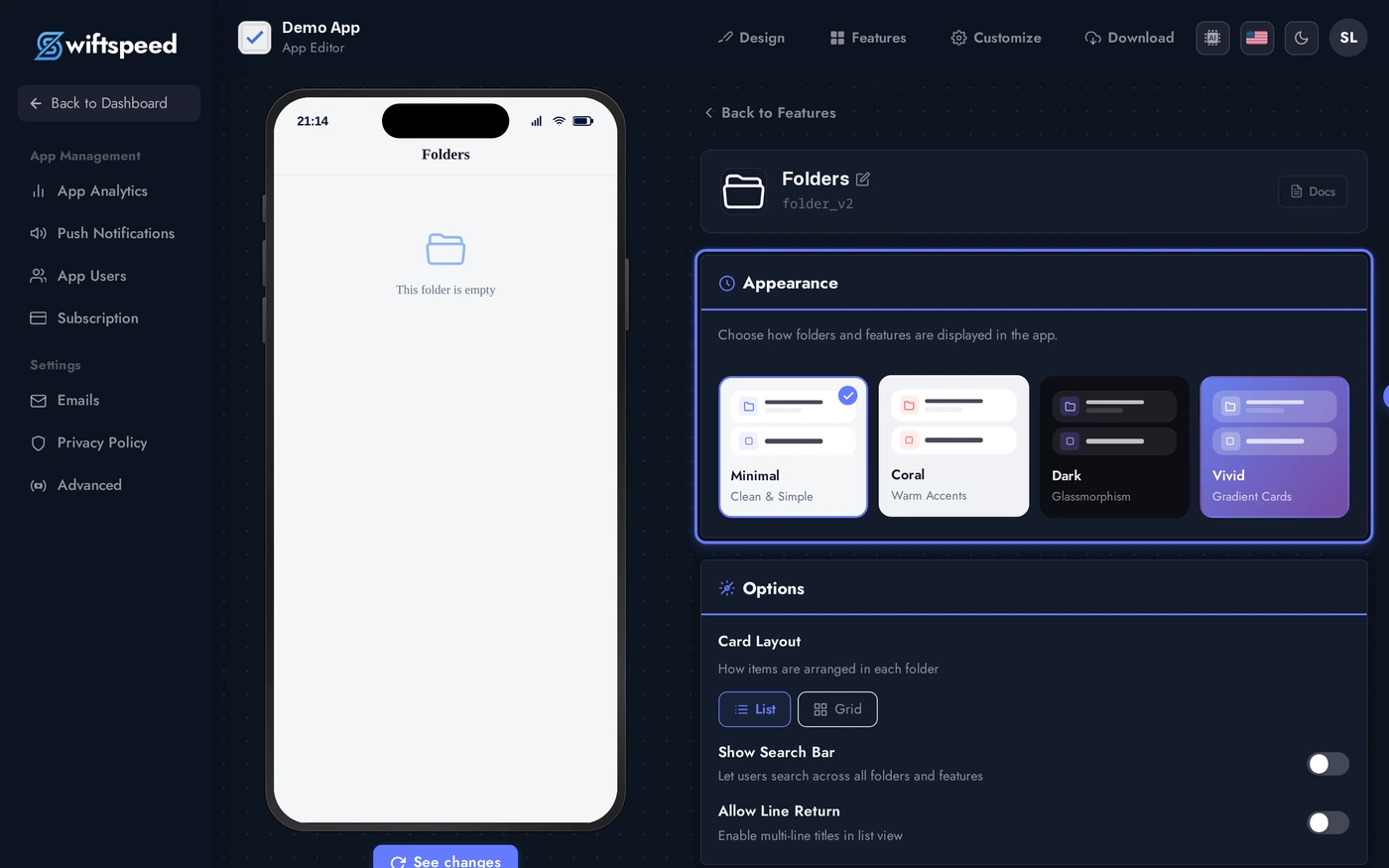
- Appearance: pick a theme (minimal, bold, glass, etc.). Each theme styles the entire folder browse experience including the icons, dividers, and background.
- Options: toggle the in-folder search bar and whether the layout allows multi-line text on long titles.
- Cover: optional banner image shown at the top of the folder when the user opens it. Useful for branded category pages (e.g. "Our Services" with a hero photo).
- Categories: the actual folder structure. The default folder is one root category, you can rename it, add sub-categories, and (later, on the main Features page) drag features into each one.
Moving Pages Into a Folder
Folders are containers, the actual content lives in the features you drop into them. Two ways to populate a folder:
- Drag and drop on the Features list: open the Features list (back arrow from the folder editor), the folder shows as an expandable tile. Drag any feature row onto it and the feature moves inside. Drag back out to ungroup.
- Add Features button inside the folder editor: each category in the folder editor has an Add Features action that opens a picker. Tick the features you want inside that category and they move there.
- Sub-folders: a folder can contain another folder. Use the Add Sub-folder action on any category to nest, useful for apps with many features (e.g. Shop → Categories → Mens / Womens / Sale).
Removing a feature from a folder does not delete the feature, it just moves back to the home tab. Deleting a folder also lifts every feature back to the home tab automatically (no orphan data).
Tips and Best Practices
- Group by user intent, not by feature type. "Find us" (Contact, Hours, Map) reads better than "Info pages" because it tells the user what they get when they tap.
- Folder per category, not per feature. A folder holding one feature feels like padding. Keep folders for clusters of 3 or more.
- Cover images make folders feel premium. A 1200x675 hero image on the folder turns it from a list into a category landing page.
- Sub-folders should be rare. Two levels of nesting is the most a thumb-driven mobile UI can handle. If you need three, redesign the home tab.
- Search inside folders is opt-in. Turn it on for folders with >5 features, it makes finding a page faster than scrolling.