Quiz Feature
What is the Quiz Feature?
The Quiz feature is an interactive question-and-answer engine inside your mobile app. Users see a question, pick an answer (or type one in for free-response), and the app scores in real time. Quizzes can be timed, paginated, or single-question, and the results page can show a score, a leaderboard, or a personality-style outcome based on the answers.
Common use cases: trivia apps, training and certification, sales-team onboarding, customer-knowledge surveys, marketing engagement (BuzzFeed-style "what kind of X are you" quizzes), educational learning paths.
Adding the Quiz Feature to Your Mobile App
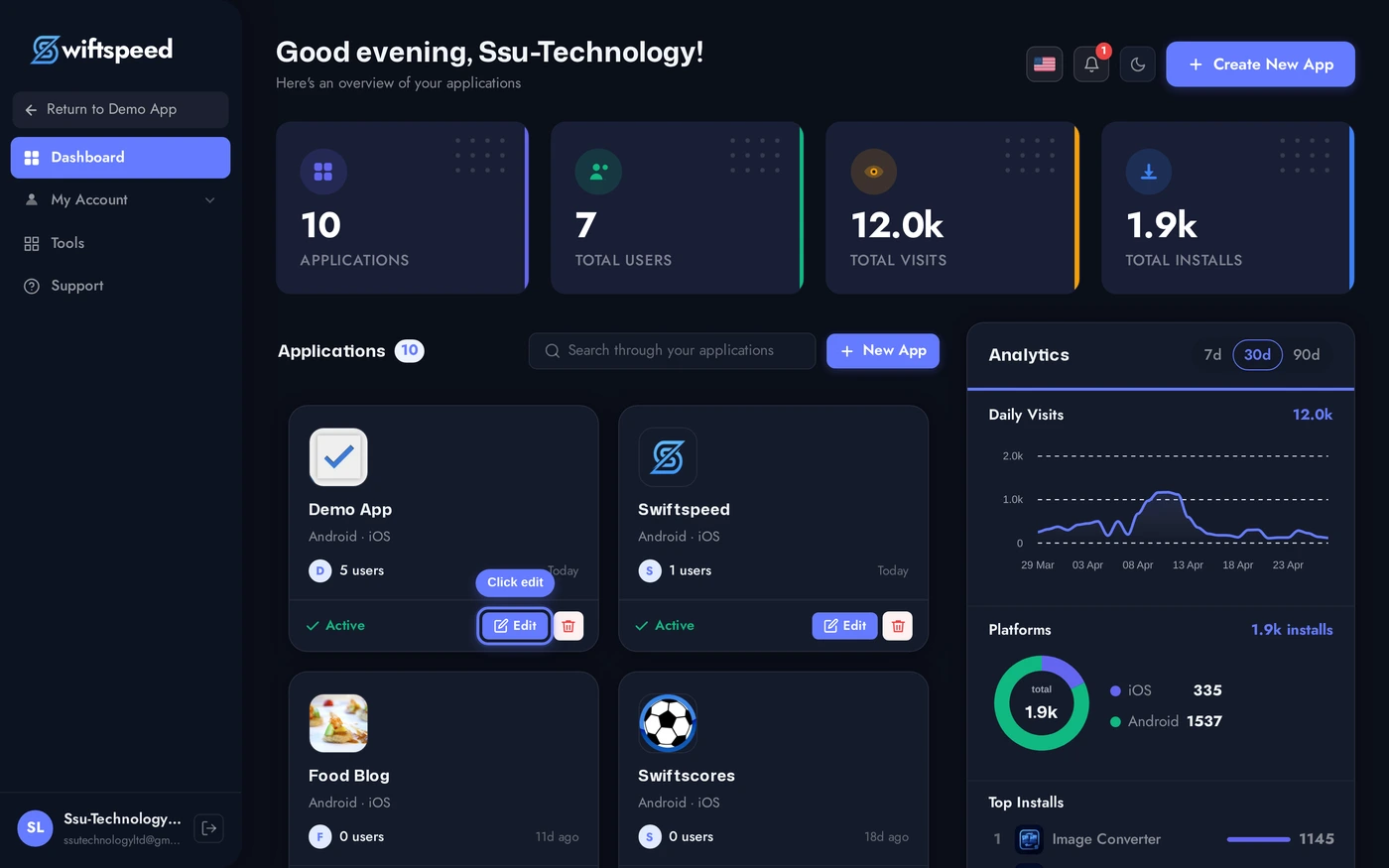
Click the edit pencil on the mobile app you want to add a quiz to.
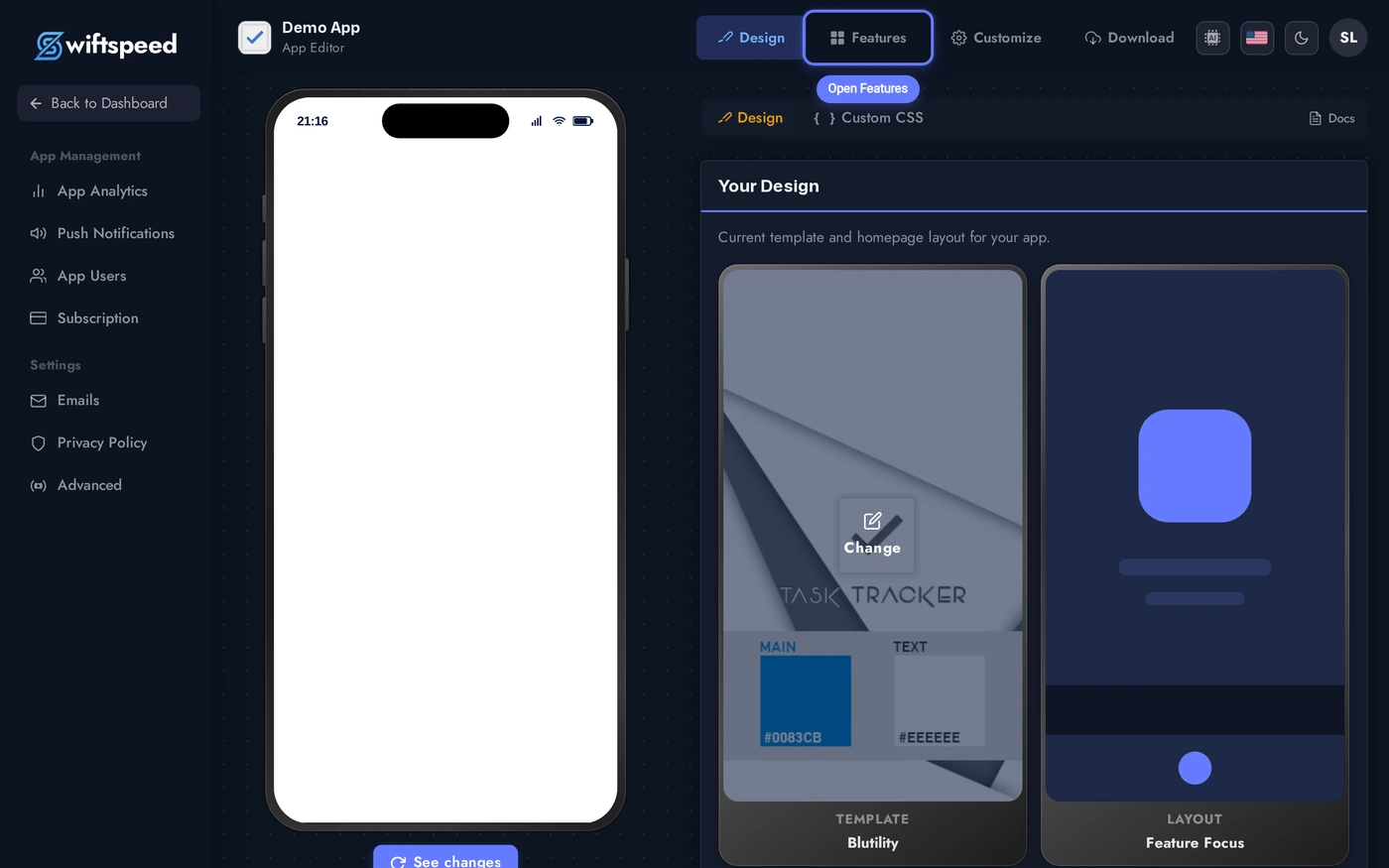
Click Features in the top bar.
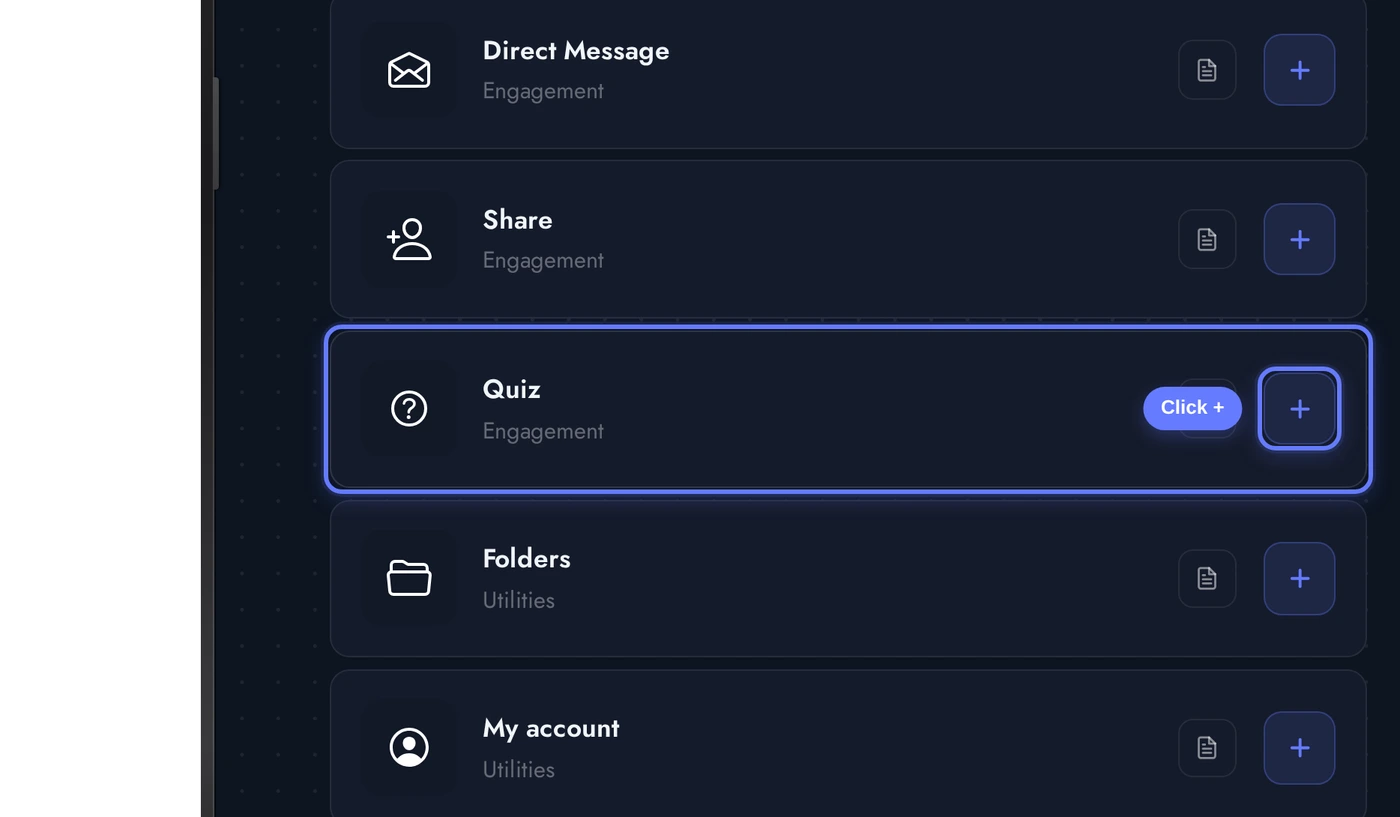
Find the Quiz card and click the + button. The quiz is added to the app, ready for you to build categories and questions.
The Editor Workflow
The Quiz editor is structured as a hierarchy: Categories at the top (groups of quizzes), Quizzes inside each category, Questions inside each quiz. The editor cards step through this top-down:
Build the structure top-down: create a category, add a quiz to it, add questions to the quiz, set the pass score and time limit. The editor autosaves on every change.
- Header / Welcome: title and subtitle for the quiz home page (the screen users see before picking a quiz).
- Appearance: theme + custom colors that style the quiz player and results.
- Categories: top-level groupings. Each category has a name, optional cover image, and a list of quizzes inside it.
- Quizzes: individual quiz definitions. Each quiz has a title, description, time limit (optional), pass score, and a list of questions.
- Questions / Fields: the actual questions. Field types include single-choice (radio), multiple-choice (checkboxes), true/false, free text, image-based questions, and section breaks.
- Settings: leaderboard on/off, retake policy, certificate generation on pass.
Question Types
- Single-choice (radio): classic "pick one" question. Most common for trivia.
- Multiple-choice (checkboxes): pick all that apply. Useful when more than one answer is correct.
- True / False: two-option question with a default scoring rule.
- Free text: typed-in answer. The editor lets you set acceptable strings, the engine compares case-insensitive.
- Image question: question prompt + an image. Useful for visual identification.
- Section break: groups questions into pages so users see them in chunks rather than as a long scroll.
- Personality outcome: rather than scoring, each answer maps to one of N personalities. The result screen shows the dominant personality at the end.
Live Preview of the Quiz
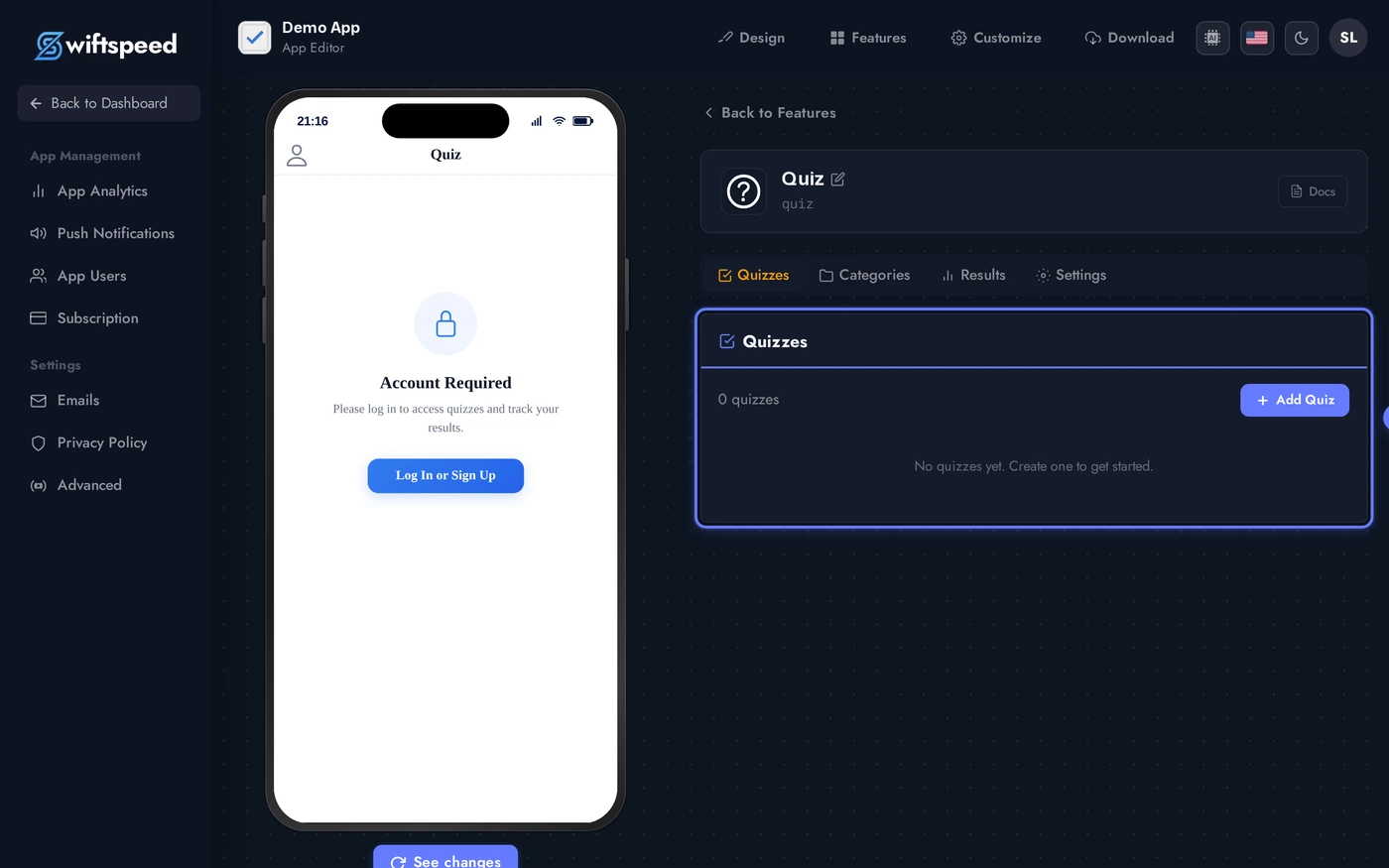
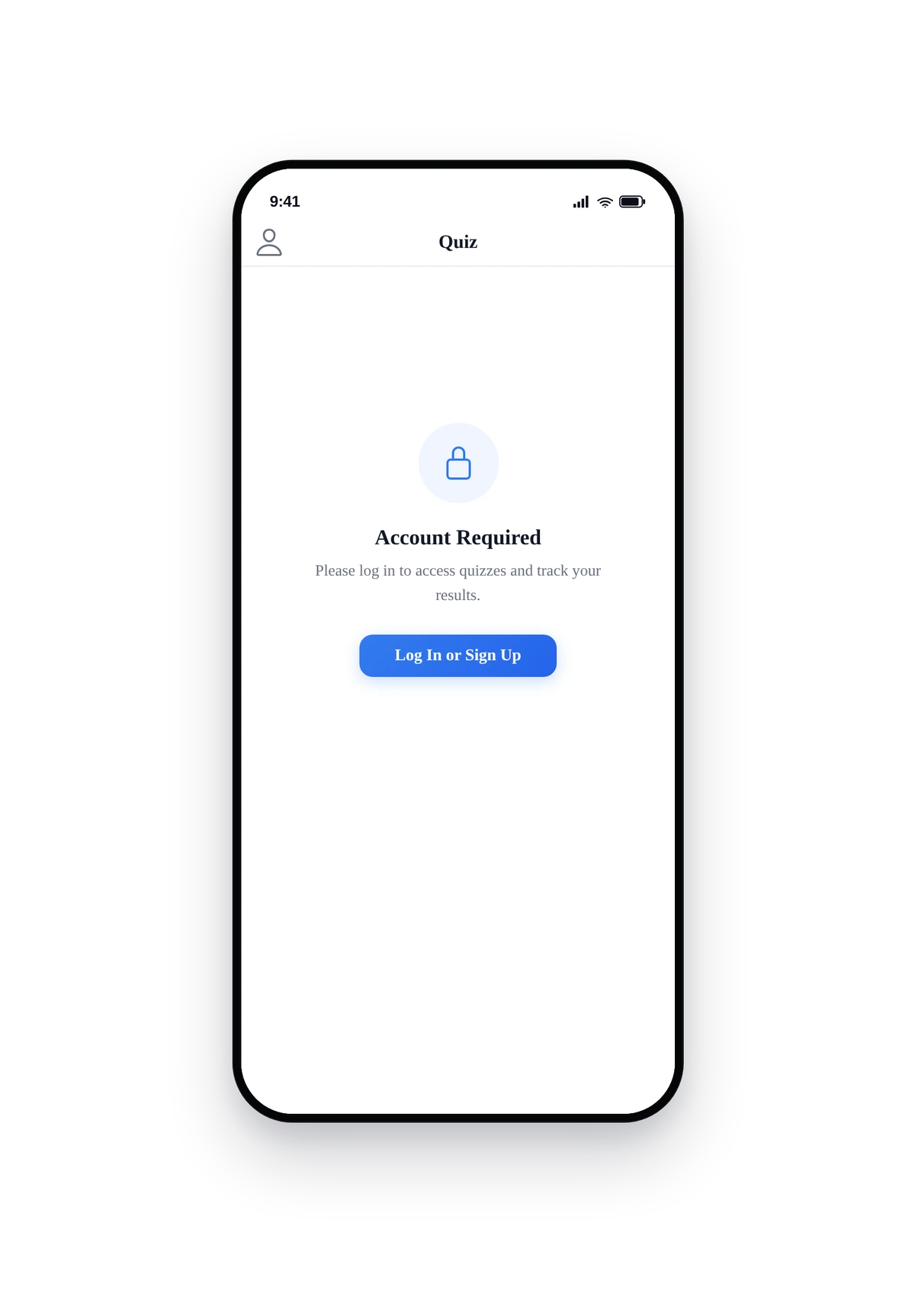
Here is how the quiz feature renders inside a real phone before any quizzes are added (the empty state is what new customers see first):
The native quiz home screen. Logged-in users see categories first, then drill into a quiz. Time-limited quizzes show a countdown at the top. The result screen offers Share, Retake, or Continue actions depending on the quiz settings.
Tips and Best Practices
- Short quizzes complete more often. 5-10 question quizzes hit ~70% completion. 30+ question quizzes drop below 30%. Split long content across multiple quizzes inside a category.
- Time limits feel like games. Adding a 60-second timer on each question turns a survey into a competitive trivia game. Use selectively, time pressure is not always appropriate.
- Pass score matters for certification. If the quiz is graded for training, set a sensible pass score (70-80%) and turn on the certificate generator. Users who pass get a downloadable PDF.
- Leaderboards drive replays. Turn on the leaderboard if the quiz is the same every time. Skip it if the quiz randomizes questions, the leaderboard becomes meaningless.
- Personality outcomes work for marketing quizzes. "Which of our products fits you?" rather than "did you get the answer right?" turns a quiz into a recommendation engine.
- Image questions need fast-loading images. Same rule as the rest of the platform: square JPG/PNG, 1000x1000 max, optimised for mobile networks.