Radio Streaming Feature - Build an App for Radio Station
⚠️ Important: Stream Hosting & Rights
Swiftspeed does not host audio streams or media on its servers. Every station in the radio app points to a stream URL hosted somewhere else (your own Icecast/Shoutcast box, the broadcaster's CDN, an HLS endpoint, etc.). Swiftspeed only embeds the URL inside the native player.
This policy exists to protect intellectual property rights. You are solely responsible for ensuring you have the legal rights to broadcast every station you add to the radio app. Swiftspeed is not liable for any copyright, performance-rights, or licensing infringement resulting from streams you distribute through your app.
What is the Radio Streaming Feature?
The Radio Streaming feature is how Swiftspeed turns a list of live audio streams into a fully native iOS and Android radio app, without writing a line of code. You bring the stream URLs (Icecast, Shoutcast, HTTP, HTTPS, or HLS) and the editor wraps them in a polished native radio app interface, complete with stations, categories, a lock-screen player, background playback, sleep timer, share button, recently played, favourites, and now-playing metadata.
Listeners tap a station tile, the radio app starts streaming in seconds, and playback keeps going when the phone is locked or the user moves to another app. Lock-screen controls (play, pause, station info, artwork) come for free. Think of it as the fastest path from a list of stream URLs to a real native radio app on the App Store and Google Play.
Before You Start Building Your Radio App
A few things should be in place before you start building the radio mobile app:
- A list of the live audio streams you want to broadcast, with their full URLs (Icecast
.mp3/.aac, Shoutcast.m3u/.pls, plain HTTP/HTTPS audio, or HLS.m3u8) - Cover artwork for each station (square JPG/PNG, 500x500 pixels or larger so the radio app looks sharp on retina phones)
- The legal right to rebroadcast every station you add. Live radio apps run on top of properly licensed streams, your own broadcasts, public-domain or community streams, or content you have explicit permission to redistribute.
- Optional: a now-playing metadata endpoint per station so the radio app can show the current track title (most modern Icecast/Shoutcast servers expose this automatically)
If you already have an Icecast or Shoutcast server running for your web player, every URL is reusable as-is, the same stream that powers your website plays inside the native radio app with zero changes on the audio host.
Adding the Radio Feature to Your Mobile App
Inside the Swiftspeed editor, the radio streaming experience becomes a feature page in your native mobile app. The flow below walks through adding that page so you can start shaping the radio app:
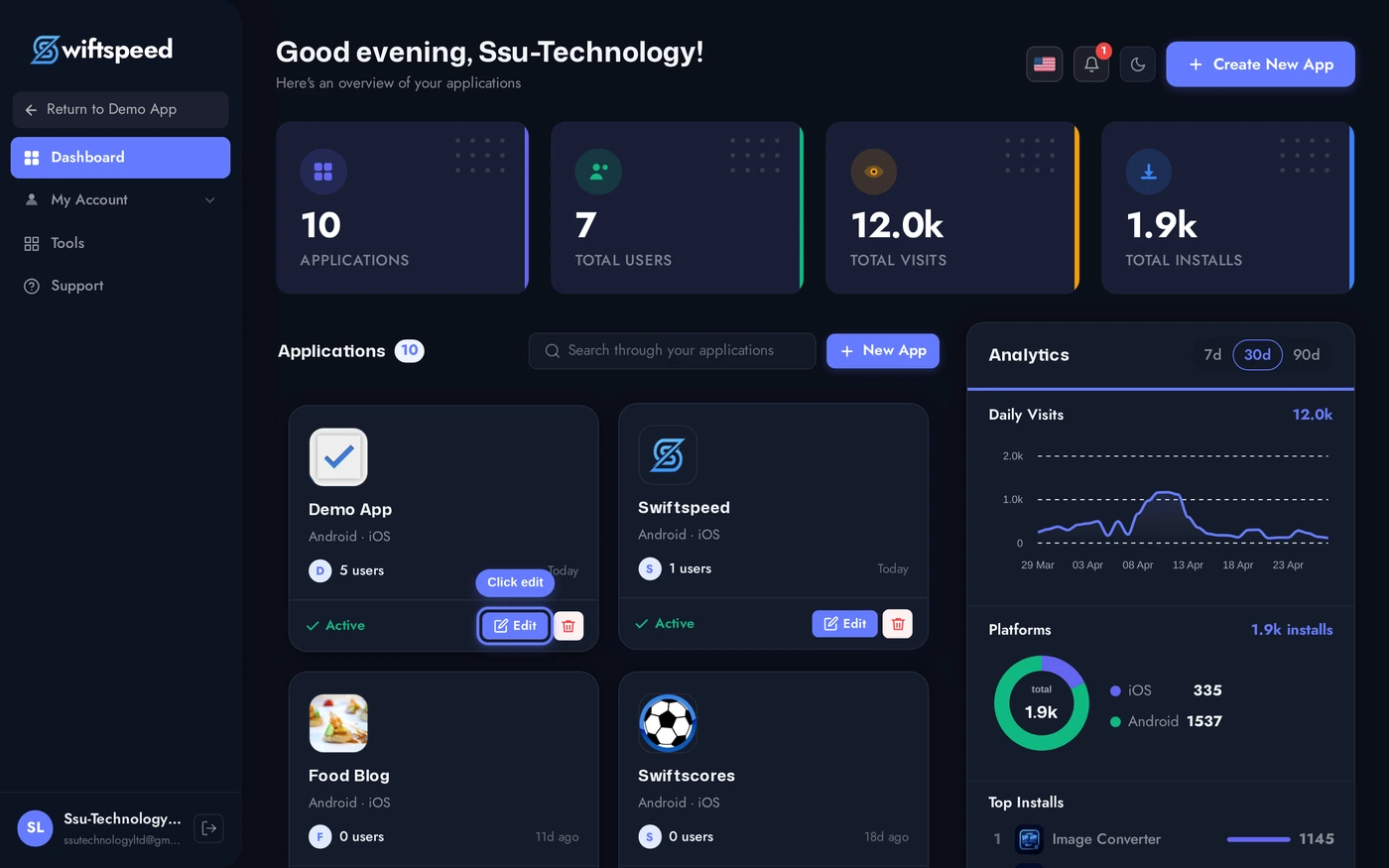
From your Swiftspeed dashboard, click the edit pencil on the mobile app you want to turn into a live radio app.
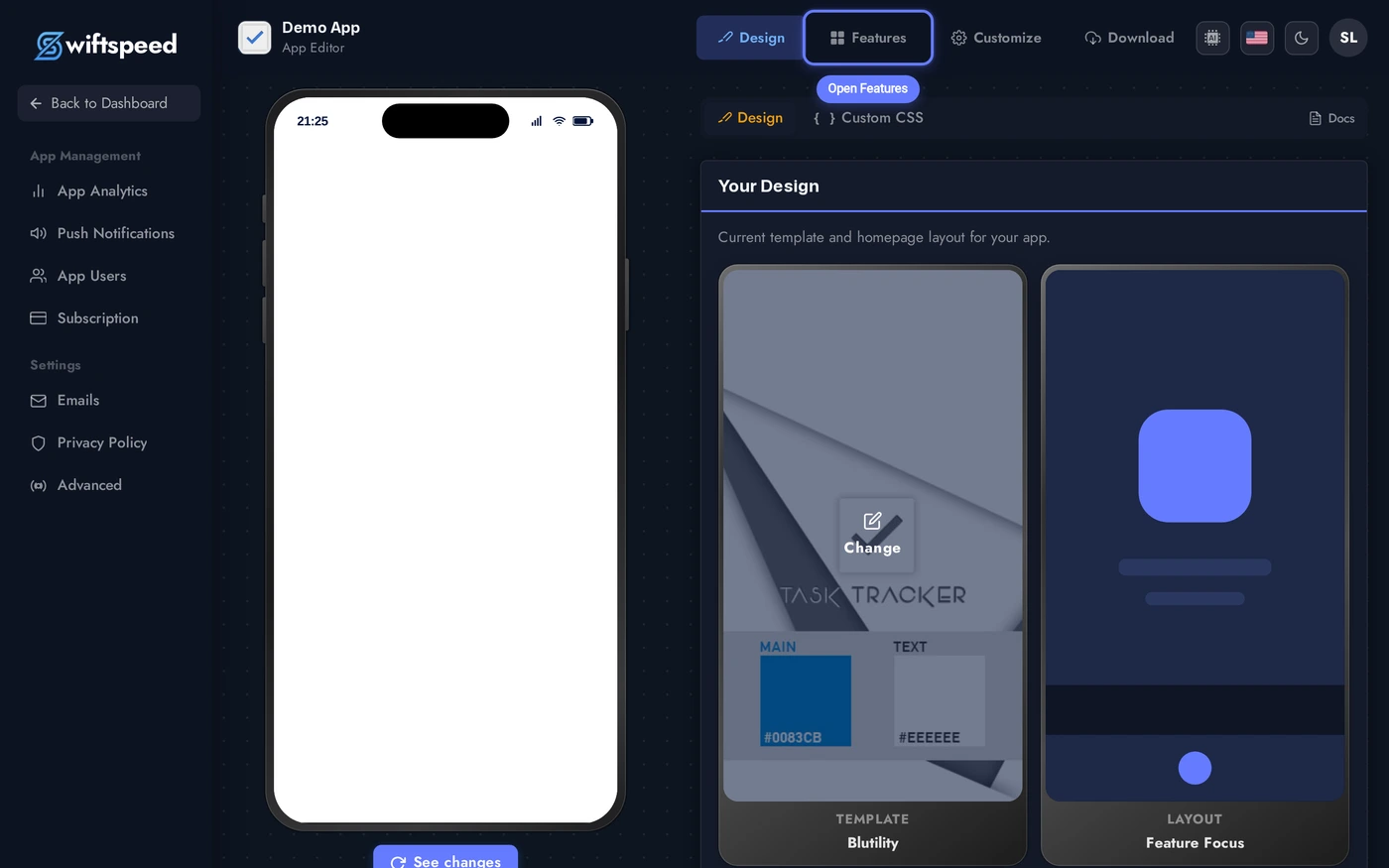
You'll land in the App Editor. Click Features in the top bar, that's where every page in your native radio app lives, including the Radio page you're about to add.
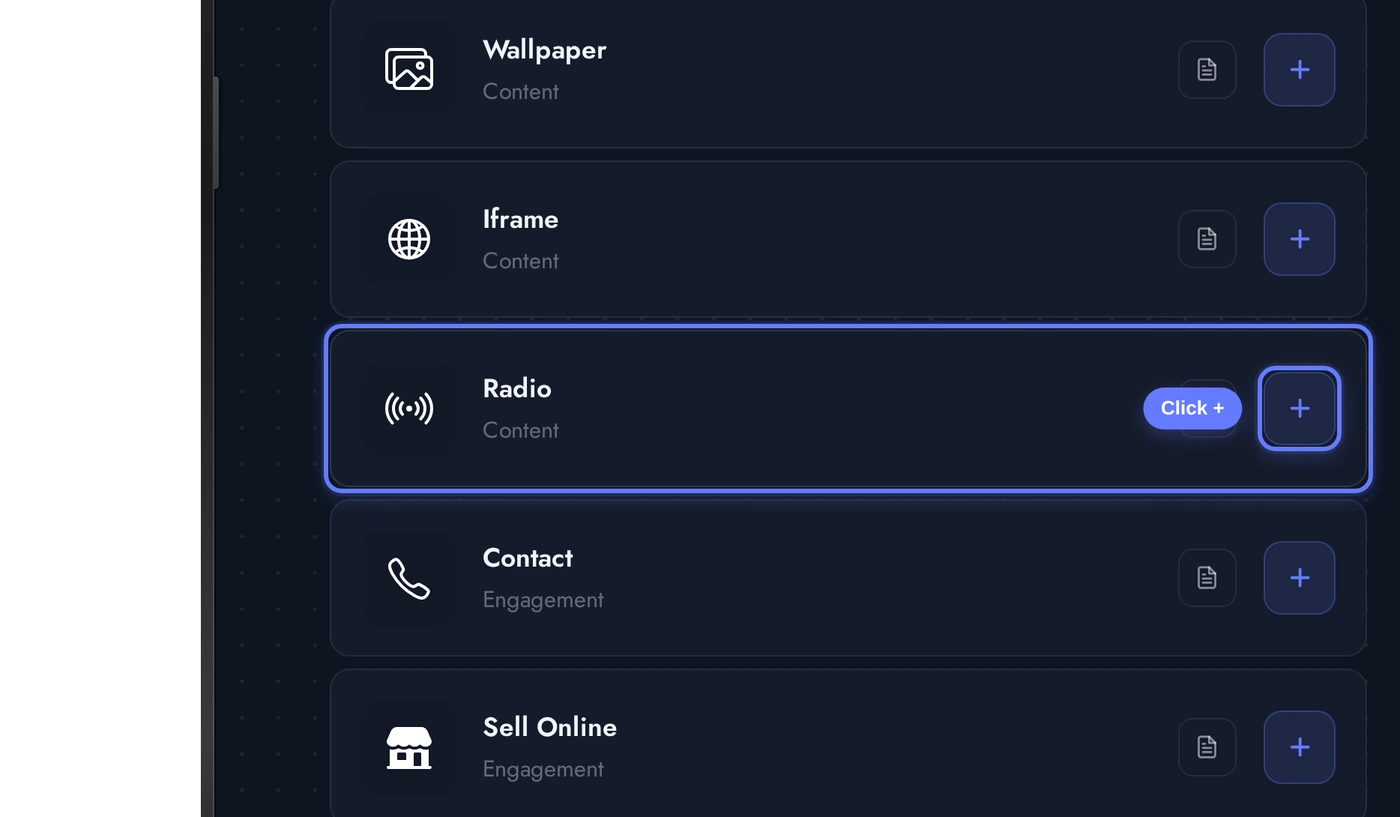
In the Add a Page list, find the Radio card and click the + button on its right. This is the page that turns the rest of your mobile app into a native radio streaming experience.
Demo Stations Come Pre-Loaded
The moment you add Radio to your mobile app, Swiftspeed seeds it with seven public demo stations across three categories so the radio app comes to life immediately. The seed includes Radio Paradise (eclectic), five SomaFM channels (Groove Salad, Drone Zone, Secret Agent, Lush, Underground 80s), and KEXP 90.3 Seattle, organised under Featured, Music, and Talk & World categories. Cover art comes from public-domain Wikimedia imagery.
These streams are public, hotlink-friendly, and known stable, but they exist primarily so the radio app does not look empty during your first editor session. Replace them with your own stations as you build the real catalogue, the structure (categories + stations + featured flags) is a working layout you can reuse instead of starting from scratch.
The Stations Tab
When the Audio editor opens, the Stations tab is the default workspace. This is where every station and category in the radio app lives. The page is split into two sections: Categories at the top (the groupings that show up as sliders on the radio app home screen) and Stations below (the actual streamable entries).
Click + Add Category to create a new home-screen slider, or + Add Station to add a new streamable entry. Each station card shows its cover, title, the category chips it belongs to, the Featured badge if it surfaces in the hero block, and an active toggle so you can hide a station from the radio app without deleting it.
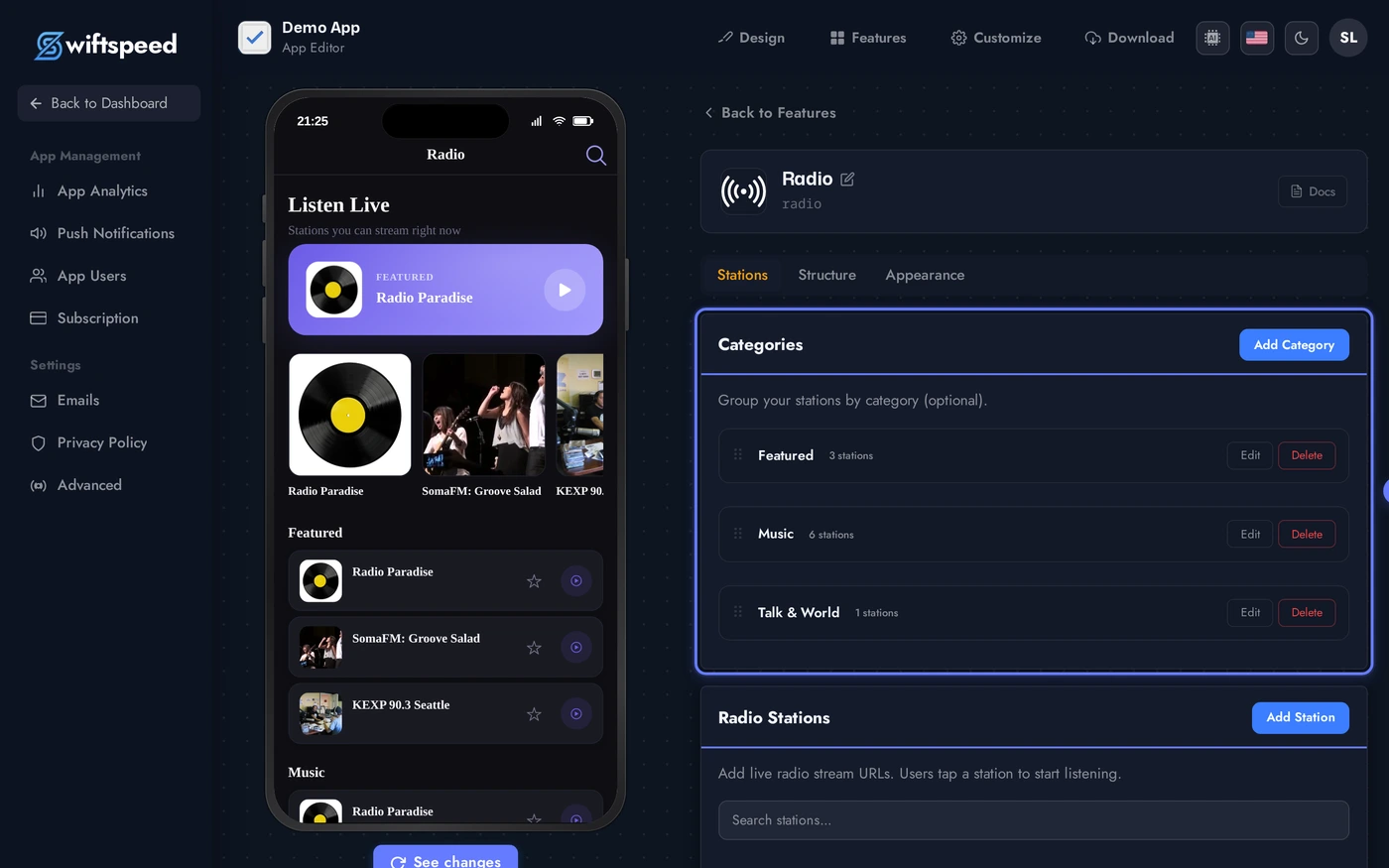
Stations can belong to multiple categories at once (Radio Paradise sits in both Featured and Music in the demo seed), which is useful when a station fits more than one shelf in the radio app home layout. The display_limit on each category controls how many stations show in the slider before a "View all" link appears.
Editing a Station
Click any station row to open the editor for that entry. Every field a native radio app needs is here:
The station edit form is the same whether you're creating a brand new station or tweaking one of the seeded demos. Save autosaves every change, and the phone preview on the right reflects updates without a re-build.
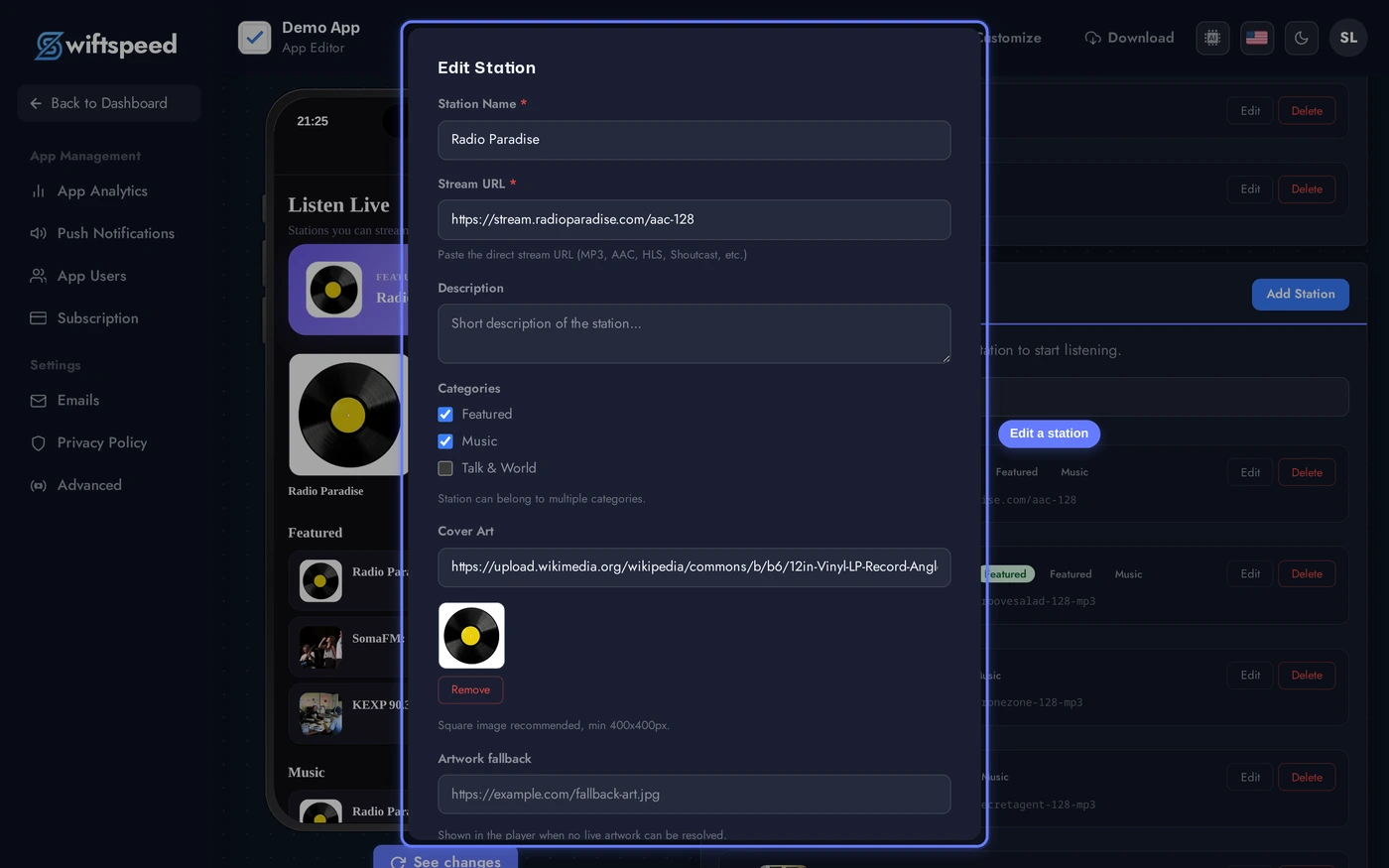
- Title - what listeners see in the station card and on the lock screen
- Description - optional one-liner shown on the station detail page
- Stream URL - the actual Icecast/Shoutcast/HTTP/HLS endpoint the radio app fetches when the user hits play
- Cover URL - square station artwork (the radio app falls back to the Artwork Fallback image if the cover fails to load on a slow network)
- Categories - multi-select; the station appears under each one in the home layout
- Featured - promotes the station to the hero block on the radio app home screen (most layouts cap featured stations at 5)
- Active - toggle off to hide the station without deleting it (useful for seasonal or maintenance windows)
- Now-playing metadata URL - optional override; if provided, the radio app polls this endpoint for current track info instead of relying on the stream's built-in metadata
Structure and Behaviour
The Structure tab controls the shape of the radio app: single-station vs multi-station layout, which home-screen blocks appear and in what order, and the runtime behaviour toggles (sleep timer, share button, history, auto-reconnect, lock-screen metadata polling).
Pick the layout (multi vs single), the home structure (Flow / Grid / Bento / Magazine for multi-station, Aurora / Vinyl / Studio / Minimal for single), and turn the behaviour toggles on or off depending on what your radio app needs.
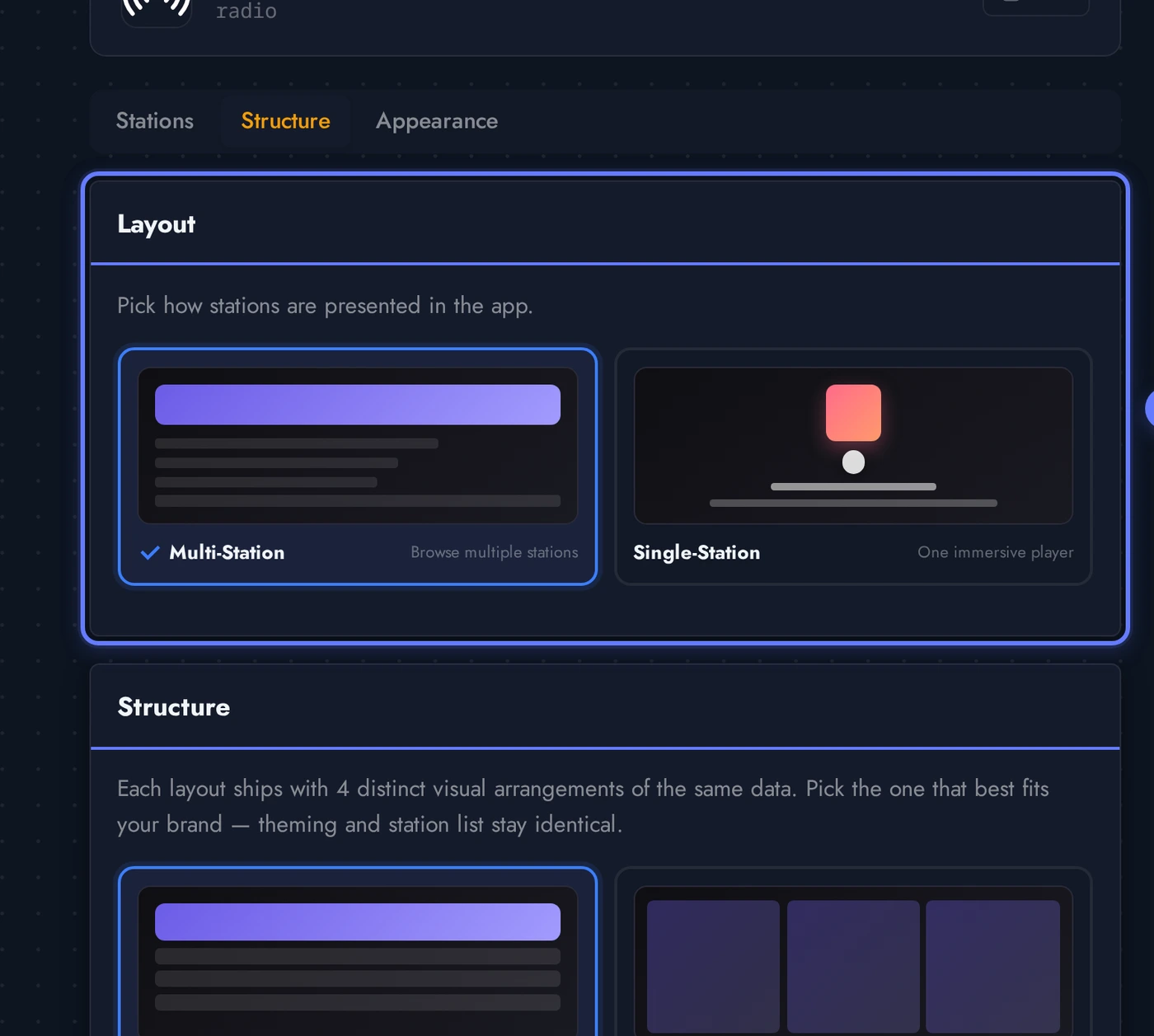
- Layout: Multi-station - the default. Best for radio apps with several stations across categories. Home screen shows category sliders, search, favourites, recently played.
- Layout: Single-station - strips the home down to one giant station card. Best for radio apps that exist for one specific broadcast (talk show, single brand, niche music station).
- Home structure (multi-station): Flow (vertical scrollable layout, default), Grid (2-column tile grid), Bento (mixed-size hero + tiles), Magazine (one large editorial card per category)
- Single structure: Aurora (gradient + station card, default), Vinyl (rotating disc animation), Studio (dashboard with metadata + history), Minimal (just the player, no chrome)
- Sleep timer - adds a sleep button so listeners can have the radio app stop streaming after 15/30/45/60 minutes
- Share - adds a share sheet button next to each station
- Recently played / Favourites - show those rows on the radio app home screen
- Auto-reconnect - if the stream drops, the radio app silently retries and resumes (huge for spotty mobile data)
- History - log of what the listener has played; powers the "Recently played" row
- Now-playing metadata - poll the stream every N seconds for the current track. Toggle off if your streams don't expose metadata, the radio app falls back to just the station name.
CarPlay and Android Auto
Listeners can browse and play your stations from a connected car screen. This lives in its own card, off by default, because making it actually appear in the car depends on more than a Swiftspeed setting, it also depends on steps you take yourself with Apple and Google for your own app.
Turning the toggle on ships the car-browsing screen in your next generated build on both platforms. From there, the two platforms work differently, and neither step is something Swiftspeed can do on your behalf:
- iOS (CarPlay) requires Apple to grant the CarPlay audio entitlement to your own Apple Developer account for this app's Bundle ID. Request it yourself at developer.apple.com/contact/carplay. Apple reviews it case by case, from a few days to a few weeks, with no published turnaround time. Until it is granted, generating a build with this toggle on will fail to sign, so wait for Apple's confirmation first.
- Android (Android Auto) has no separate entitlement to request, but Google reviews the Android Auto experience as part of your app's normal Play Store submission for this build. Budget extra review time compared to a phone-only submission.
- Neither review is something Swiftspeed performs or expedites. The toggle only controls whether the capability ships in your build, the approvals belong entirely to your own Apple and Google developer accounts.
Designing the Radio App (Themes and Custom Colors)
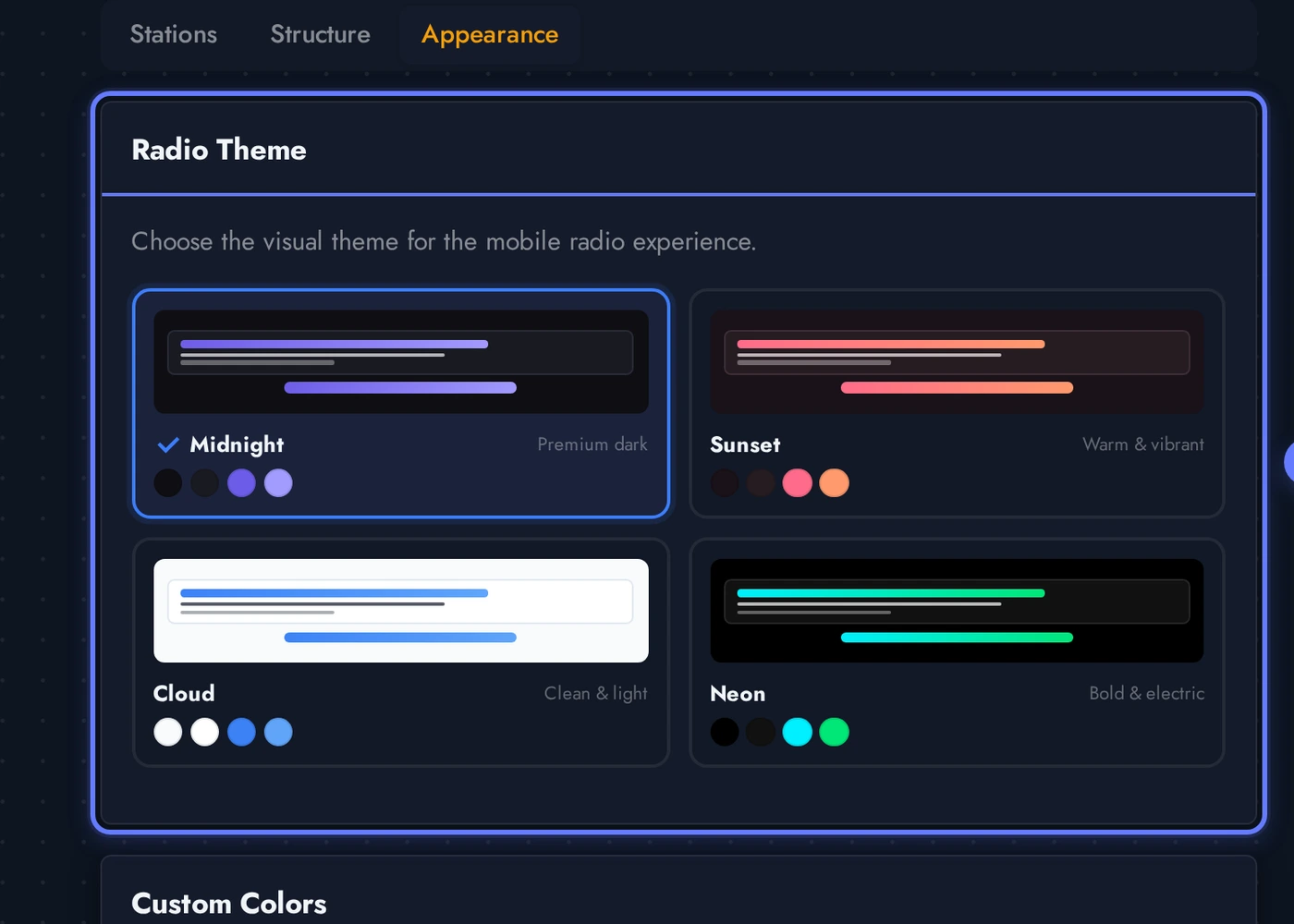
The Appearance tab controls the visual identity of the radio app on the phone. Pick one of the eight themes for an instant complete look, then refine any individual colour through the Custom Colors panel.
The eight built-in themes for the radio app. Each card previews the look. Tap a theme to apply it instantly to the radio app, the phone preview on the right updates in place without a re-build.
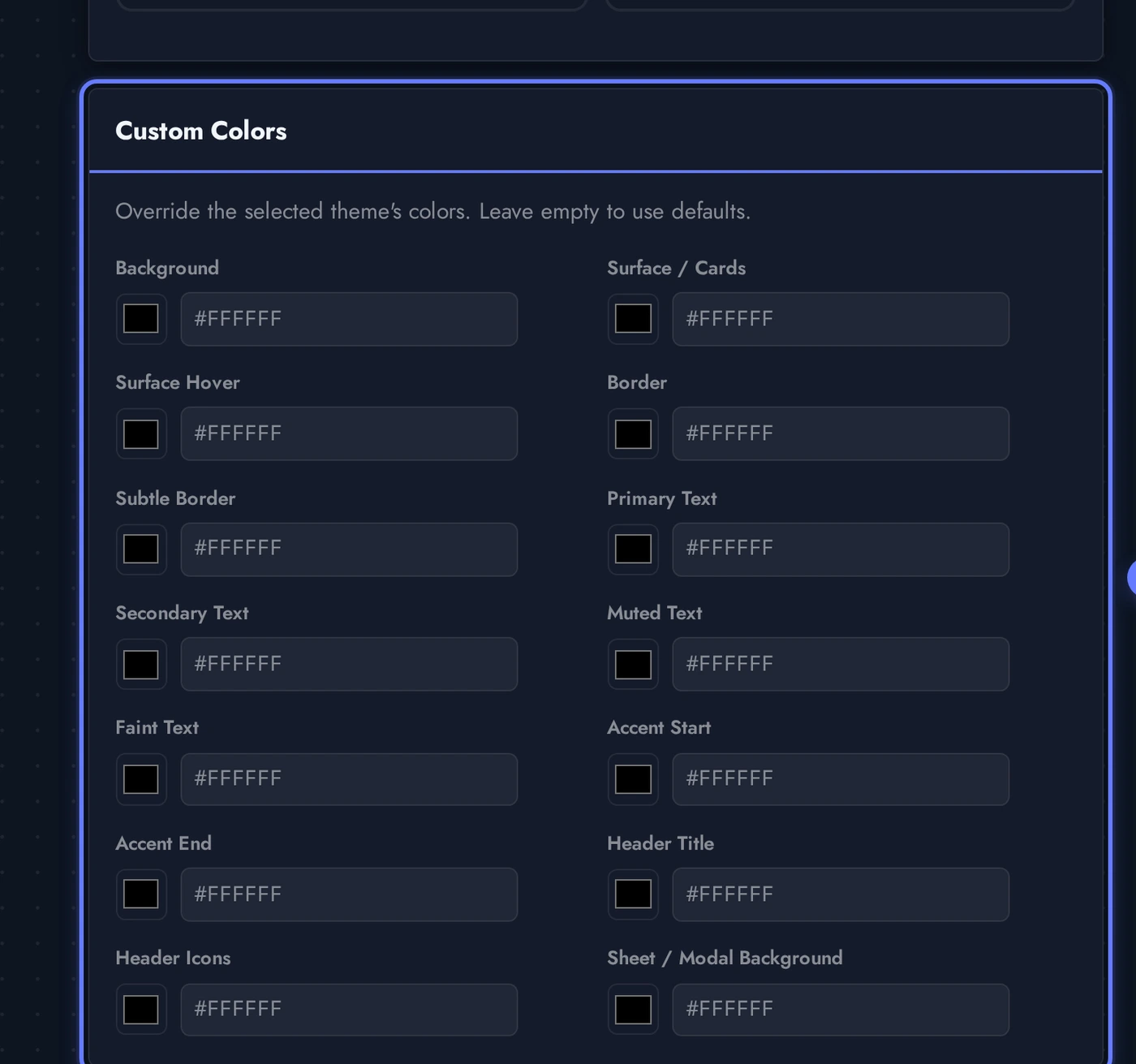
The Custom Colors card lets you override the theme on a per-feature basis. Every text level (Primary, Secondary, Muted, Faint), every surface (Background, Cards, Hover, Modal), every border (Border, Subtle Border), the accent gradient (Start + End), and header (Title + Icons) is independently overridable. This is the panel that fixes the readability cases where a customer's brand colour clashes with the theme defaults, set Primary Text, Secondary Text, Muted Text, and Faint Text all to white (or any contrasting colour) and the radio app picks them up live.
Live Preview of the Radio App
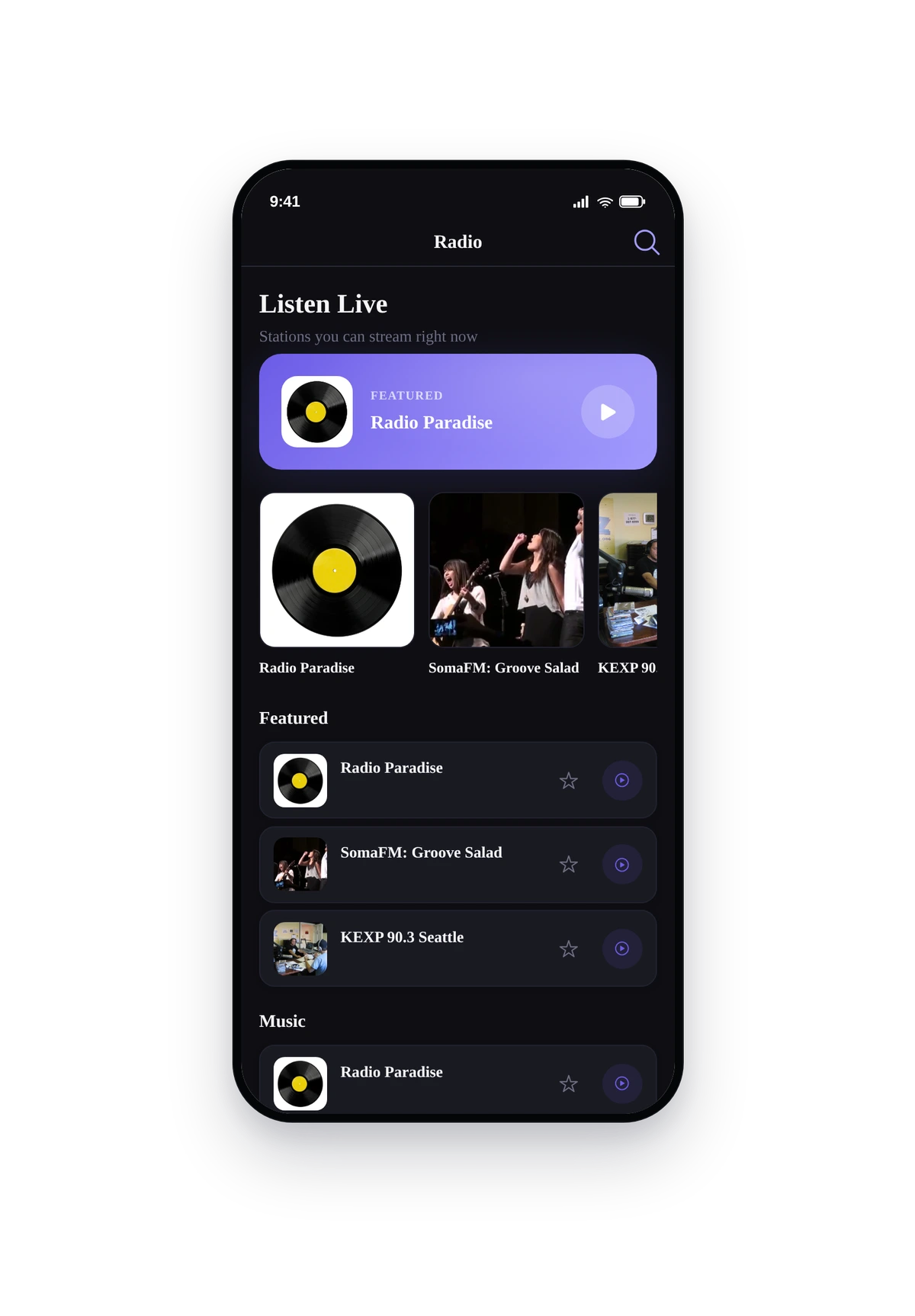
Here is how the seeded demo catalogue (Radio Paradise, SomaFM channels, KEXP) renders inside a real phone running the converted native radio app:
This is the actual native UI of the radio app, not a mockup. The home screen shows featured stations at the top, then category sliders for Music and Talk & World. Tap any station to open the full-screen player with cover art, station info, play/pause, sleep timer, share, and a heart for favourites. Tap the mini-player at the bottom of the screen to keep listening while browsing other parts of the app. Lock the phone, audio keeps streaming and the lock-screen controls (play/pause, station name, artwork) appear automatically. This is your radio station, ready to ship to the App Store and Google Play.
Tips and Troubleshooting for Your Radio App
- Use HTTPS for every stream URL. iOS blocks plain http audio inside native apps by default, so any station on http will silently fail to play in the radio app. Set up SSL on your Icecast/Shoutcast host before adding the stream.
- Test the URL in a browser first. Paste the stream URL into a desktop browser, hit enter. If audio plays, the radio app will play it too. If it triggers a download or returns a 404, the radio app cannot use it either.
- Cover art at 1000x1000 pixels minimum. Native radio apps look amateur with soft, low-res station tiles. Square JPG/PNG, sharp, well-lit. The Artwork Fallback field saves the day on slow networks where the primary cover times out.
- Featured flag controls the home hero. Mark up to 5 stations as Featured to put them in the hero block. Pick the brands you want listeners to land on first.
- Auto-reconnect is your friend. Live audio drops more often than recorded audio (network glitches, server restarts, brief outages). Leave Auto-reconnect on so the radio app retries silently instead of stranding the listener on a dead player.
- Now-playing metadata polling is per-station. If only some of your streams expose track titles, leave Metadata enabled on globally, then turn the per-station Override toggle off for the streams that don't. The radio app falls back to the station name on those entries.
- Single-station layout is for one-stream radio apps. A talk show with one daily broadcast, a single-brand radio app, or a niche internet radio station. Pick Single-station layout, then choose between Aurora (clean), Vinyl (animated disc), Studio (dashboard), or Minimal (just the player).
- Custom Colors is per-feature. If you have multiple radio features in one app (rare, but possible), each one has its own Custom Colors override. The global app theme still applies underneath, the radio overrides only kick in inside the radio page.
- Stream specs the player handles natively. MP3 over HTTP/HTTPS, AAC over HTTP/HTTPS, HLS (.m3u8 with TS or fMP4 segments), Icecast and Shoutcast directories. The radio app handles redirects so a
.plsor.m3uplaylist that points at one of those will also work.
Your Responsibility
By using the Radio Streaming feature, you confirm that you have the necessary rights, licenses, and permissions to broadcast every station inside your app. Swiftspeed provides the platform and the player, you provide the catalogue.