RSS Feed Feature - Convert RSS Feed to Native App
What is the RSS Feature?
The RSS feature lets you pull content from any website that has an RSS or Atom feed and display it beautifully in your app. This is perfect for news apps, blog readers, or any app that needs to display regularly updated content. Each feed becomes its own scrollable list of cards inside the app, complete with article images, dates, and excerpts.
Setting Up an RSS Feed
From your Swiftspeed dashboard, click the edit pencil on the app you want to add the feed to.

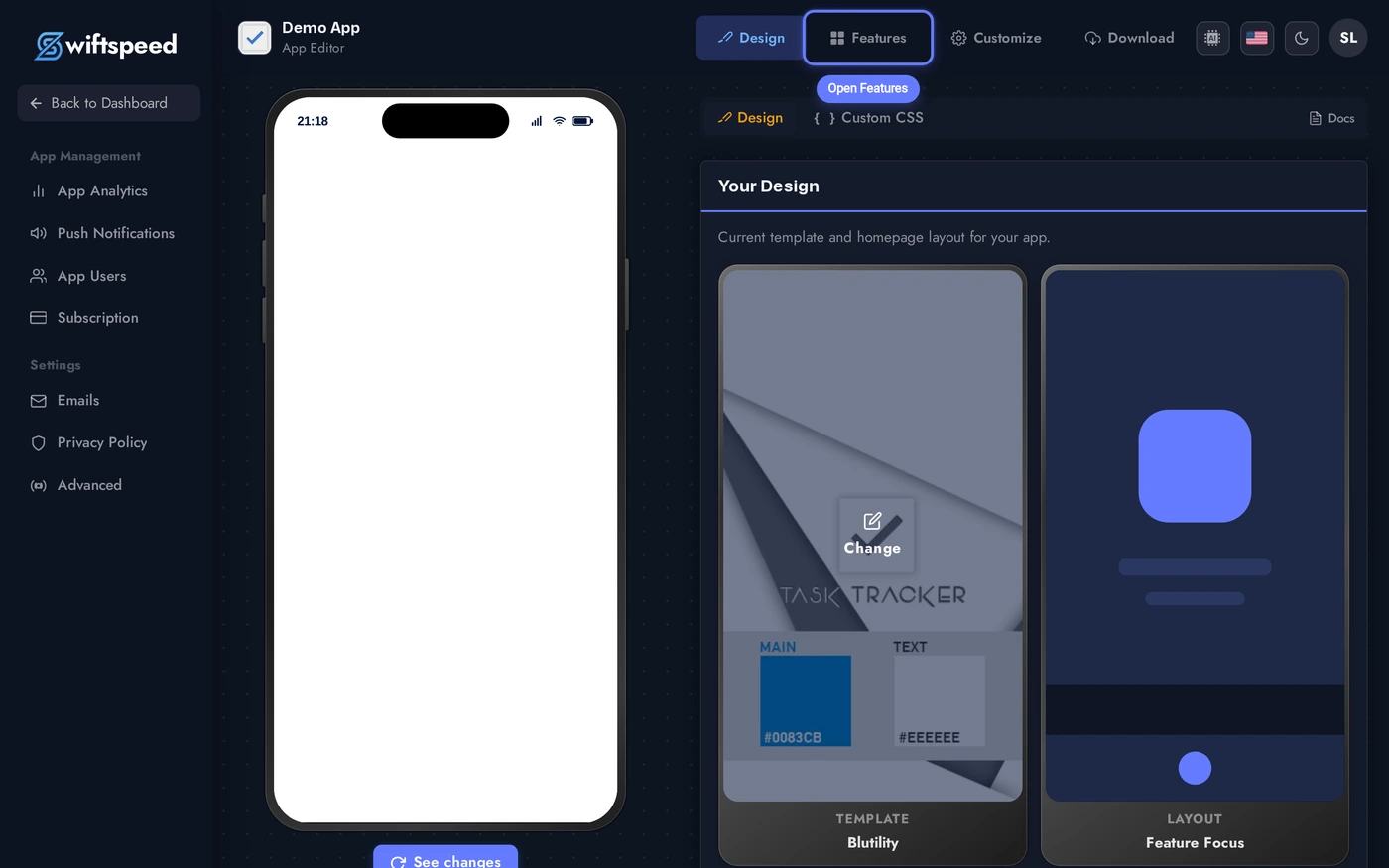
You'll land in the App Editor on the Design tab. Click Features in the top bar. That's where every page in your app lives.
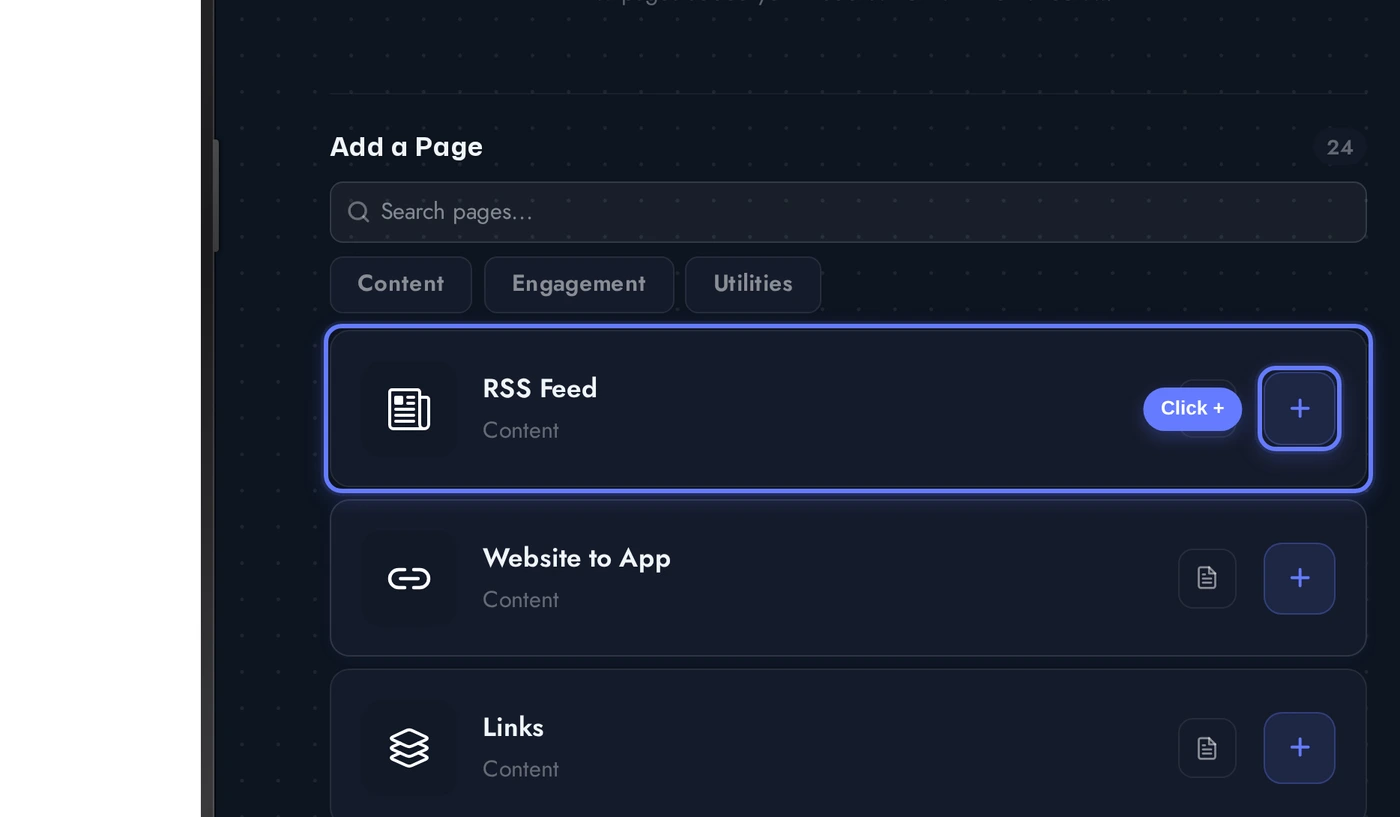
In the Add a Page list, find the RSS Feed card and click the + button on its right.
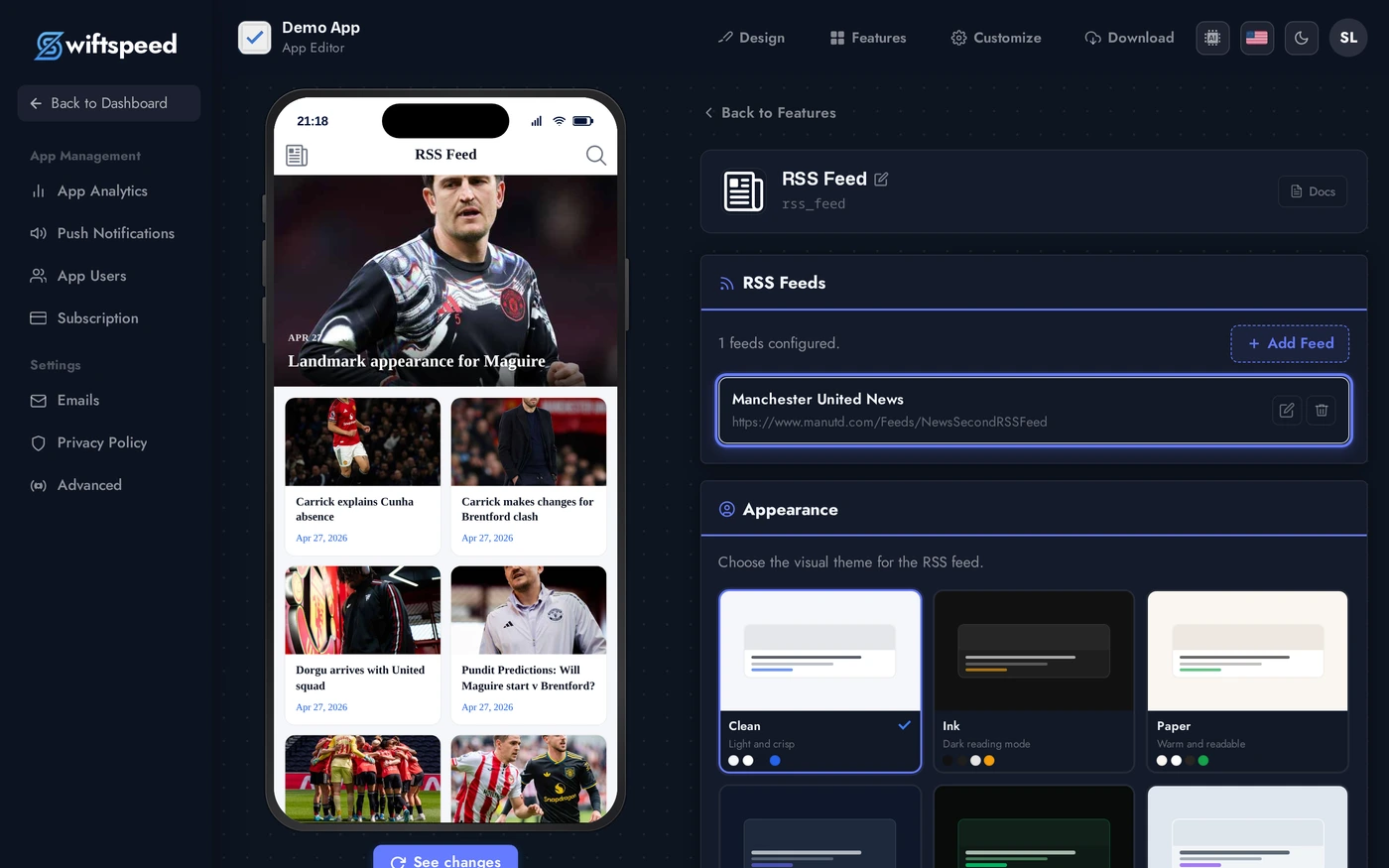
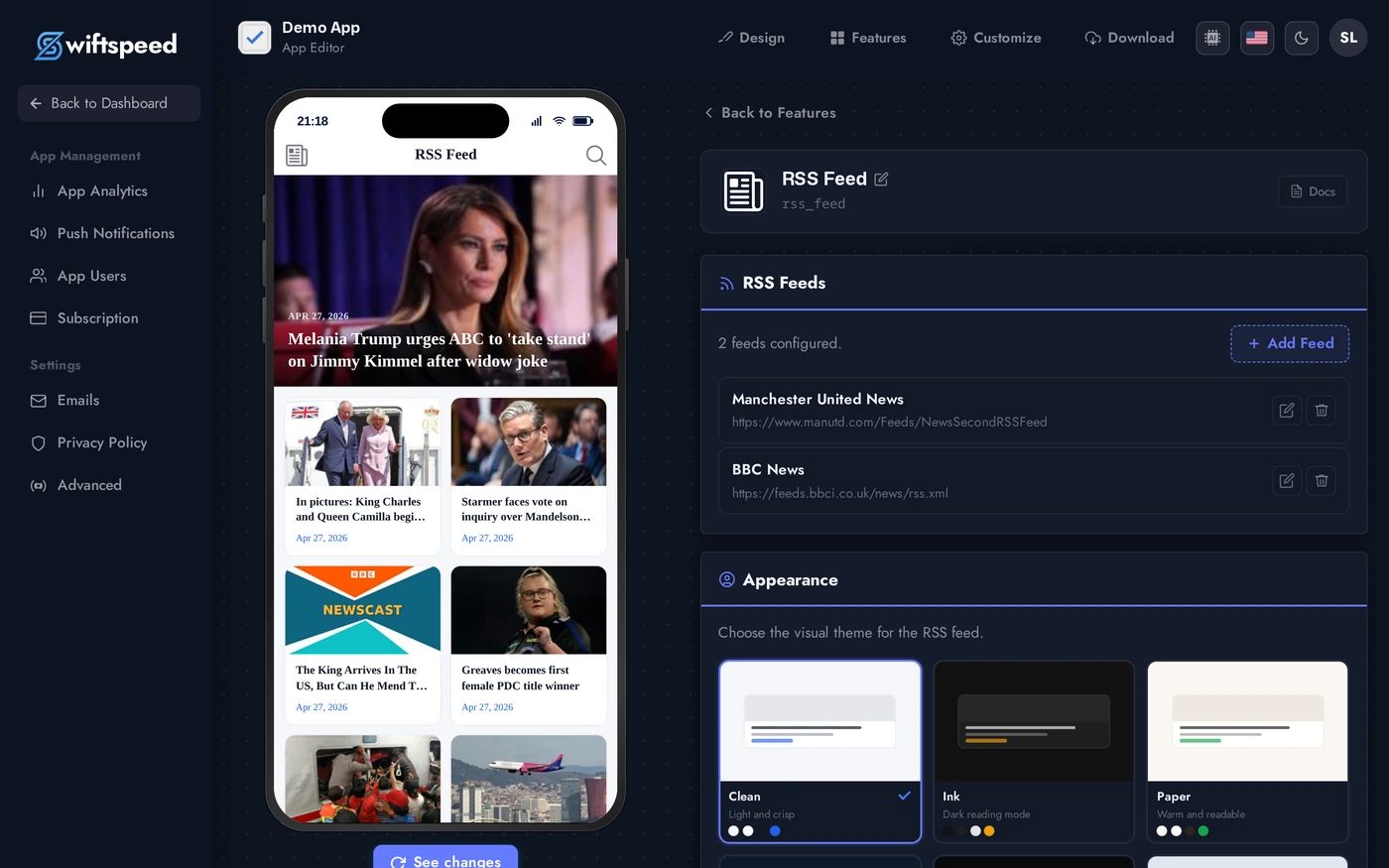
The page is added immediately and the editor opens. RSS Feed comes pre-loaded with a sample news feed (Manchester United News) so you can see how it works straight away. Keep it, edit it, or click the trash icon to remove it.
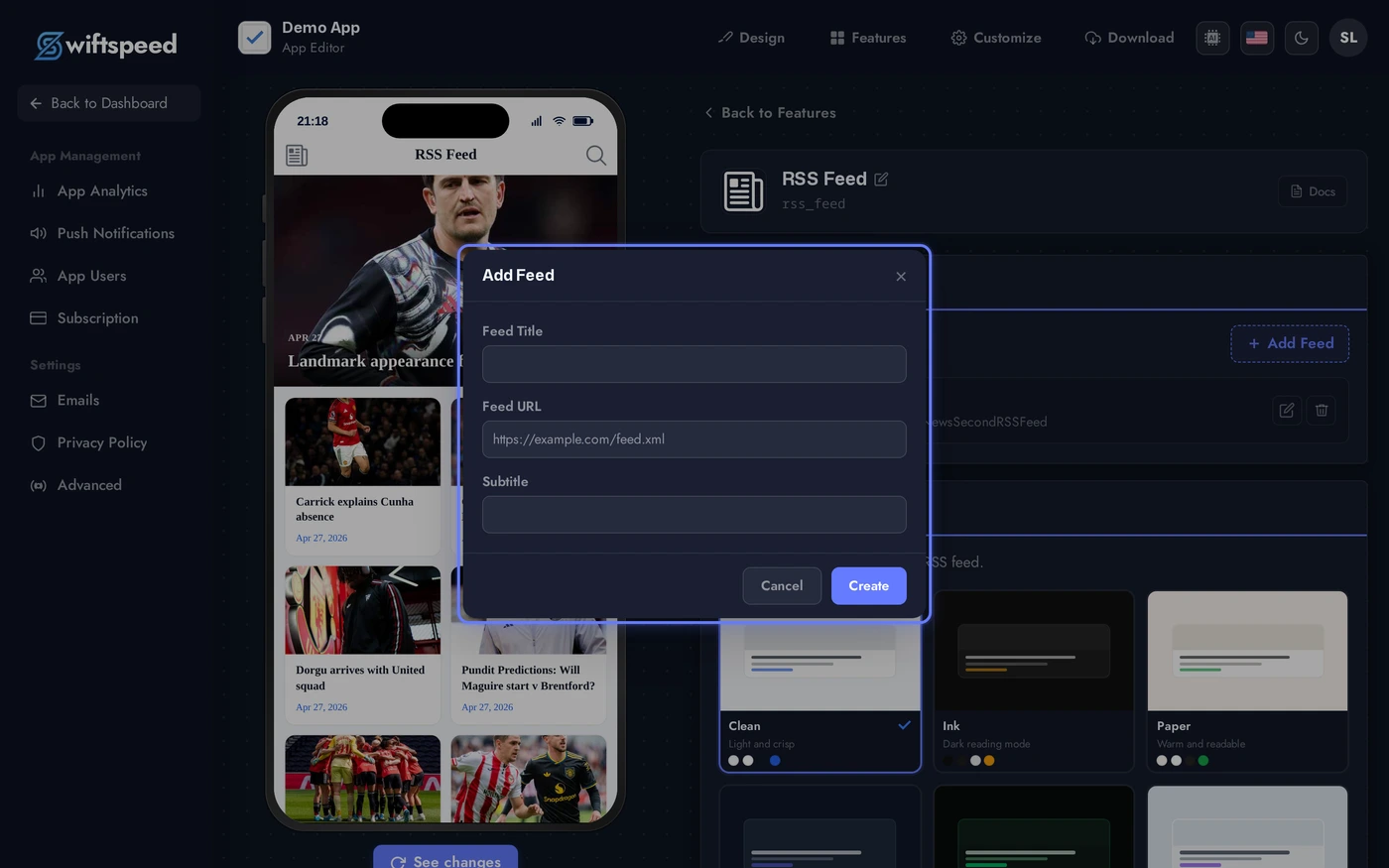
To add your own feed, click + Add Feed. A small dialog asks for a Feed Title, the Feed URL (your RSS or Atom endpoint), and an optional subtitle.
Click Create. The feed appears in the list and the phone preview refreshes automatically with real articles fetched from the URL.
Feed Display Options
RSS feeds in your app render as a scrollable list of article cards:
Here's what readers actually see when they open the page in your app:

- Article title and featured image
- Publication date
- Article excerpt or full content (depending on what the source feed publishes)
- Tap any card to read the full article in-app
The visual theme (Clean, Ink, Paper, etc.) and whether thumbnails appear are tunable from the Appearance section of the editor. Toggles save automatically and the preview updates live.
Multiple Feeds
You can add as many feeds as you need to a single RSS Feed page. Each feed shows up as its own scrollable section, and readers can switch between them. Add a second feed using the same + Add Feed button. Both appear together in the editor and the live preview merges them automatically.
Reorder, rename, or delete any feed at any time using the icons next to each row.
Tips
- Make sure the RSS feed URL is valid and publicly accessible, paste it into a browser to confirm before saving
- Most WordPress sites have feeds at
/feedor/feed/atom - Content updates automatically as the source feed publishes new posts, no need to re-save
- If a feed shows no articles, double-check the URL points to the XML feed itself, not the site's homepage