Source Code / Custom HTML Feature
What is the Source Code Feature?
The Source Code feature is a single textarea inside the editor that accepts any HTML, CSS, or JavaScript and renders the result as a native page inside the mobile app. It is the escape hatch when you need something none of the dedicated features cover, third-party widgets, embedded forms, calculators, dashboards, custom landing pages, or anything else you can build for the web.
Adding Source Code to Your Mobile App
Click the edit pencil on the mobile app you want to add custom HTML to.
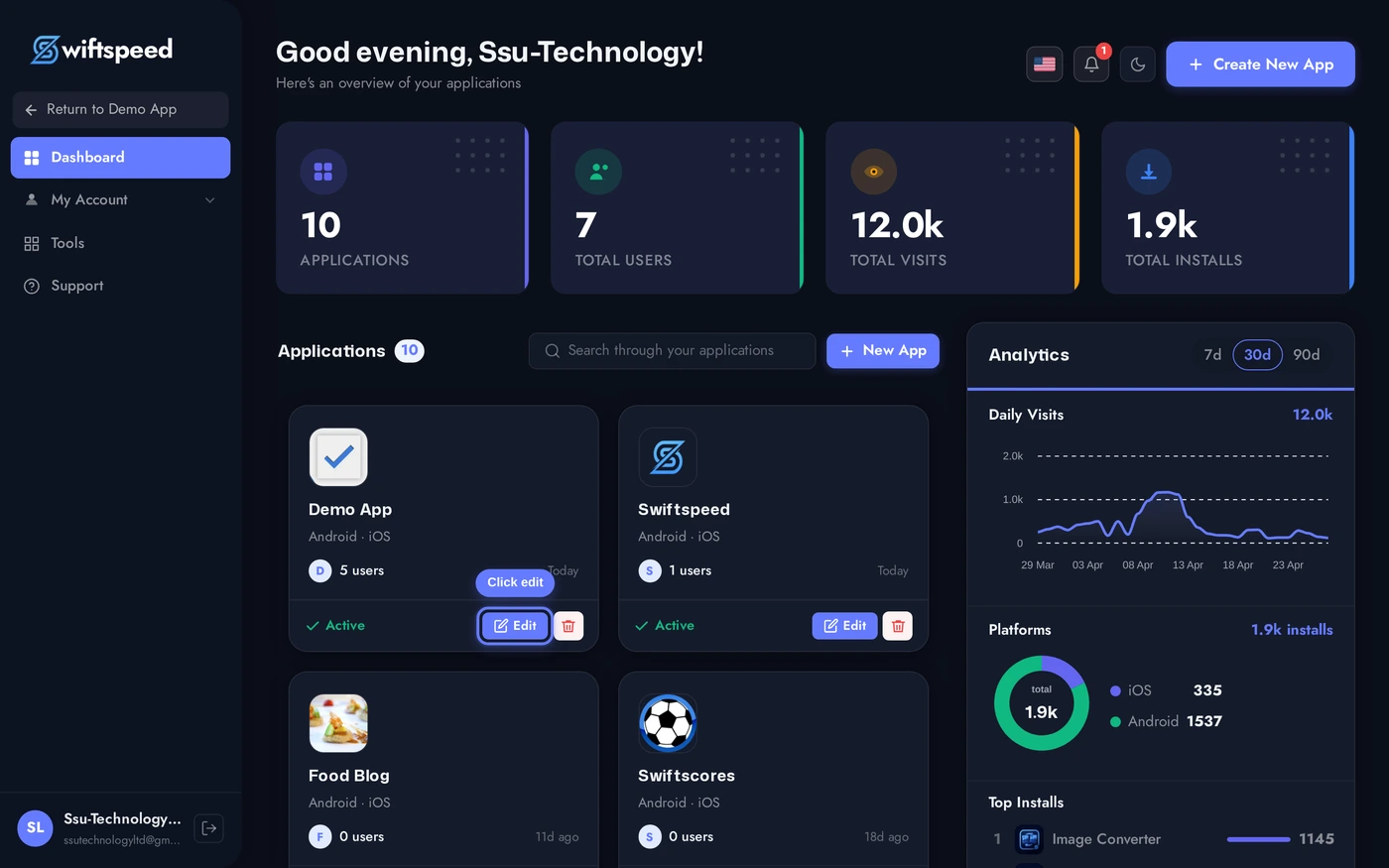
Click Features in the top bar of the App Editor.
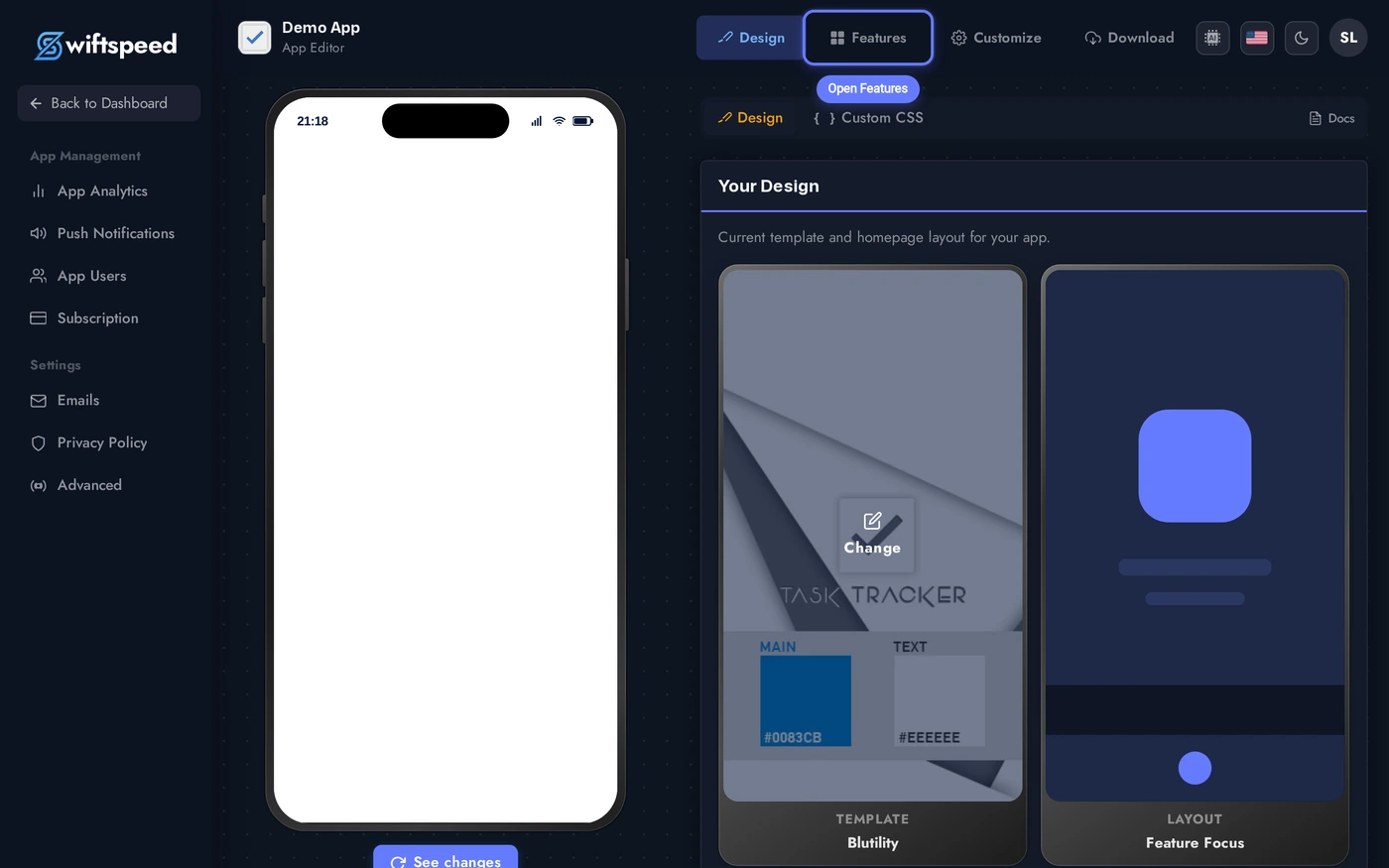
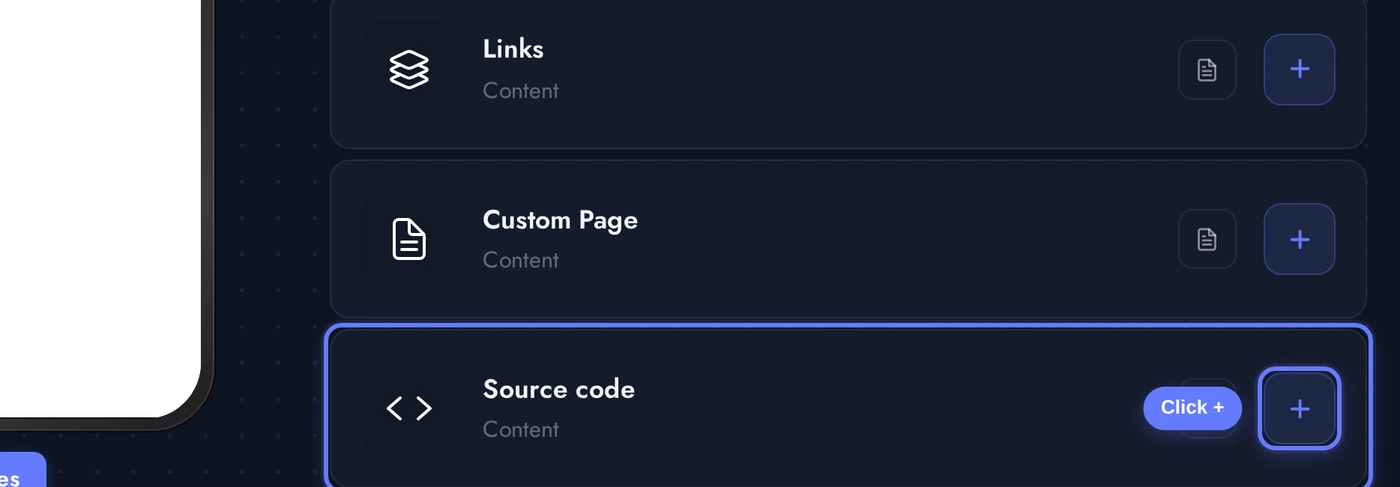
Find the Source code card and click the + button. The feature is added with a clean demo HTML/CSS/JS sample so you have something to start from.
The Editor: Header Colors and Code
When the Source Code editor opens, two cards stack vertically:
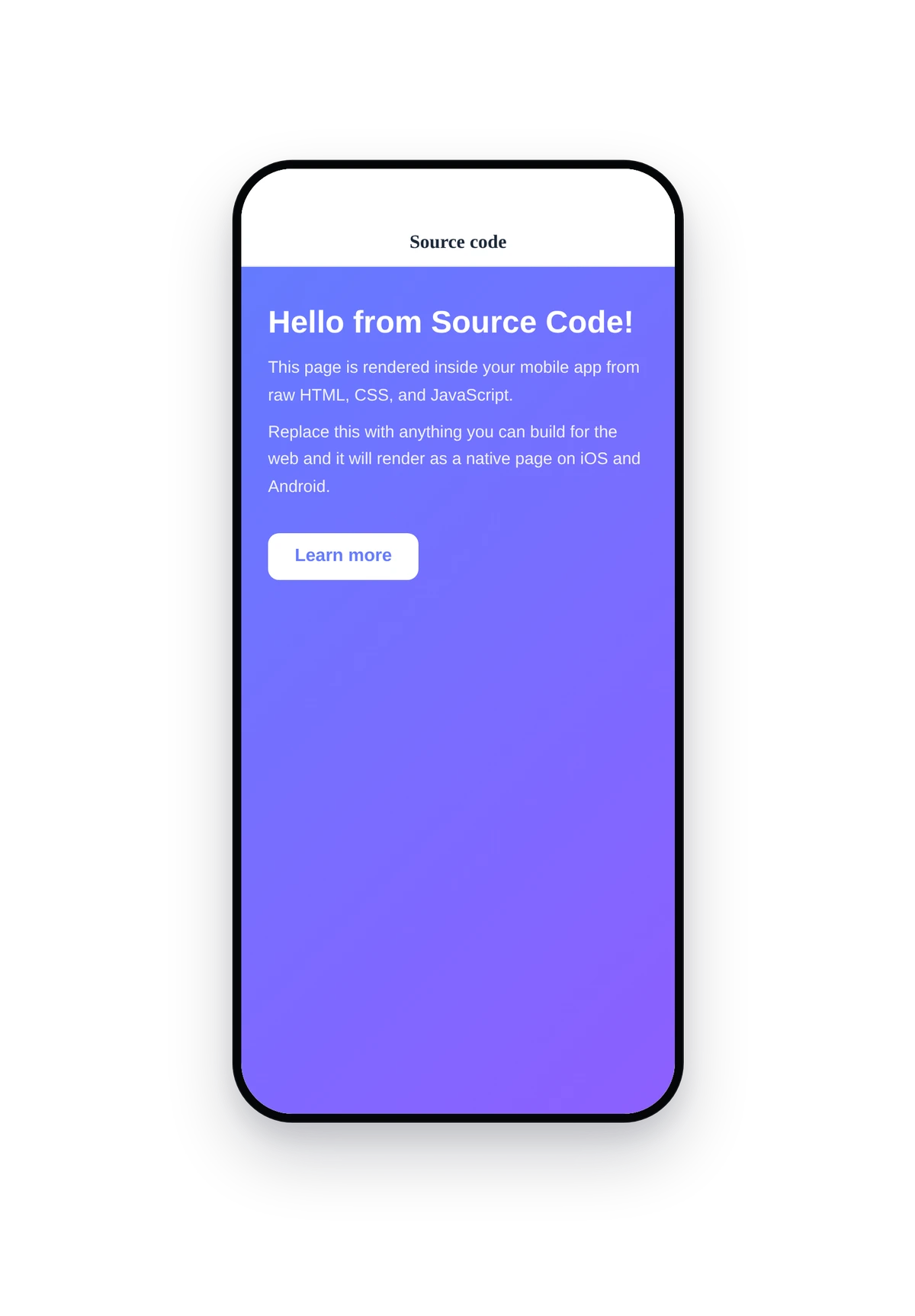
The seeded demo is a tiny landing snippet with a gradient background, two paragraphs, and a button. Replace it with any HTML you want, the textarea accepts as much code as you need.
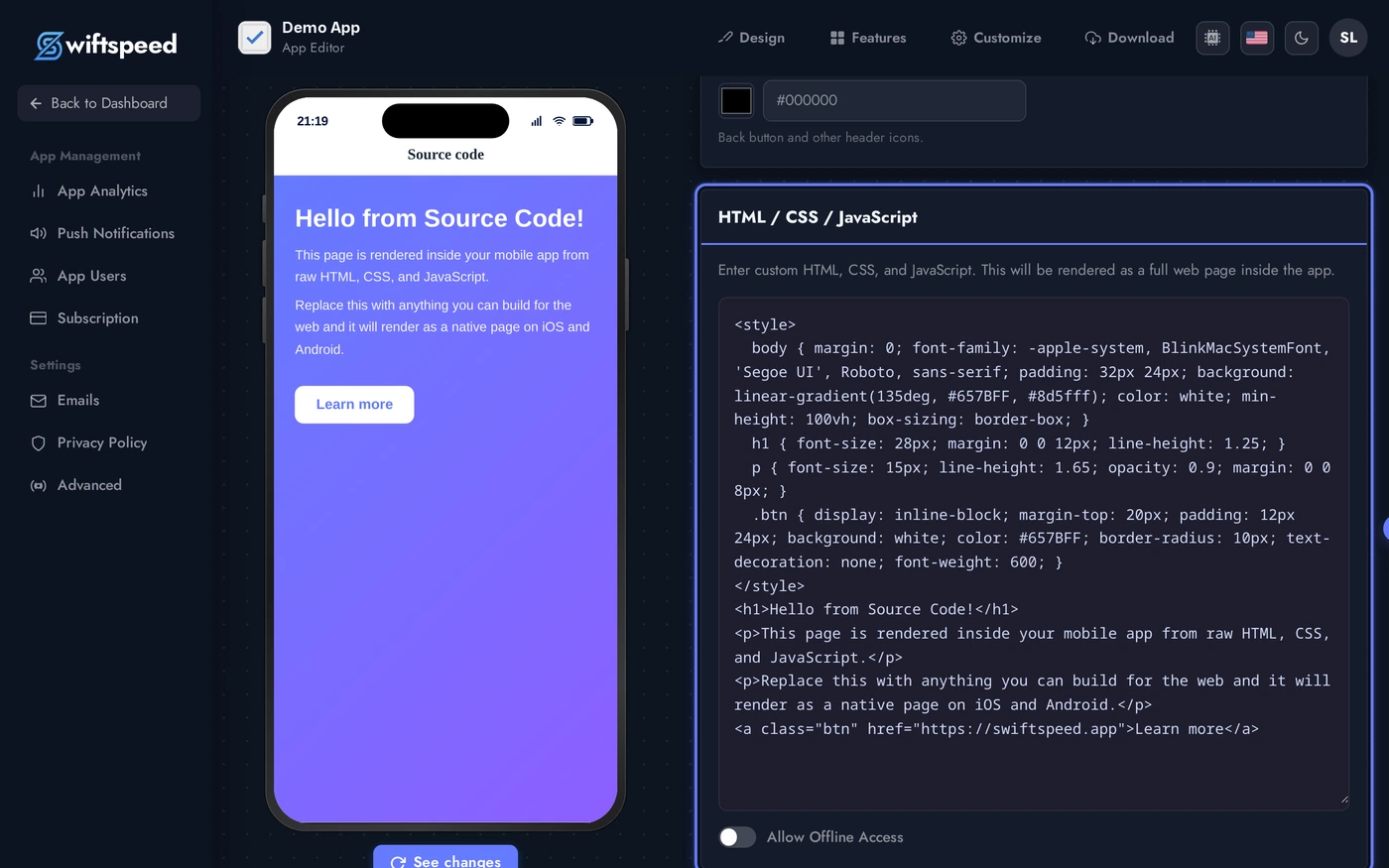
- Header / Toolbar Colors: pick the background, text, and icon colors for the native header bar that sits above your custom page. Useful for matching the rest of your app theme.
- HTML / CSS / JavaScript: a single textarea where you paste anything web-renderable. Save and the native app picks up the change immediately.
Live Preview of the Custom HTML Page
Here is how the seeded demo HTML renders inside a real phone running the native source code feature:
This is the actual native UI rendering your custom HTML/CSS/JavaScript. Anything that runs in a normal browser runs here, with the mobile app's native header on top. Tap the button, follow the link, run JavaScript, the native shell hosts the page transparently.
Tips and Use Cases
- Embed third-party widgets (Calendly, Typeform, Stripe checkout, Google Maps, charting libraries). Paste the embed snippet, the native page renders it.
- Build a custom calculator or quiz. Pure HTML + JavaScript runs natively, no backend needed.
- Display branded marketing pages. Designers can build a pixel-perfect promo page in HTML and ship it as a native screen without touching the rest of the app.
- Wrap an existing dashboard. If you already have a web dashboard, embed it as an
<iframe>here and customers get a native version inside the mobile app. - Allow offline toggle saves the HTML on-device so the source code page still renders when the phone is offline. Useful for static content (terms, FAQ, calculators), avoid for content that depends on live data.
- No backend access. The textarea is sandboxed in a webview. Make API calls to your own endpoints from the JavaScript, the native shell does not inject any server-side data.
- Header colors override the global app theme just for this feature. If the Source Code page needs a different look (white header on a dark app, or vice versa), set the toolbar colors here.