Understanding the App Editor
Editor Overview
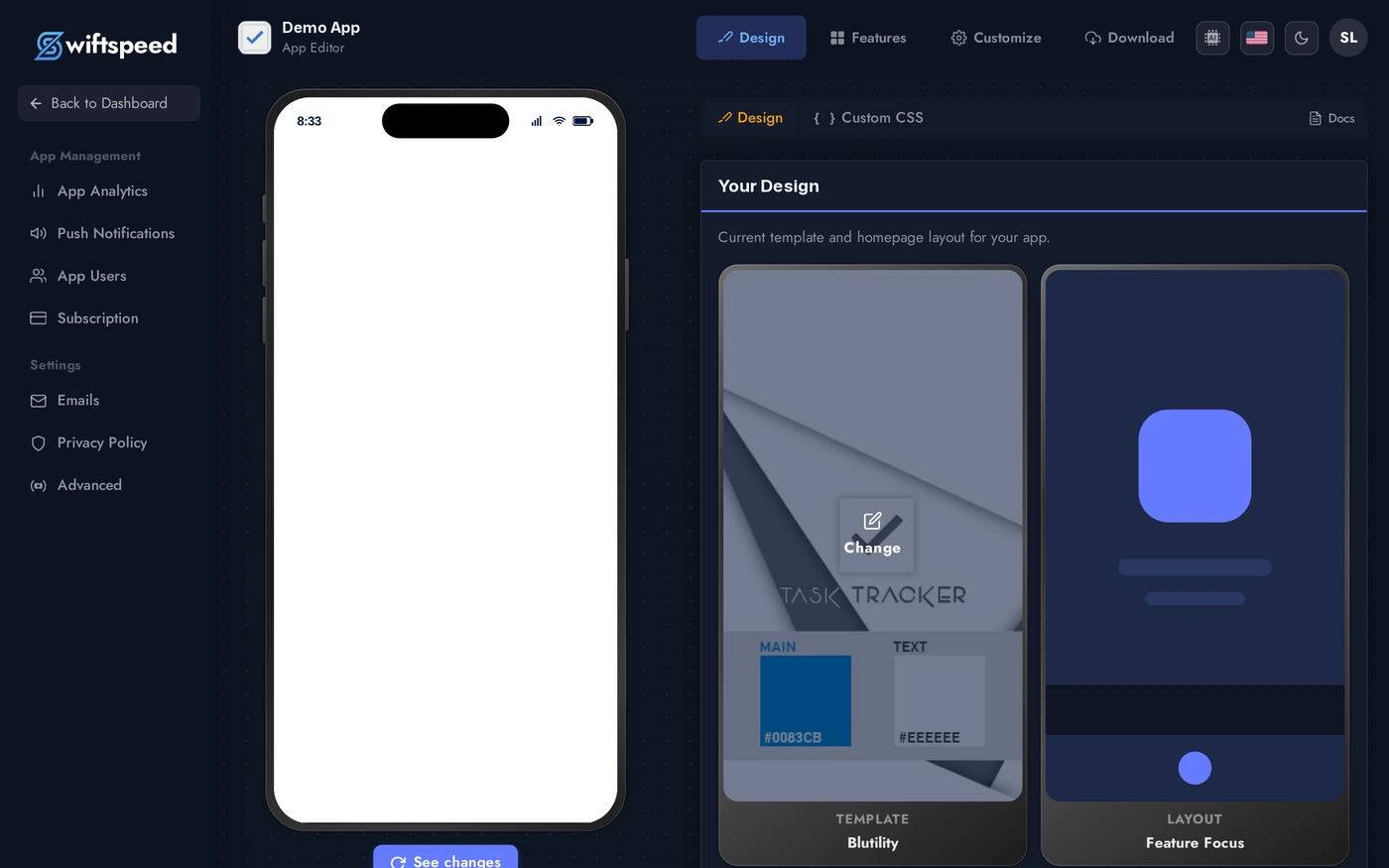
The Swiftspeed App Editor is the workspace where every part of your mobile app lives. It is a single screen with four persistent regions: a left sidebar for app-wide management, a top bar for navigation between the four core builder pages, a center workspace that changes per page, and a live phone preview on the right that reflects every change you make in real time.
This article is a quick tour of every chrome element so you can find anything in the editor in three clicks or fewer.
Opening the Editor
From the dashboard, click the edit pencil on any app card to open it in the editor.
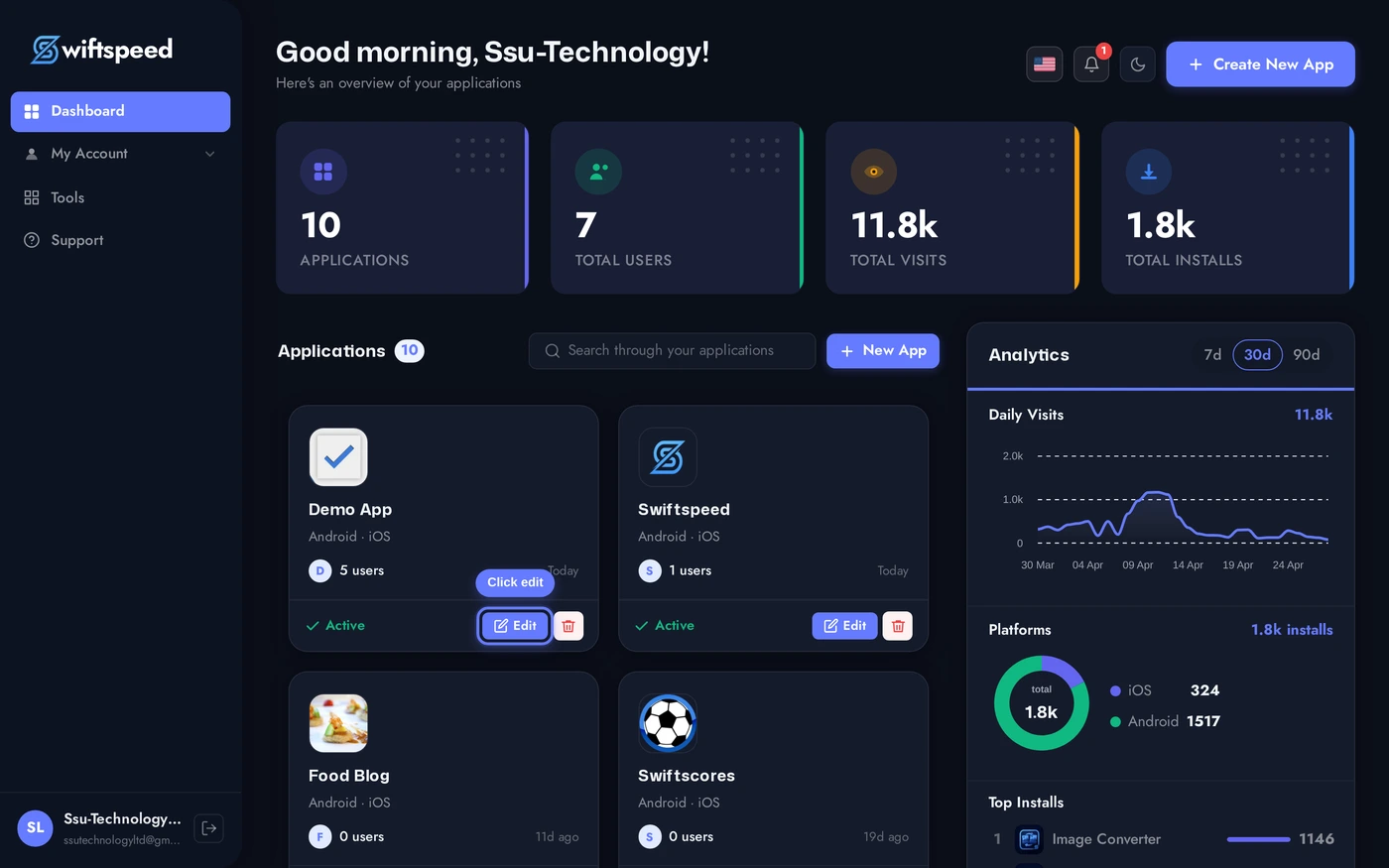
The editor opens on the Design page by default. Four regions visible: left sidebar (app management), top bar (page tabs + utilities), center workspace (page-specific cards), and the phone preview on the right (live, reflects every save).
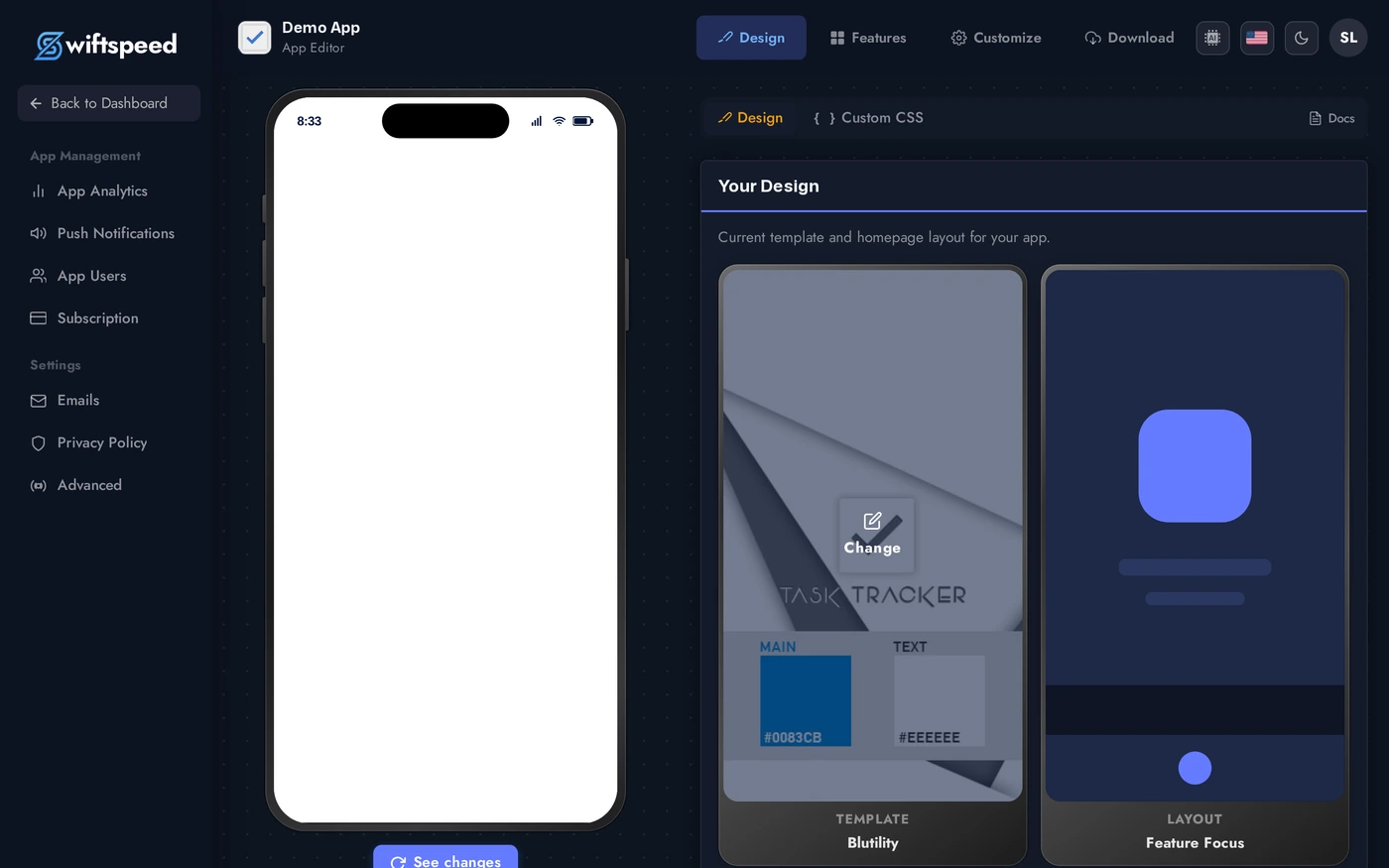
The Top Bar
Top bar is split into three groups, left to right:
The top bar is sticky, the four page tabs (Design, Features, Customize, Download) stay visible from any sub-page so you can switch sections in one click.

- App identity (left): app icon + name + "App Editor" subtitle. Confirms which app you are editing. On mobile the hamburger button sits here too, opening the sidebar as a slide-in drawer.
- Page tabs (center): four tabs that swap the center workspace. Design (templates, layouts, colors), Features (add and arrange pages), Customize (app icon, splash, store info), Download (build APK / IPA, ship to App Store / Play Store).
- Utilities (right): AI Builder toggle, language switcher, light/dark/system theme toggle, account avatar with sign-out menu.
The AI App Builder
The AI Builder icon in the top-right opens a chat-style assistant that can build and edit your app for you. Describe what you want ("turn this into a podcast app" or "add a contact page") and the assistant adds features, fills in content, swaps templates, and tweaks colors. The phone preview updates as the assistant works.
Click the AI Builder toggle in the top right (sparkle icon) to open the panel. Type instructions in plain English. The assistant lists every change it makes so you can undo or refine.
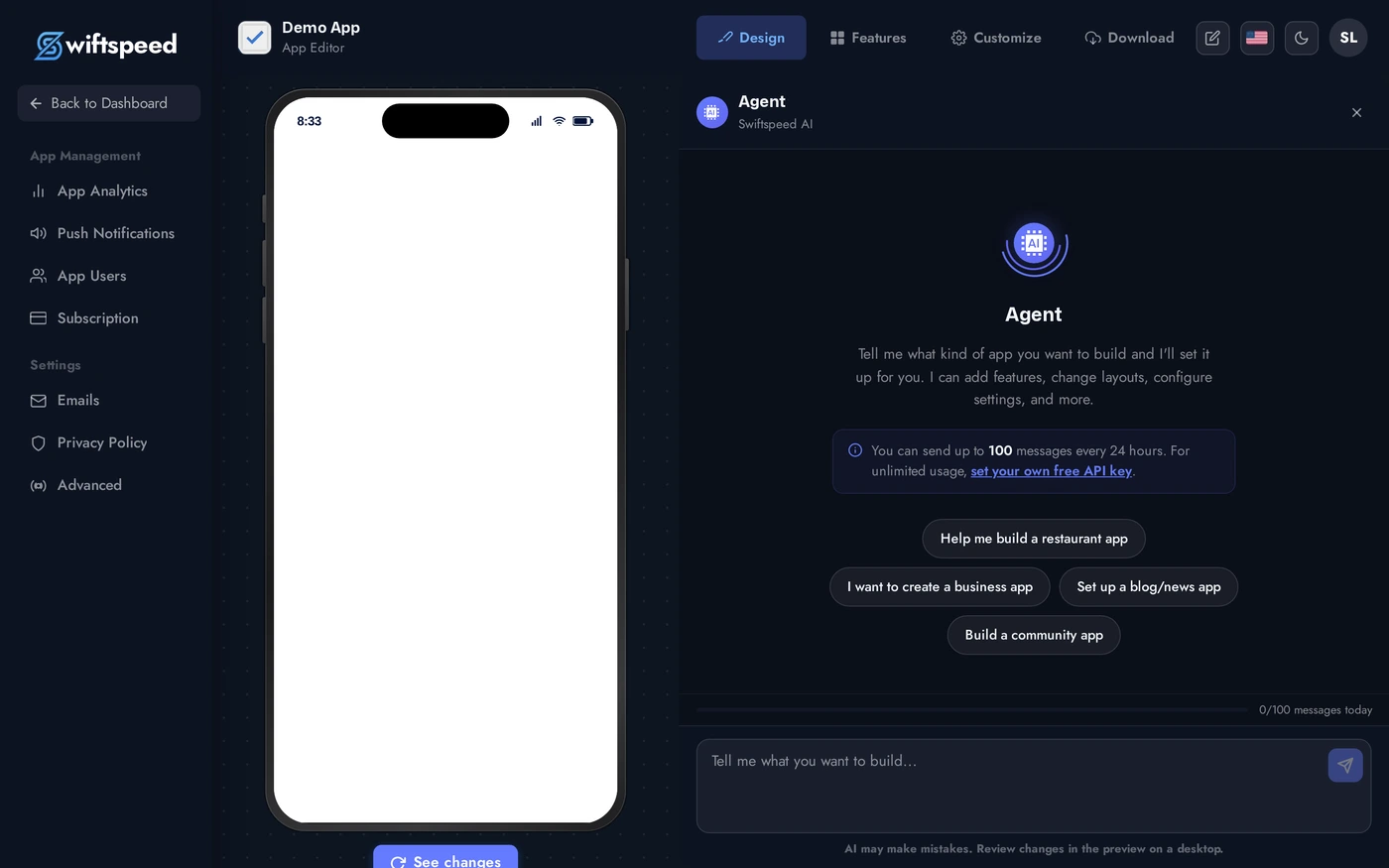
- It works on top of every editor surface, so it can do anything you can do manually.
- Conversations persist so you can return later and ask the assistant to continue or revise.
- Useful for first-time setup of a complex app (e.g. "build a full e-commerce app for a coffee roaster") and for one-off changes (e.g. "make every accent colour dark green").
The Sidebar
The left sidebar groups everything that is not directly tied to building the app itself. Two sections:
On desktop the sidebar is always visible. On mobile, tap the hamburger in the top bar to slide it in.
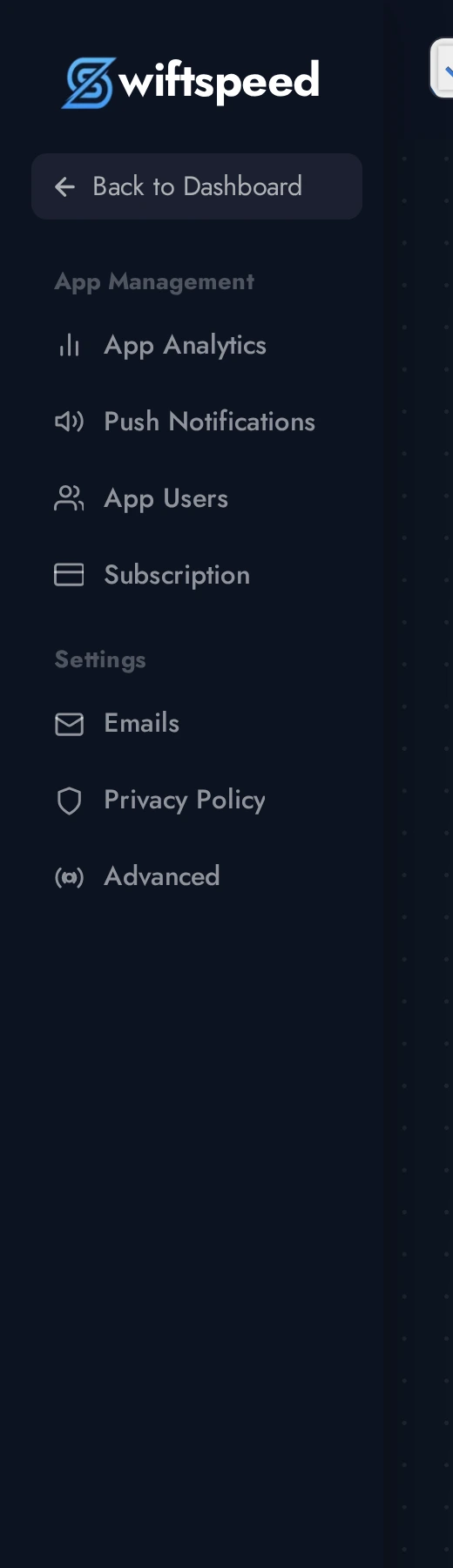
- App Management: App Analytics (installs, sessions, screen views), Push Notifications (compose + history), App Users (your registered end-users, manual create + manage), Subscription (the plan tier this app sits on).
- Settings: Emails (transactional email config), Privacy Policy (legal pages shown in-app), Advanced (per-app overrides for power users).
- A Back to Dashboard link sits at the very top of the sidebar; the user account footer (name, email, sign out) sits at the bottom.
Sub Navigation Inside Pages
Most pages in the editor split their workspace further with a thin sub-nav bar at the top of the content area. Examples:
- Design: Design / Colors
- Audio: Content / Appearance / Storage
- Radio: Stations / Structure / Appearance
- Direct Message: Conversations / Appearance / Settings
- Custom Page: Appearance / Structure / Pages
- Customize / Settings: App info / Domain / Privacy / Advanced
Sub-nav lives inside the workspace, not the top bar, so each page can have its own. Tabs appear in the same bar where you also see a "Docs" link to the corresponding KB article.
Theme Switcher (Light / Dark / System)
The sun/moon/monitor icon next to the avatar cycles the editor theme: Light (default), Dark, or System (matches your OS preference). The setting is per-account and persists across sessions and devices. Switching does not affect how your published mobile app looks, this is purely the editor chrome.
Dark mode applies to the entire editor (sidebar, top bar, workspace cards, modals). Use it for late-night editing or to match a dark-themed phone preview.
Language Switcher
The flag icon in the top-right opens a dropdown of every editor language Swiftspeed supports. Pick one and the entire editor UI switches instantly. The setting is per-account and persists.
Pick a language by flag or name, the editor reloads strings without losing your current page or unsaved field state.
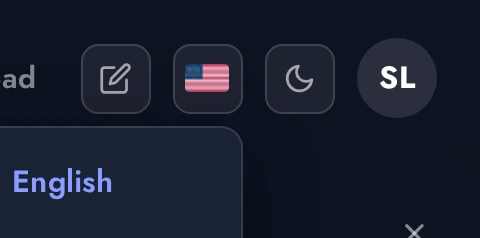
- Currently supported: English, French, Spanish, Italian, German, Greek (more on the way).
- Customer-facing app strings (the mobile app users see) are translated independently in each feature's editor, switching the editor language does not change what your end-users see.
The Live Phone Preview
The right side of the editor is a live phone running your app exactly as your customers will see it. Every save in the workspace pushes a refresh event to the iframe, so the preview is always in sync with what you would build today.
- Default device frame is iPhone-sized; you can switch to other phone sizes from the small device-picker button on top of the preview.
- The preview is fully interactive, tap buttons, scroll lists, navigate between pages exactly like an end-user would.
- For features that gate content behind login (Audio, Ewallet, Booking deposits, AI Chat), the preview also signs in a demo customer so you see the post-login UI rather than the welcome screen.
Account Menu (Avatar Dropdown)
The circular avatar (your initials) in the top-right corner opens a dropdown with: your name + email, My Profile, Support (links to support.swiftspeed.app), and Sign out. White-label / agency installs may hide the Support link; the rest is identical.
Tips for First-Time Editors
- Top bar = build flow. Design → Features → Customize → Download is the natural order. Walk through them once before tweaking individual features.
- Sidebar = post-launch. Analytics, Push, App Users, Subscription are about running the app, not building it. Most of the sidebar can wait until your first build is in customers' hands.
- Sub-nav lives inside pages. Don't hunt for it in the top bar. If a feature has multiple workspaces, it puts the tabs at the top of its own card area.
- Trust the live preview. Anything that does not show up in the preview will not show up on your customers' phones. If a change isn't visible there, it didn't save.
- AI Builder is the fastest way to prototype. "Make this a coffee shop app" followed by minor cleanup is faster than building from scratch for most categories.
- Theme + language preferences are per-account, not per-app. Switch them once and they apply to every app you edit on the same browser session and device, plus when you log in elsewhere.