Weblink & Website Feature - Convert Website to App
What is the Weblink Feature?
The Weblink feature is the fastest way to bring an existing website, your own, your company's, your booking system, your portal, into a native mobile app, without rebuilding any of it.
It comes in two flavours: Website to App for a single URL that becomes a tab in the bottom bar, and Links for a full page that lists multiple websites or external resources. Pick whichever matches the structure of what you want to embed.
Single Website (Website to App)
Use this when you want one URL, your homepage, a web app, a booking page, to be a tab inside your app. Tapping the tab opens the URL inside the in-app browser (or external browser / Chrome Custom Tab if you prefer).
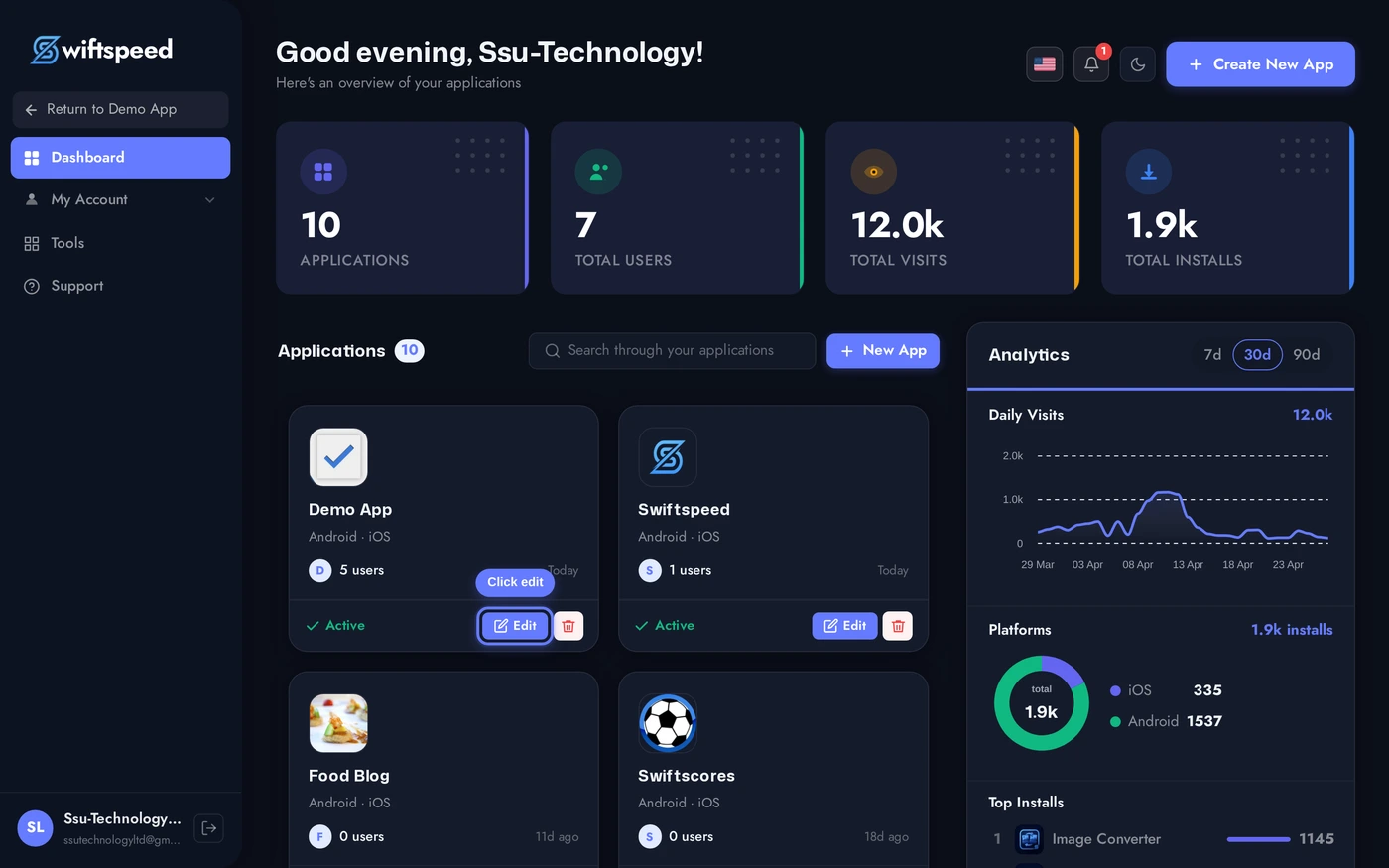
From your Swiftspeed dashboard, click the edit pencil on the app you want to embed the website into.
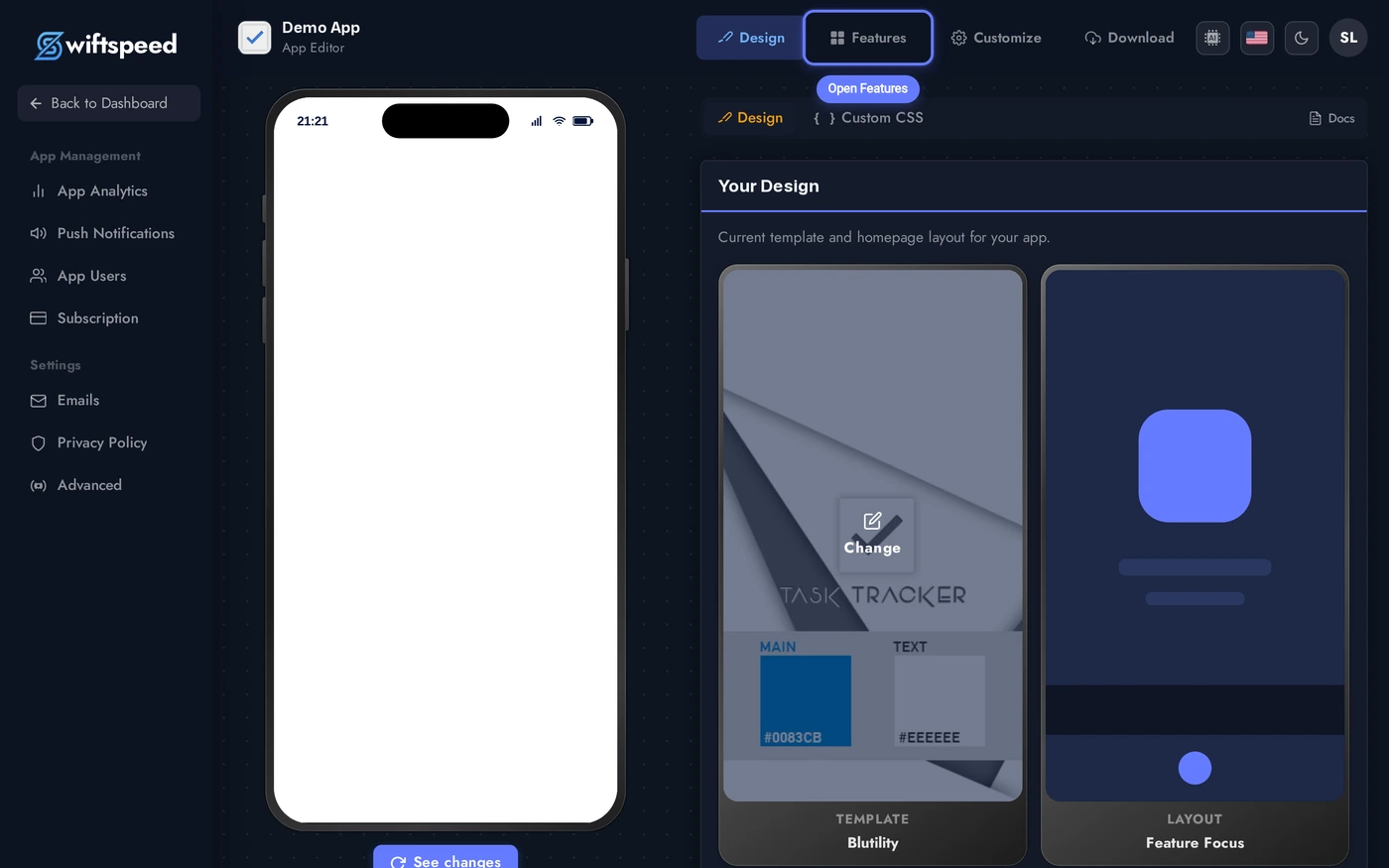
You'll land in the App Editor on the Design tab. Click Features in the top bar, that's where every page in your app lives.
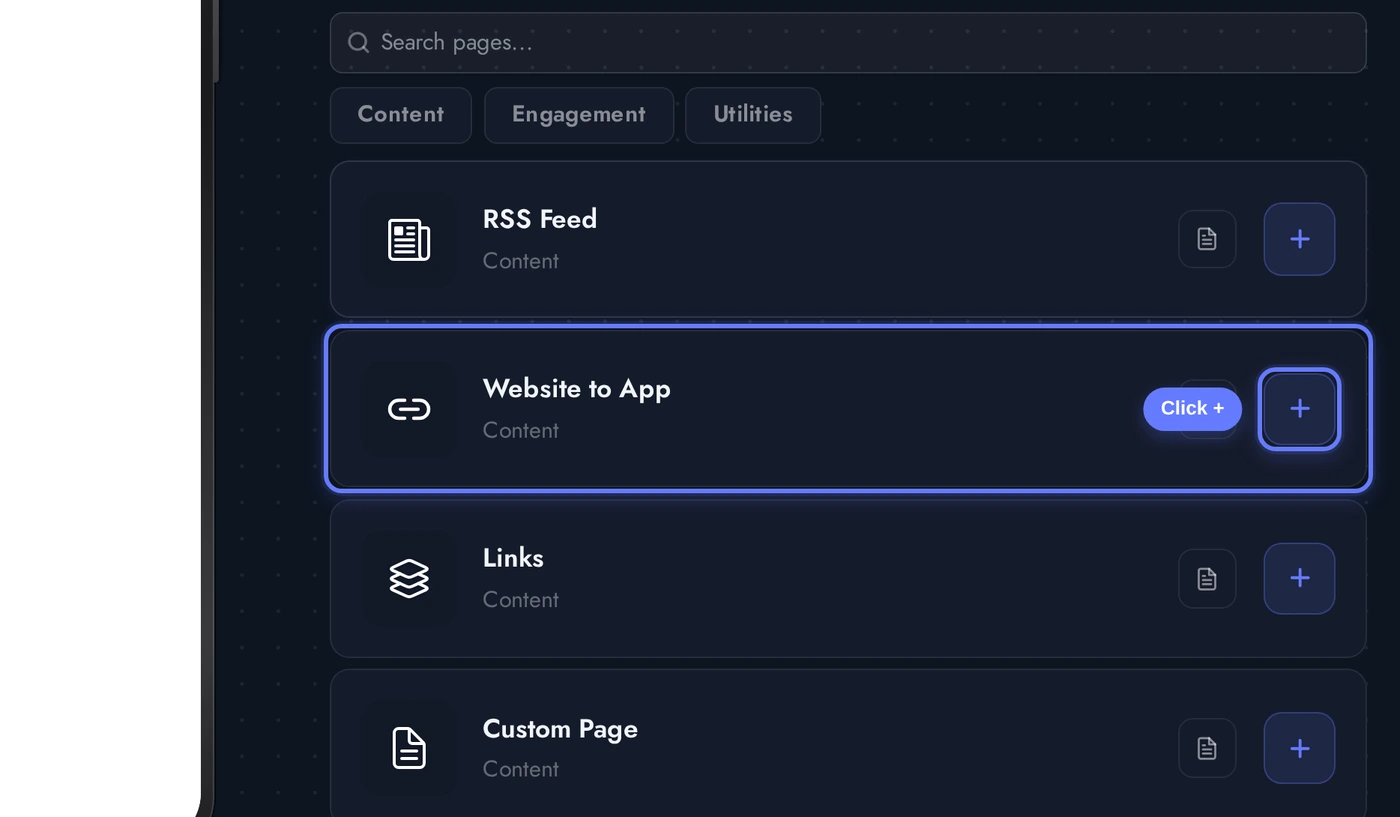
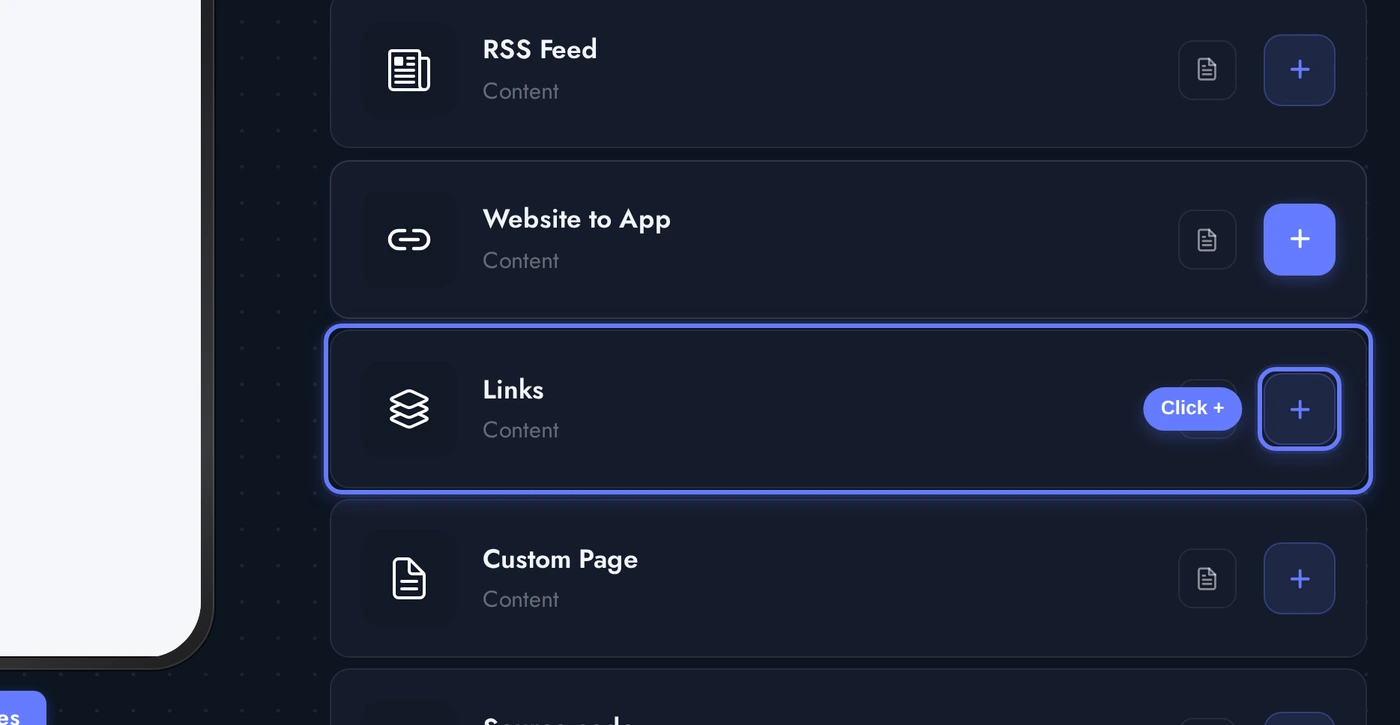
In the Add a Page list, find the Website to App card and click the + button on its right.
The page is added immediately and the editor opens. Enter the URL you want to embed, give it a Title (this is what shows in the tab bar), and choose how the link opens, in-app browser, external browser, or Chrome Custom Tab. Save and you're done.
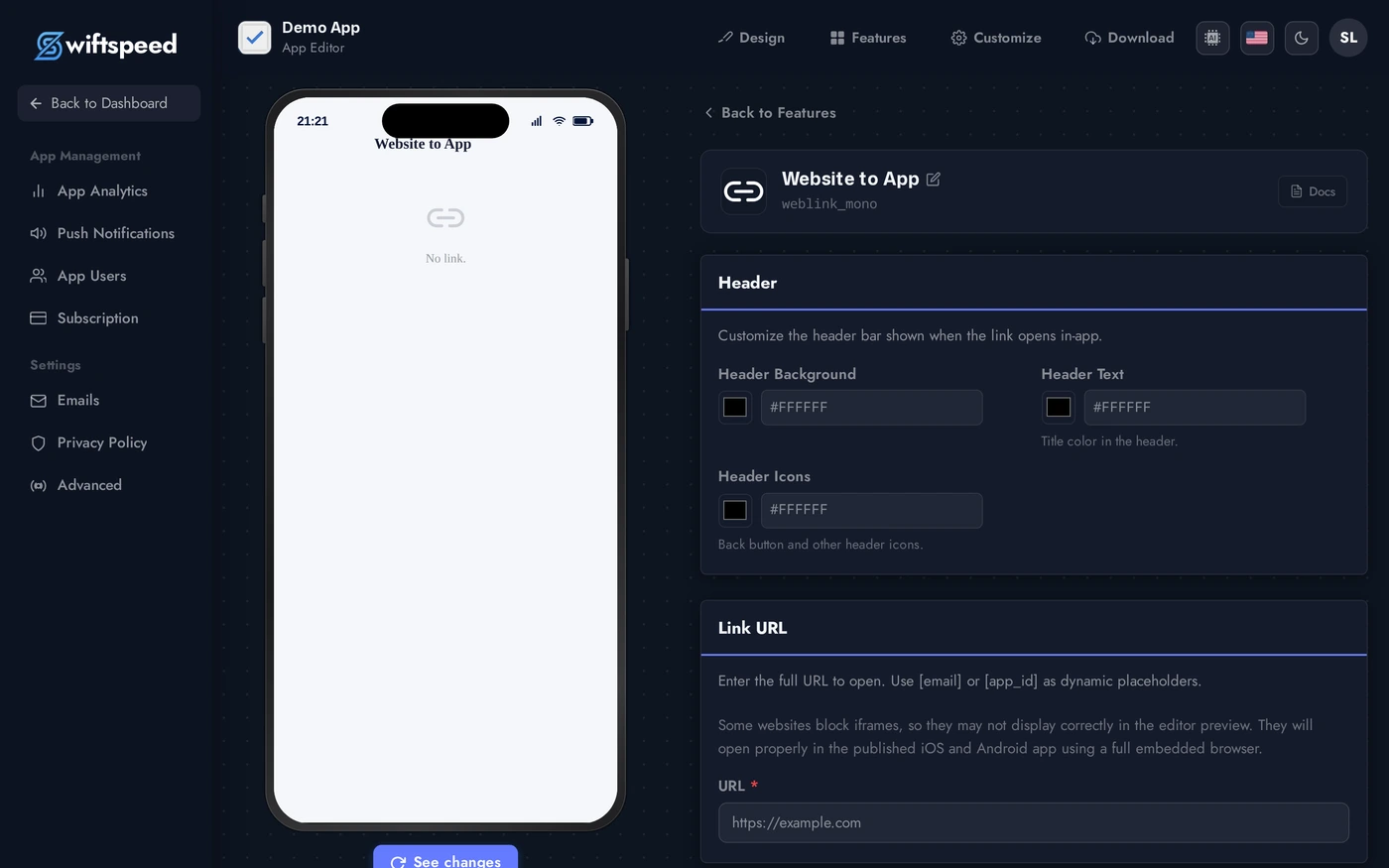
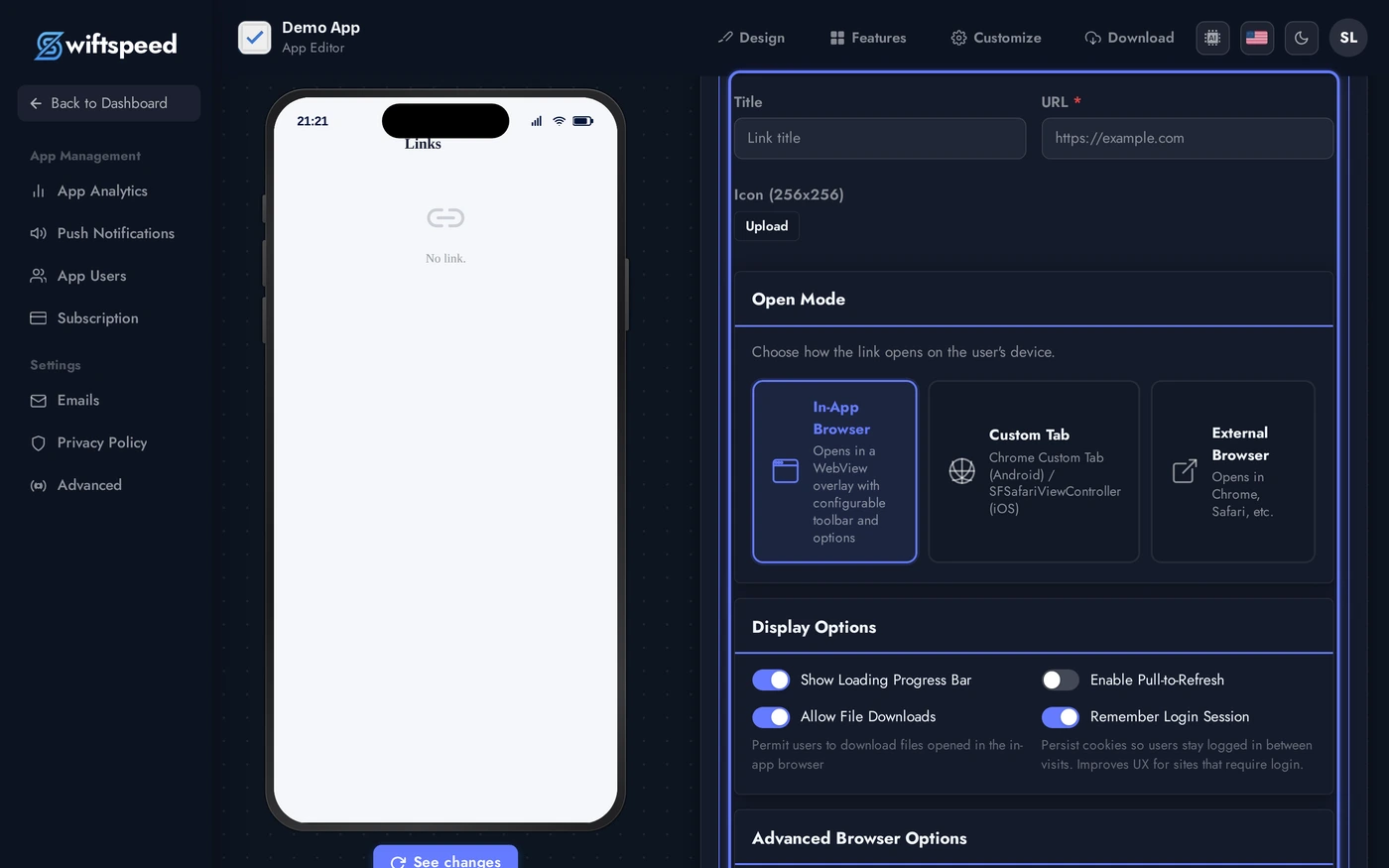
Use in-app browser for the cleanest experience, the user never leaves your app. External browser opens the system browser (Safari/Chrome) and is best when the site needs cookies or extensions the in-app webview can't share. Chrome Custom Tab is an Android-only middle ground that opens a lightweight Chrome instance inside your app.
Multiple Websites (Links Page)
Use this when you want a single tab that lists several websites, a directory, a hub of resources, all your social media profiles, a list of partner brands. Each link can have its own title, icon, and open mode.
Back in the Add a Page list, find the Links card and click the + button on its right.
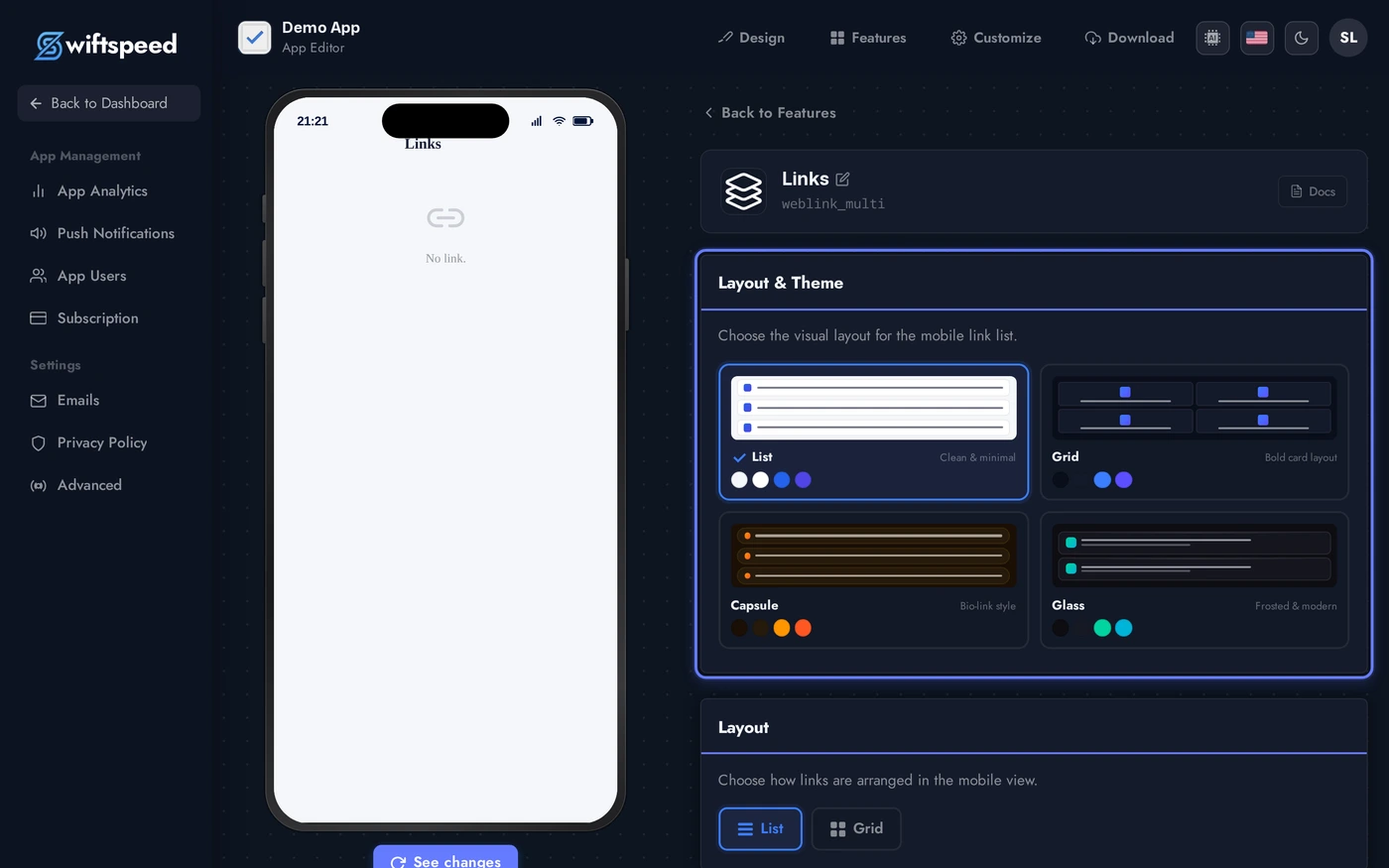
The Links editor opens with a theme picker at the top (List, Grid, Capsule, Glass), a layout toggle, and an empty Links section ready for you to populate.
Click Add Link to open the link form. Fill in a Title, the URL, optionally an icon, and choose the open mode for that link, each link can have its own behaviour. Click Save and the link slots into the list, with the phone preview refreshing live.
Themes & Layouts
The Links page comes with four built-in themes, pick whichever matches your brand:
- List, clean rows with icon, title, and subtitle. Best when you have many links and want fast scanning.
- Grid, tile cards with cover art. Best when each link has a strong visual.
- Capsule, pill-shaped buttons centred on the page. Best for simple link-in-bio style hubs.
- Glass, frosted-glass cards with subtle gradients. Best for premium / lifestyle apps where the look matters.
On top of the theme, the layout toggle switches between list and grid arrangements within most themes, and you can override every colour from the Custom Colors section if the built-in palette doesn't fit. Changes save automatically and the phone preview reflects them in real time.
Live Preview
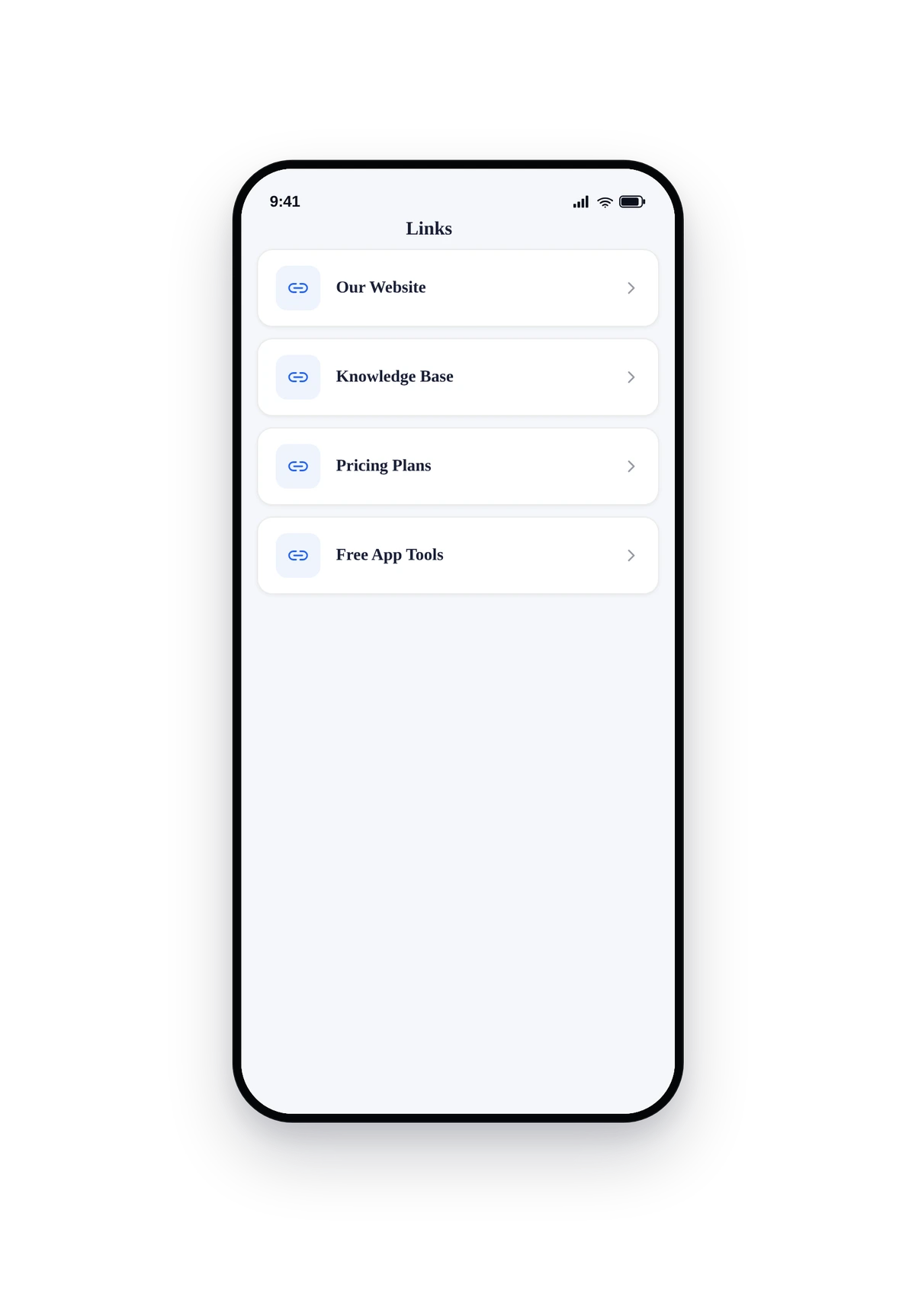
Below are HD renders of both variants in a real phone frame, first the Website to App tab opening swiftspeed.app inside the in-app browser, then the Links page with multiple sites listed.
The Website to App tab opens the URL inside the in-app browser. The header bar is fully customisable, here it's set to white with brand-purple icons so it complements the swiftspeed.app design loaded inside.
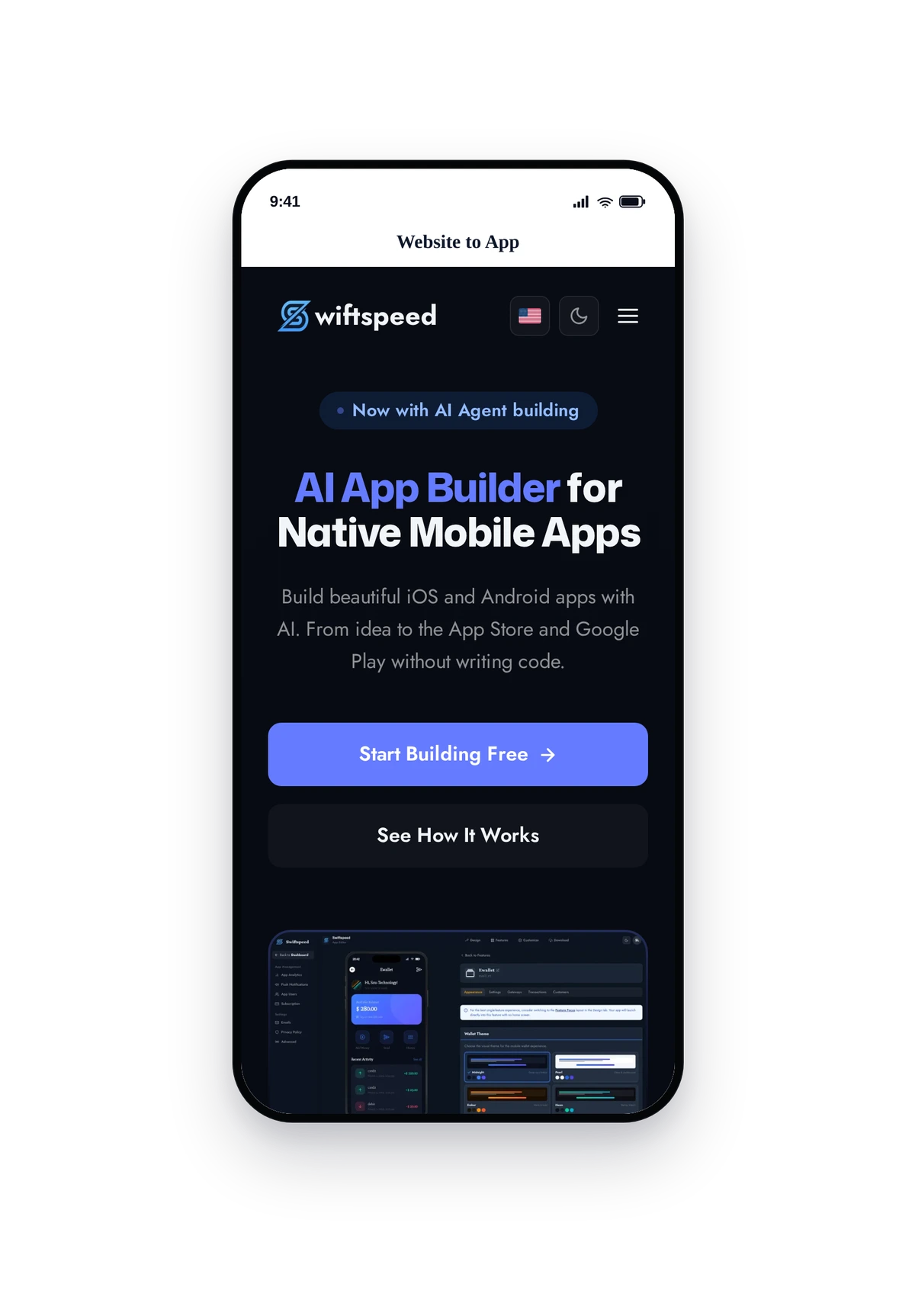
The page is fully native, pull-to-refresh, smooth scrolling, tap-to-open in whichever browser mode you chose for that link.
Browser Modes Explained
- In-App Browser, opens inside your app with your branding (toolbar colors, header text). Ideal for the seamless "still in the app" experience.
- External Browser, opens Safari (iOS) or Chrome (Android). Use this for sites that need shared logins, password managers, or browser extensions.
- Chrome Custom Tab, Android-only. Opens a fast, lightweight Chrome instance with your branding. Inherits the user's Chrome cookies and saved passwords.
- Advanced options (in-app browser only), inject custom user-agent strings, cookies, HTTP headers, or JavaScript. Useful for SSO flows, authenticated dashboards, or web apps that need to know they're inside your app.
Tips
- Make sure the target site is mobile-responsive, desktop-only sites look cramped on a phone. If you control the site, add a viewport meta tag.
- Always use HTTPS URLs. iOS blocks insecure http:// content inside webviews by default.
- Some sites block iframe-style embedding via X-Frame-Options or CSP headers. If a site won't load, switch the open mode to external browser as a workaround.
- For login-protected sites, use In-App Browser with cookie injection (advanced options) so users don't have to sign in every time.
- Mix and match: nothing stops you from using Website to App for the main site (as a tab) AND a Links page for partner resources. They're separate features.