WooCommerce Integration - Convert WooCommerce to App
What is the WooCommerce Feature?
The WooCommerce feature is how Swiftspeed turns any existing WooCommerce store into a fully native iOS and Android shopping app, without rebuilding anything you already have. Products, categories, prices, variations, cart, checkout, payment gateways, and orders all sync directly with your live WordPress site, no separate inventory, no duplicated data, no replatforming.
Customers browse and buy through a polished native mobile interface, while every order, refund, and stock change still flows through the same WooCommerce admin you use today. Think of it as converting your WooCommerce store into a native mobile app that sits beautifully on top of the back-end you already trust, with zero code on your end.
Before You Start Converting Your Store
A few things should be in place before you connect a WooCommerce store to a mobile app:
- A live, publicly reachable WooCommerce store (HTTPS strongly recommended, some payment gateways require it before they'll process app orders)
- Admin access to the WordPress site that hosts the store
- WooCommerce 4.0 or newer (anything published in the last few years works for the mobile app integration)
- Pretty permalinks enabled in WordPress (Settings, Permalinks, anything except "Plain"). The WooCommerce REST API the mobile app talks to will not respond to authenticated requests with plain permalinks.
If your WooCommerce store is on the latest WordPress with HTTPS, you're ready to convert it into a native mobile app. Older shared hosts that strip Authorization headers can cause "401 Unauthorized" errors during the connection step, fix that with a small .htaccess snippet (see Tips at the bottom).
How to Generate Your WooCommerce REST API Keys
The mobile app talks to your store using the official WooCommerce REST API. You generate a Consumer Key and Consumer Secret inside WordPress admin once, then paste them into the editor to link your WooCommerce store to your new mobile app. Here's the exact path:
- Log in to your WordPress dashboard at
https://yourstore.com/wp-admin - In the left sidebar, click WooCommerce, then Settings
- Open the Advanced tab at the top of the Settings page
- Click REST API in the secondary nav under Advanced
- Click Add key (or Create an API key, depending on your WooCommerce version)
- Set Description to something memorable, like "Mobile App" or "Swiftspeed App"
- Set User to a WordPress admin account (the keys inherit that user's permissions, and the mobile app uses them to read products and place orders)
- Set Permissions to Read/Write. The mobile app needs Write so customers can add to cart and place orders from the native interface
- Click Generate API key
- Copy the Consumer Key (starts with
ck_) and Consumer Secret (starts withcs_). The Consumer Secret is shown ONCE, save it somewhere safe before leaving that screen.
Keep the keys private. Anyone with both pairs can read and write to your WooCommerce store via the API. If you ever lose them or suspect a leak, return to that same REST API page and click Revoke, then generate a new pair, paste them back into the mobile app builder, and the connection picks back up with no data loss.
Adding WooCommerce to Your Mobile App
Inside the Swiftspeed editor, the WooCommerce store becomes a feature page in your native mobile app. The flow below walks through adding that page and pointing it at your live store:
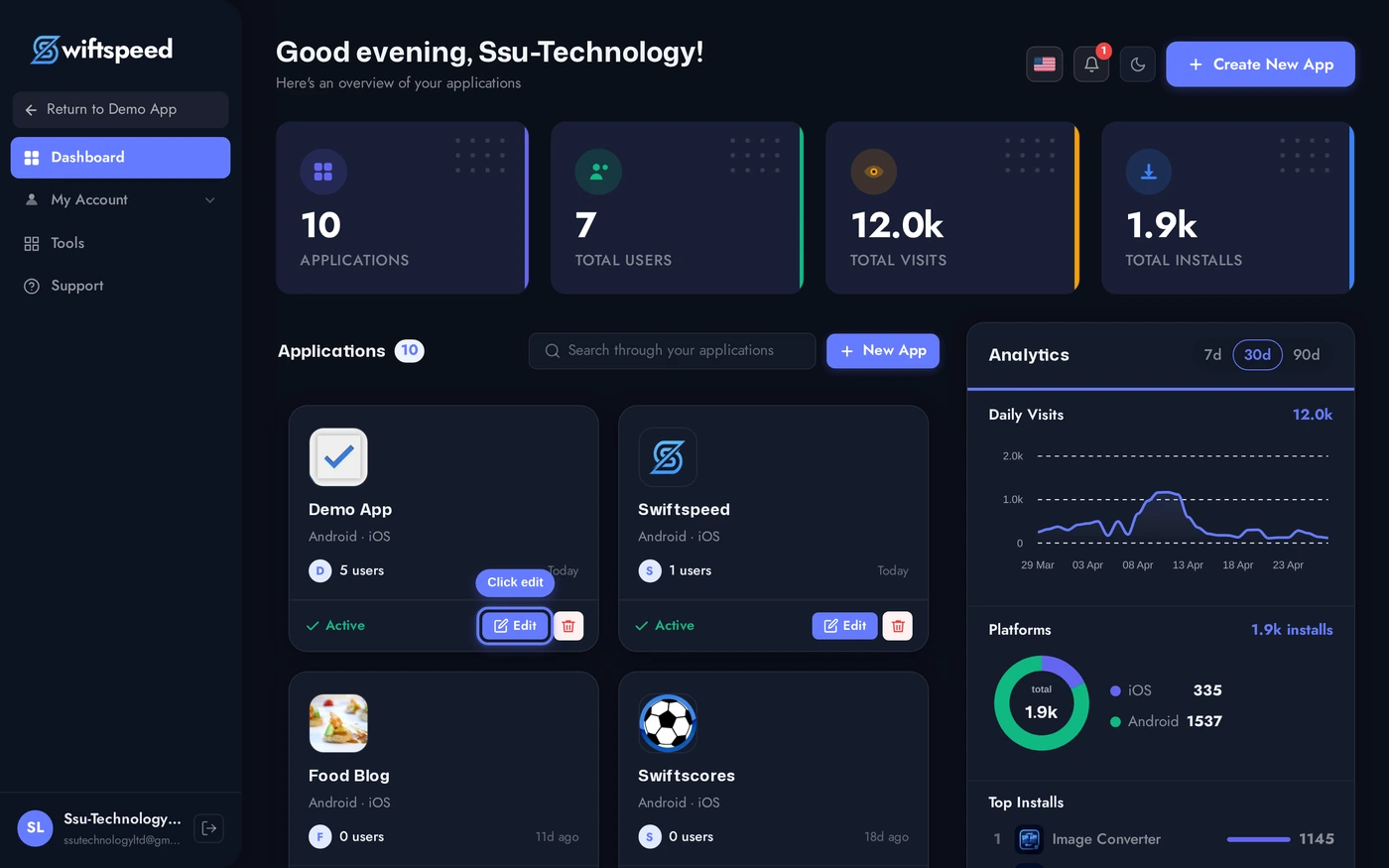
From your Swiftspeed dashboard, click the edit pencil on the mobile app you want to convert your WooCommerce store into.
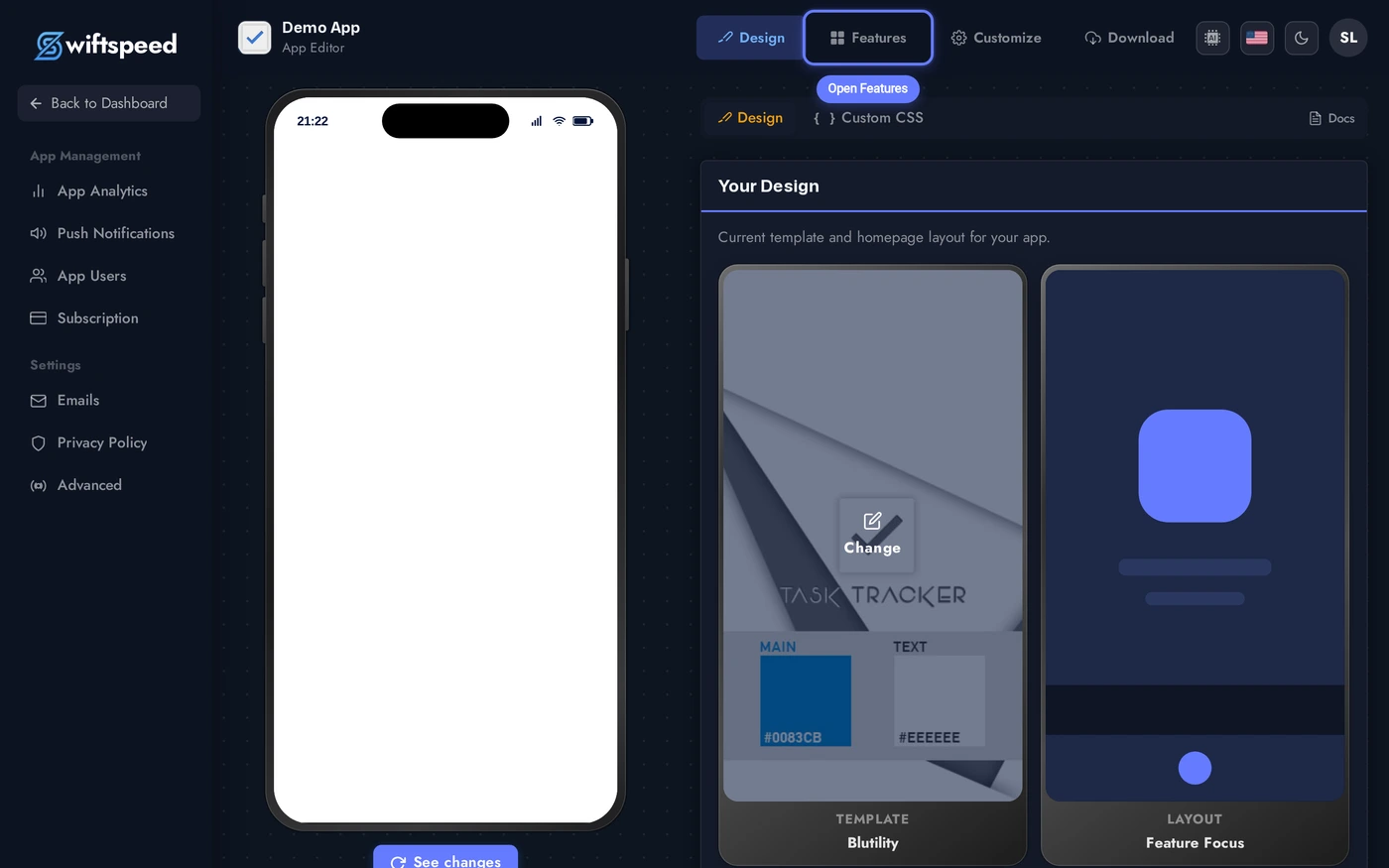
You'll land in the App Editor. Click Features in the top bar, that's where every page in your native mobile app lives, including the WooCommerce store you're about to add.
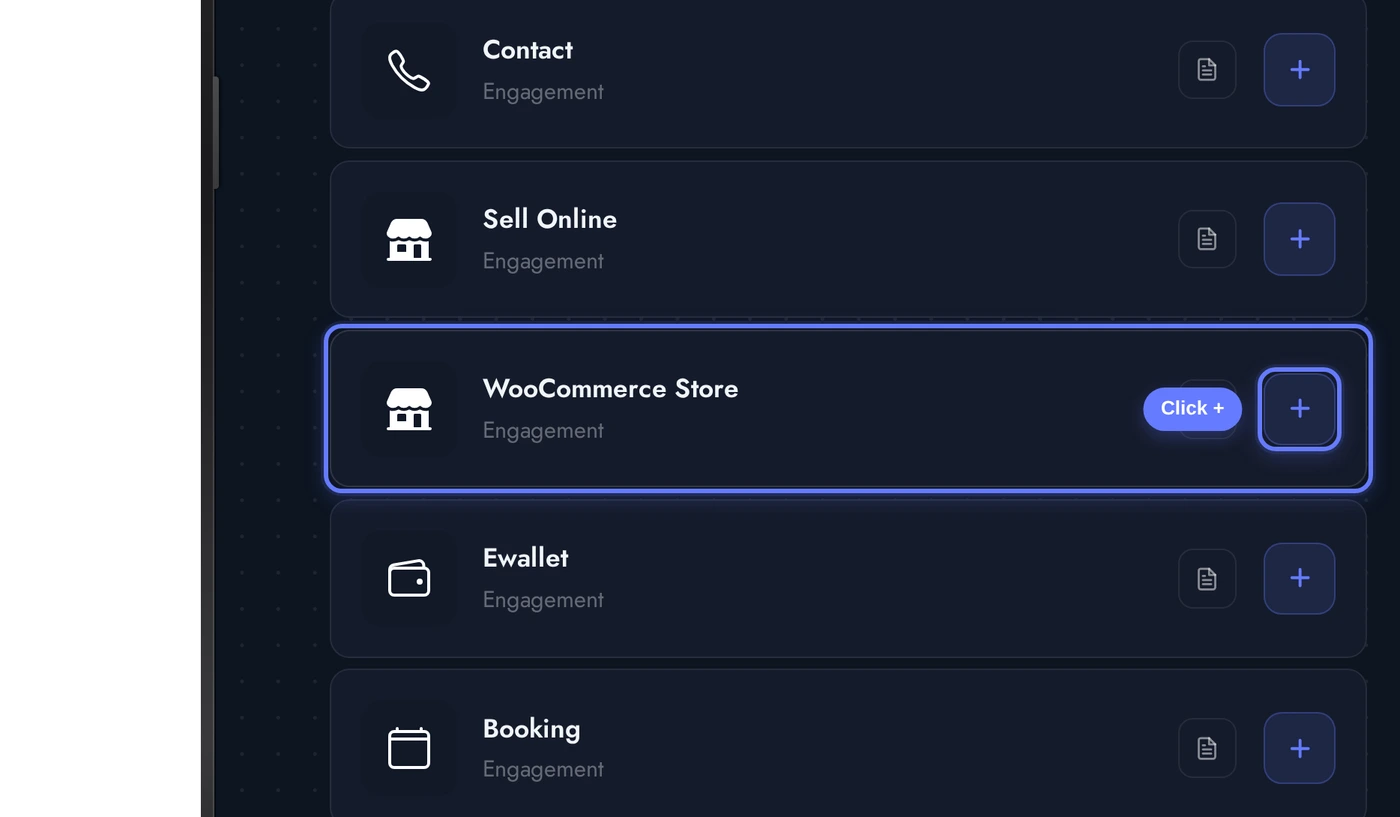
In the Add a Page list, find the WooCommerce Store card and click the + button on its right. This is the page that converts the rest of your mobile app into a native shopping experience powered by your existing WooCommerce store.
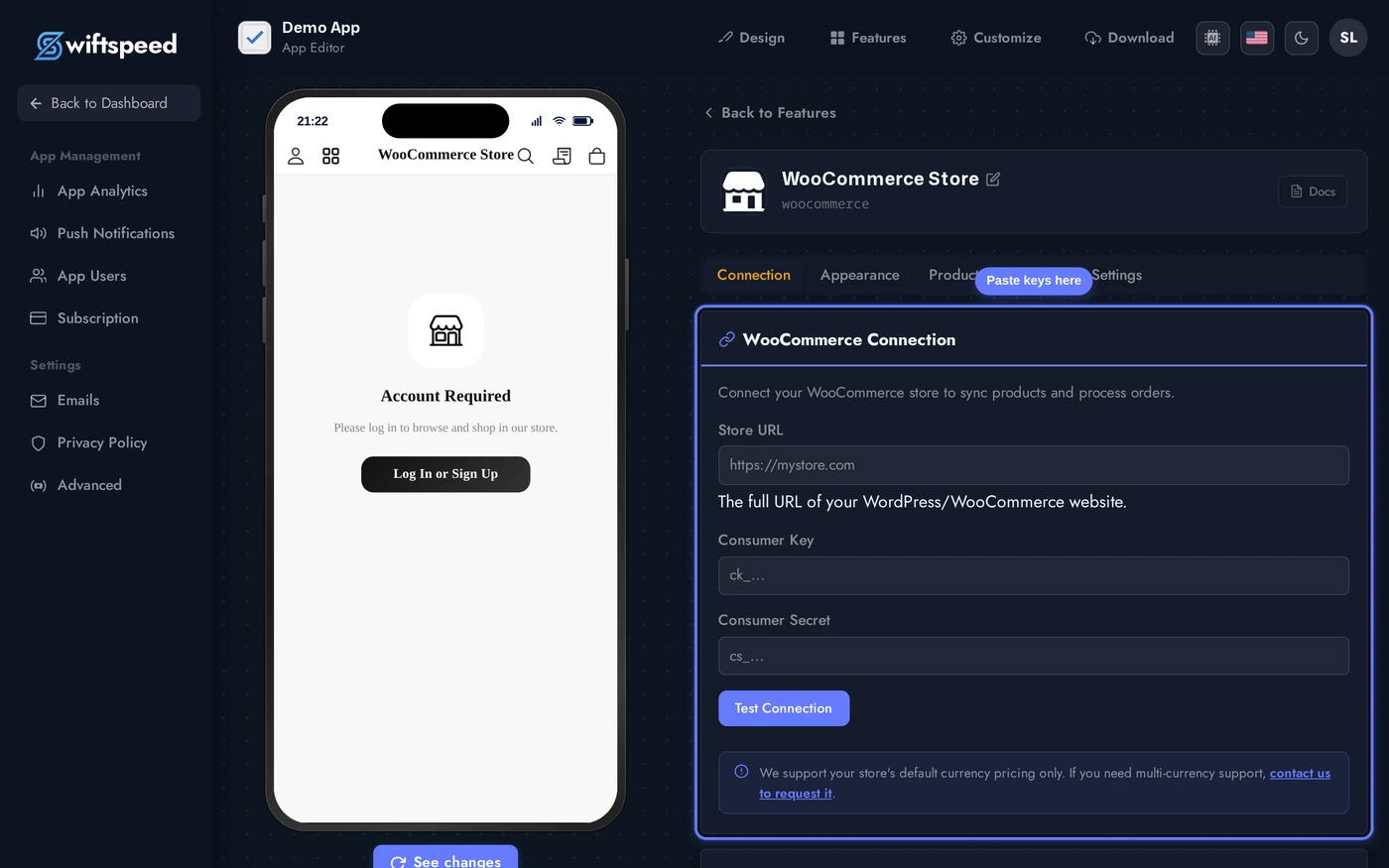
Connecting Your WooCommerce Store to the Mobile App
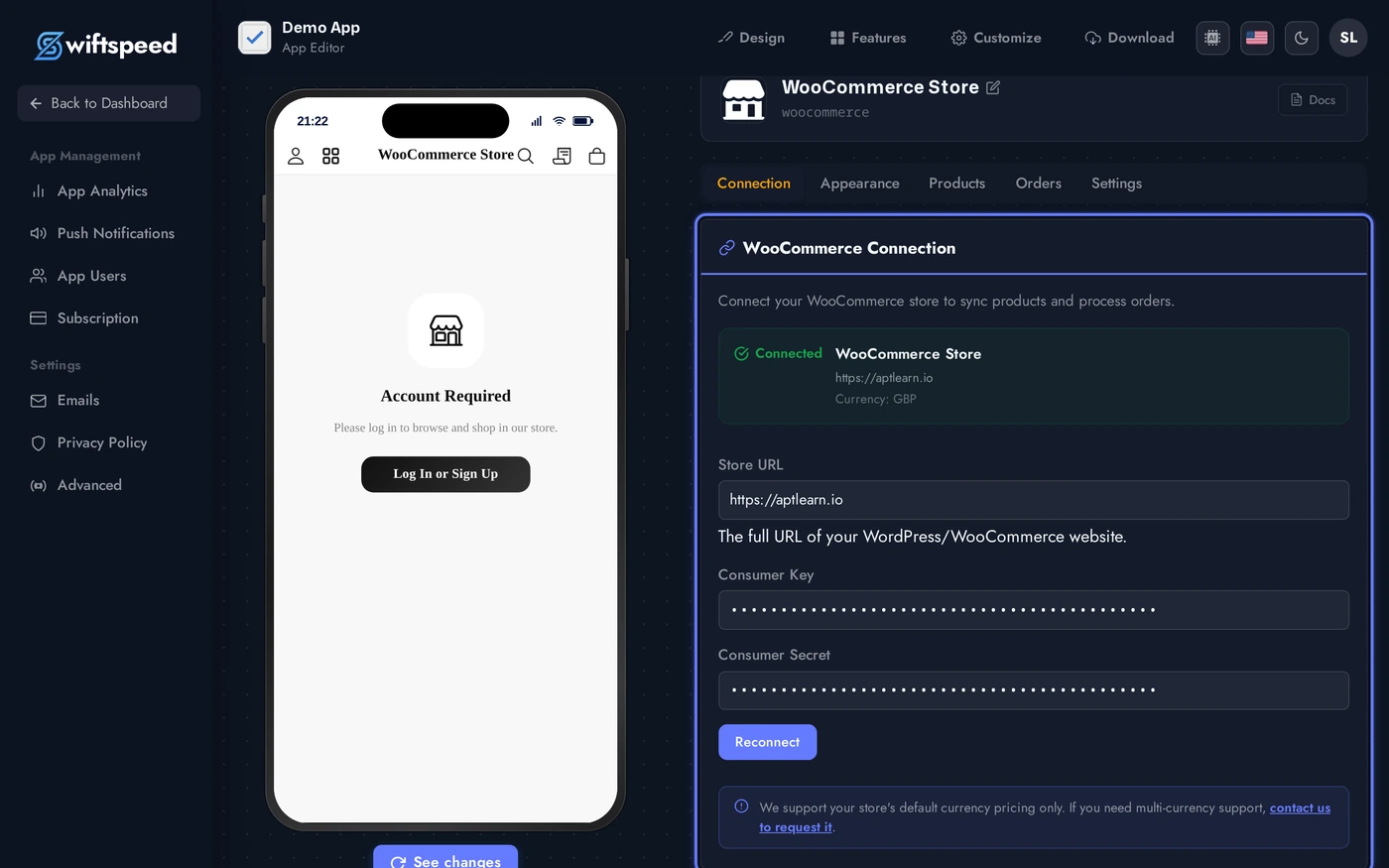
When the WooCommerce Store page is added, the editor opens directly on the Connection tab with a three-field form. This is where the keys you just generated link your live WooCommerce store to the native mobile app.
Paste your Store URL (the full https URL to your WordPress site, no trailing path), your Consumer Key (ck_...), and your Consumer Secret (cs_...). Click Test Connection. The mobile app calls your WooCommerce REST API once to verify the keys, and on success the form swaps to a connected state showing the store name, currency, and the product sync controls. Your WooCommerce store is now linked to a native iOS and Android app.
Once Test Connection succeeds, the editor flips to a Connected state and your WooCommerce store is officially turned into the mobile app's native shopping front-end. Store name and currency appear at the top, and the Product Sync card unlocks below. From here on, the rest of the editor (Appearance, Products, Orders, Settings) is fully usable, every change you make tunes how the WooCommerce mobile app looks and behaves.
Product Sync (Keeping the Mobile App in Step with Your Store)
Your WooCommerce data lives on your WordPress server. Swiftspeed caches a local copy of the catalogue so the native mobile app loads fast and even works offline. Sync controls when that cached copy refreshes against your live store.
The Product Sync card shows when the WooCommerce catalogue was last pulled into the mobile app and lets you trigger a manual sync. Use Auto-sync interval (in minutes) to schedule background syncs, every 60 minutes is a good default for most stores converting to mobile. Set it lower if you push frequent stock updates and want them reflected in the iOS and Android app faster.
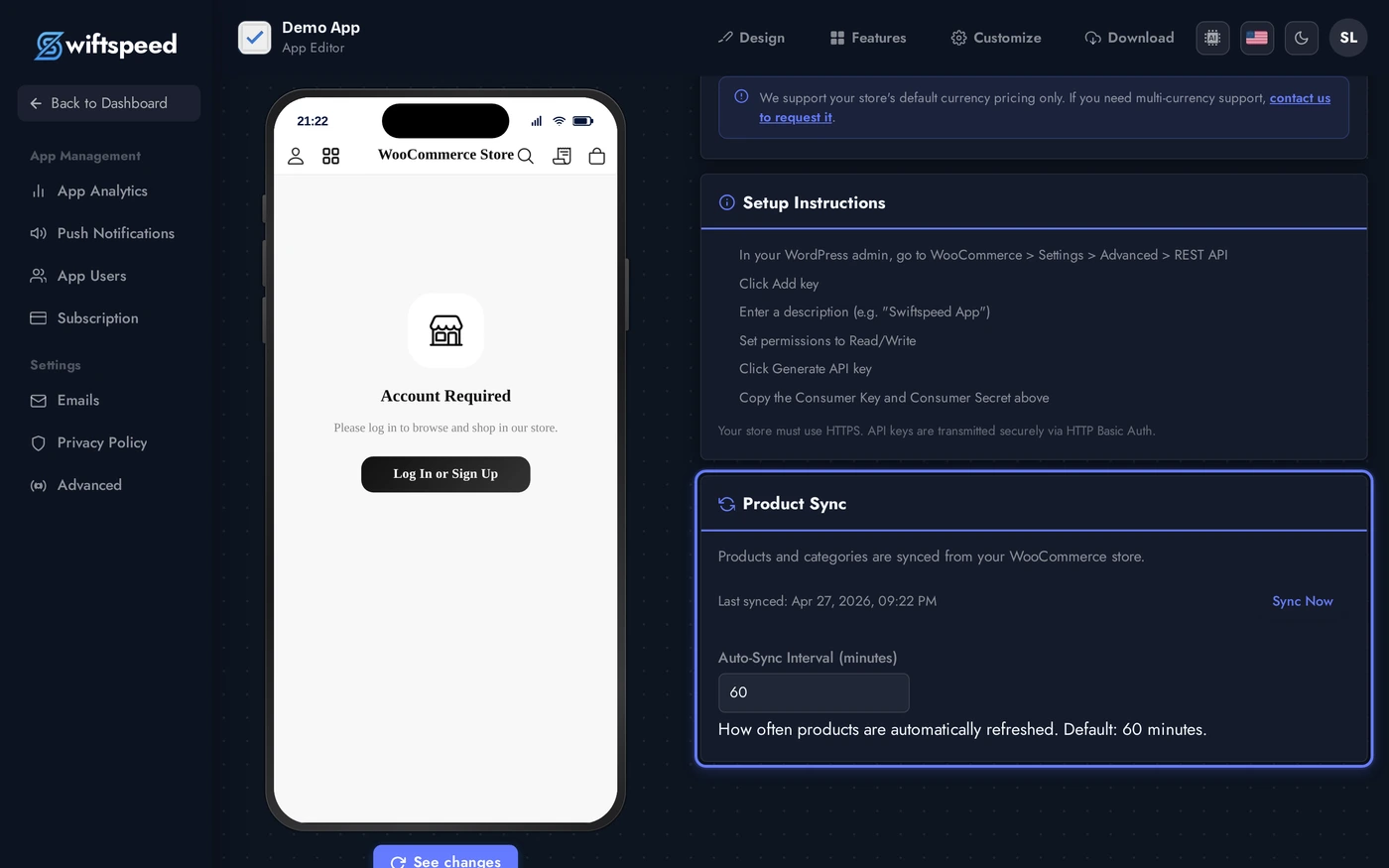
Manual Sync Now is the move right after a big catalogue change (bulk upload, new collection, sale launch) when you want everyone shopping in the mobile app to see the new state without waiting for the next interval.
Designing the WooCommerce Mobile App (Theme, Layout, Colors)
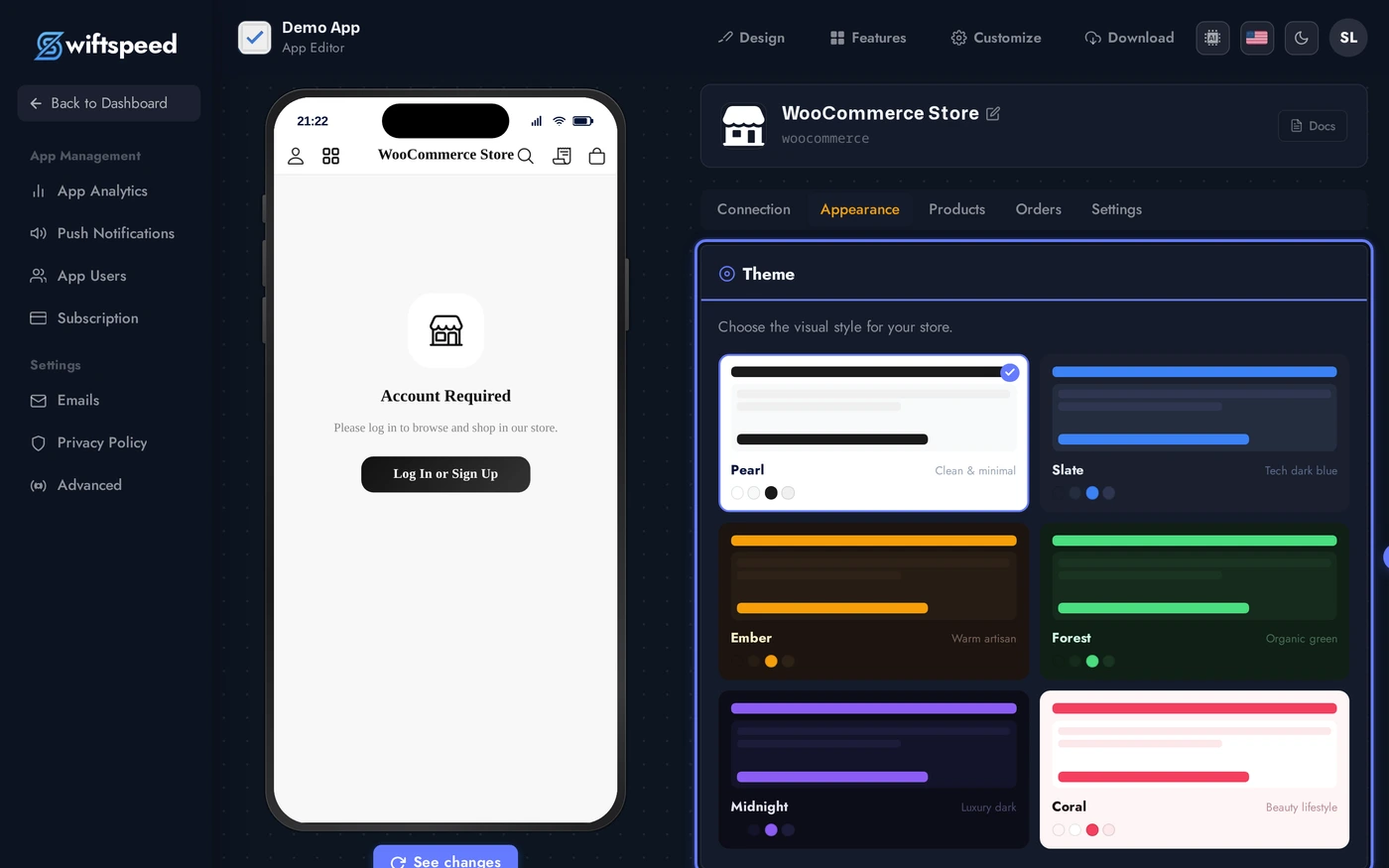
Switch to the Appearance tab to control how the converted WooCommerce store looks inside the native mobile app. You can do this any time after connecting, the changes show up live in the phone preview without re-syncing.
Pick a theme (each one is a complete visual identity for the mobile storefront), a layout (grid or list product arrangement), and override any of the custom colors if your brand needs more than a preset offers. Buttons (Add to Cart, Checkout, Place Order) get their own size and label customisation in the Buttons card further down. Together these settings turn a generic WooCommerce store conversion into a native mobile app that actually looks like your brand.
Order Management for Your WooCommerce Mobile App
The Orders tab inside the WooCommerce editor is your live view of every order placed through the native mobile app, sourced directly from your WooCommerce site so the data stays in sync with whatever you do in WP admin. There's no separate orders database to reconcile, mobile-app orders ARE WooCommerce orders.
- Each order row shows the order number (
#WC-...), customer name, total in your store currency, payment gateway used, and current status (Pending, Processing, Completed, Refunded, Failed, etc.) - Click a row to expand the full breakdown: line items with variations, shipping address, billing address, payment status, gateway transaction ID, refund history, and any customer notes attached at checkout
- Use the Refresh button to pull the latest list from your WooCommerce backend on demand, useful right after running a promo through the app
- Orders placed through the converted mobile app appear in WP Admin, WooCommerce, Orders with the same order ID, the same customer record, and the same status flow, no separate ledger or duplicated bookkeeping
- Status changes, refunds, and notes you make in WP admin reflect back into the mobile app builder view on the next refresh
- Stock deductions and email notifications you have configured in WooCommerce fire exactly the same way for mobile app orders as they do for website orders
Because everything is one set of orders living in WooCommerce, your fulfilment workflow does not change when you convert your store into a mobile app. Whatever shipping, packing, accounting, or print-on-demand plugins you already use continue to handle app-placed orders identically to website orders.
Payment Gateways (Same as Your WooCommerce Store)
Whatever payment gateways are active on your WooCommerce site are automatically available inside the native mobile app, no separate configuration. The Settings tab shows you which gateways are detected and their status, so converting your store into a mobile app does not mean reapplying for Stripe or re-onboarding with PayPal.
The Payment Gateways card lists every gateway WooCommerce reports as installed and enabled. The mobile app checkout uses the same gateways your website uses, with the same fees, the same payout schedule, and the same dispute handling. There is nothing to wire up on the Swiftspeed side, and customers using the WooCommerce mobile app pay the same way they do on your website.
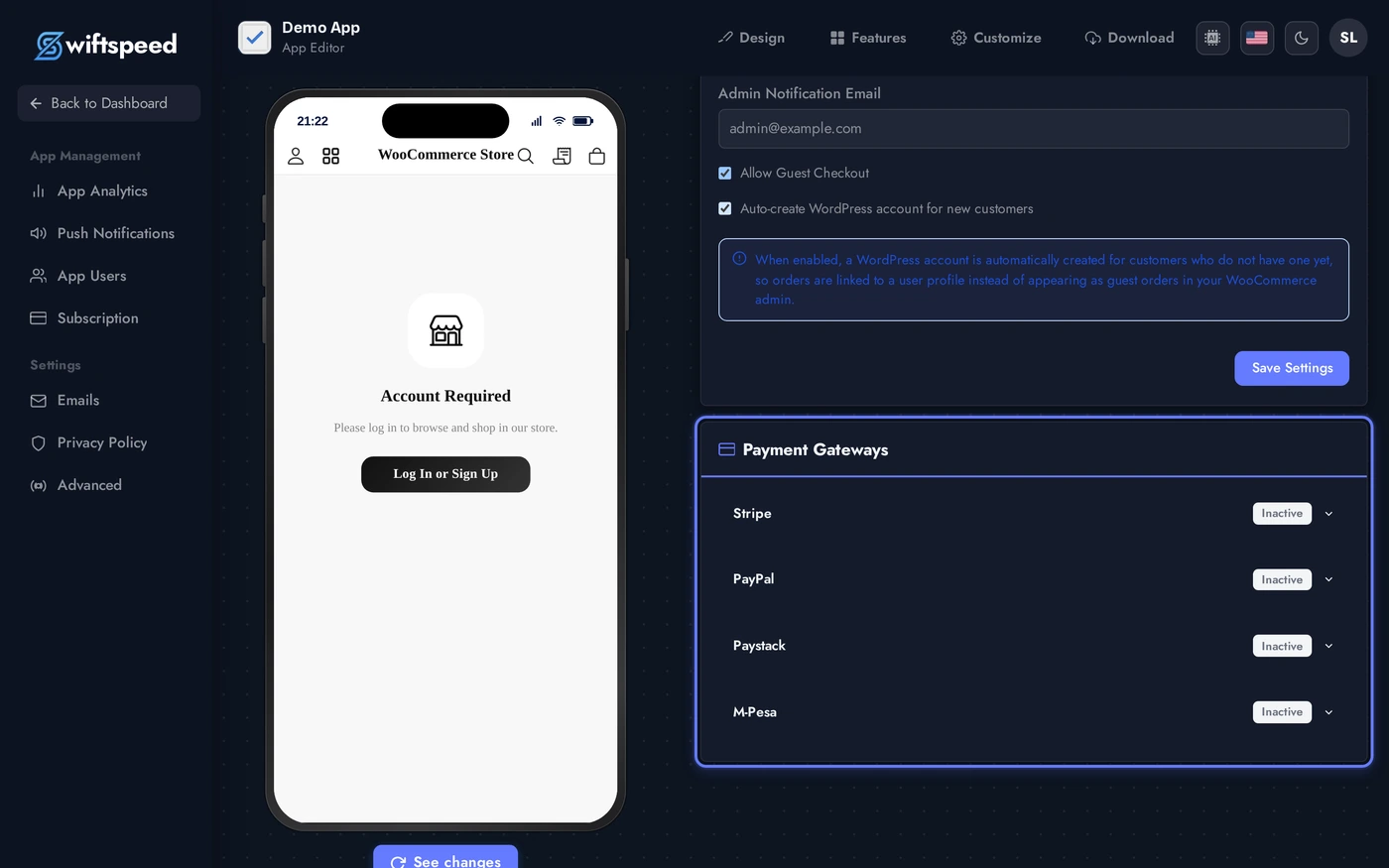
Common gateways the WooCommerce mobile app supports out of the box: Stripe, PayPal, WooCommerce Payments, Paystack, Razorpay, Square, Cash on Delivery, Direct Bank Transfer. Custom or third-party gateways generally work too as long as they implement the standard WooCommerce checkout flow.
Live Preview of the WooCommerce Mobile App
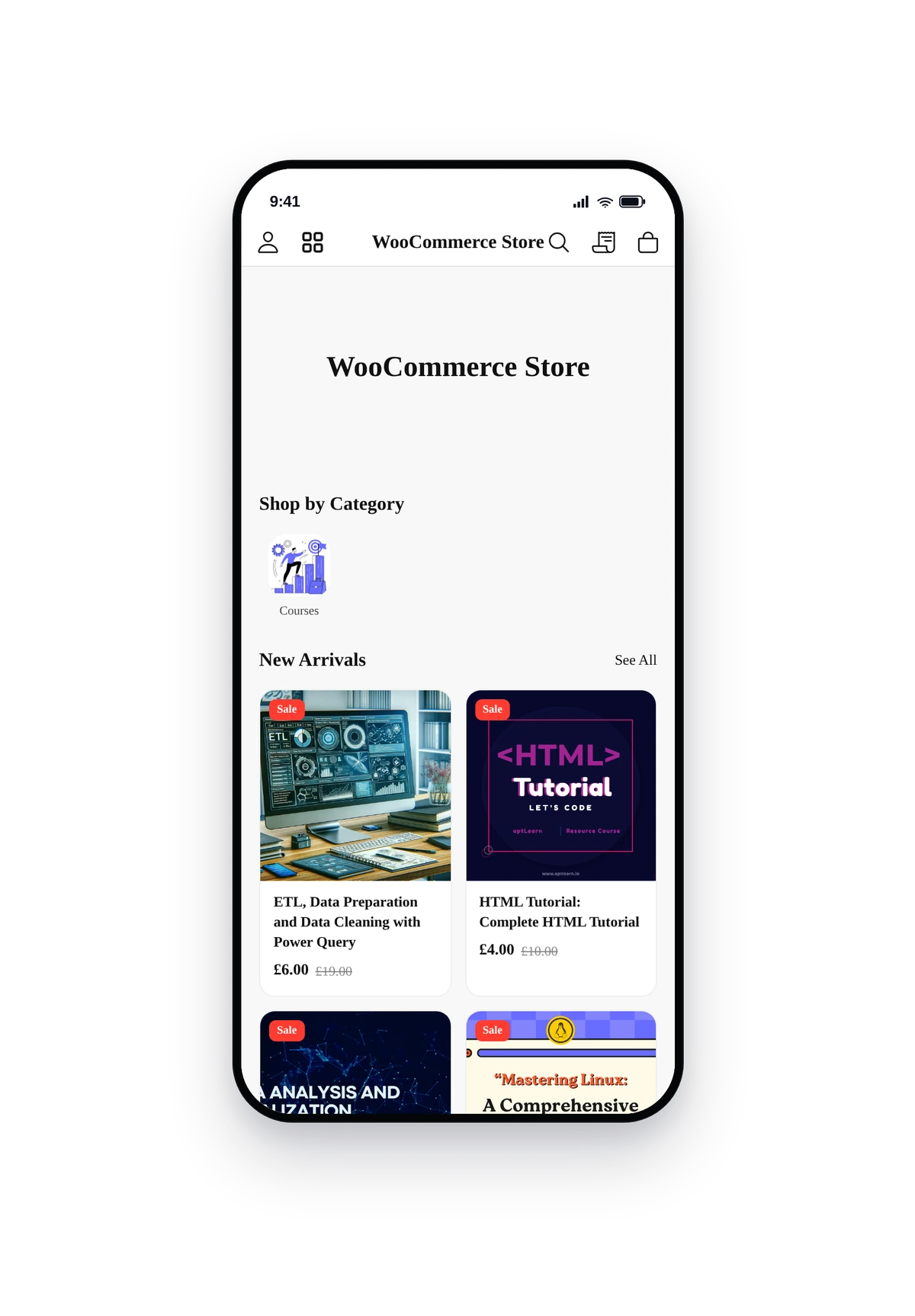
Here is how a connected WooCommerce store (this one is aptlearn.io) renders inside a real phone running the converted native mobile app. Same products, same prices, same currencies, all synced live from the WordPress backend, dressed up in a clean native UI:
This is the actual native UI, not a mockup. Tap a product card to see variations, reviews, and add-to-cart. Tap the cart icon for the full cart and checkout, sign-in or guest checkout, address forms, and any payment gateway you have enabled. This is your WooCommerce store, fully converted into a native iOS and Android shopping app.
Tips and Troubleshooting for Your WooCommerce Mobile App
- Always use HTTPS. iOS blocks insecure http resources by default, so a WooCommerce store on plain http will not load inside the mobile app. Set up Let's Encrypt or your host's SSL before connecting.
- Pretty permalinks must be on. WP Admin, Settings, Permalinks, pick anything other than "Plain". The WooCommerce REST API the mobile app talks to will not authenticate requests with plain permalinks.
- "401 Unauthorized" on Test Connection? Some shared hosts strip the Authorization header before it reaches PHP, which blocks the mobile app from authenticating to your store. Add this to your
.htaccess(above the WordPress block):SetEnvIf Authorization "(.*)" HTTP_AUTHORIZATION=$1 - Currency mismatch? Make sure the WooCommerce currency setting matches what you want to charge in the app. The mobile app reads it from the API response, so it stays in sync as long as your WooCommerce settings are correct.
- Product images look soft on the converted mobile app? WooCommerce often serves smaller thumbnails than retina displays need. Upload product images at 1200x1200 or larger and let WooCommerce resize down for the mobile app.
- Test the full checkout once before publishing your WooCommerce mobile app. Place a real order through the app preview using a real payment method. This catches gateway misconfigurations (e.g. a Stripe webhook URL pointing to the wrong domain) before real customers see them.
- Sync interval depends on inventory volatility. Static catalogues, 6 to 12 hours is fine. Flash sales or volatile stock, 15 to 30 minutes. Going below 15 minutes rarely changes the experience for shoppers in the mobile app and just adds API load on your WordPress server.
- Lost your Consumer Secret? WooCommerce only shows it once. Go back to the REST API page, Revoke the old key, and create a new pair. Paste the new pair into the WooCommerce mobile app builder Connection tab and click Test Connection again, the converted store will reconnect with no data loss.