WordPress Integration - Convert WordPress to App
What is the WordPress Feature?
The WordPress feature is how Swiftspeed turns any existing WordPress site into a fully native iOS and Android mobile app, without installing a plugin, rebuilding your site, or duplicating any content. Posts, pages, categories, featured images, authors, and publication dates all sync directly from your live WordPress site through its built-in REST API, so the WordPress mobile app always reflects whatever you publish on the web.
Readers browse and read through a polished native mobile interface, with infinite scroll, offline caching, and tap-to-share built in, while every article still lives in the same WordPress admin you use today. Think of it as converting your WordPress site into a native mobile app that sits beautifully on top of the back-end you already trust, with zero code on your end.
Before You Start Converting Your WordPress Site
A few things should be in place before you connect a WordPress site to a mobile app:
- A live, publicly reachable WordPress site (HTTPS strongly recommended, HTTP-only sites will not load on iOS by default)
- WordPress 4.7 or newer. The REST API the mobile app uses to pull posts and categories has shipped in WordPress core since 4.7, so any reasonably current site already has it.
- Pretty permalinks enabled in WP Admin, Settings, Permalinks (anything other than "Plain"). The WordPress REST API will not respond on plain permalinks, which blocks the mobile app from loading content.
- Optional: a WordPress admin or editor account if you want the mobile app to also pull private or unpublished posts (more on this further down)
No plugin is required at any step of the WordPress to mobile app conversion. The connection uses the REST API that ships with WordPress core, the same one the WordPress mobile admin app and the block editor talk to.
Adding WordPress to Your Mobile App
Inside the Swiftspeed editor, your WordPress site becomes a feature page in your native mobile app. The flow below walks through adding that page and pointing it at your live WordPress site:
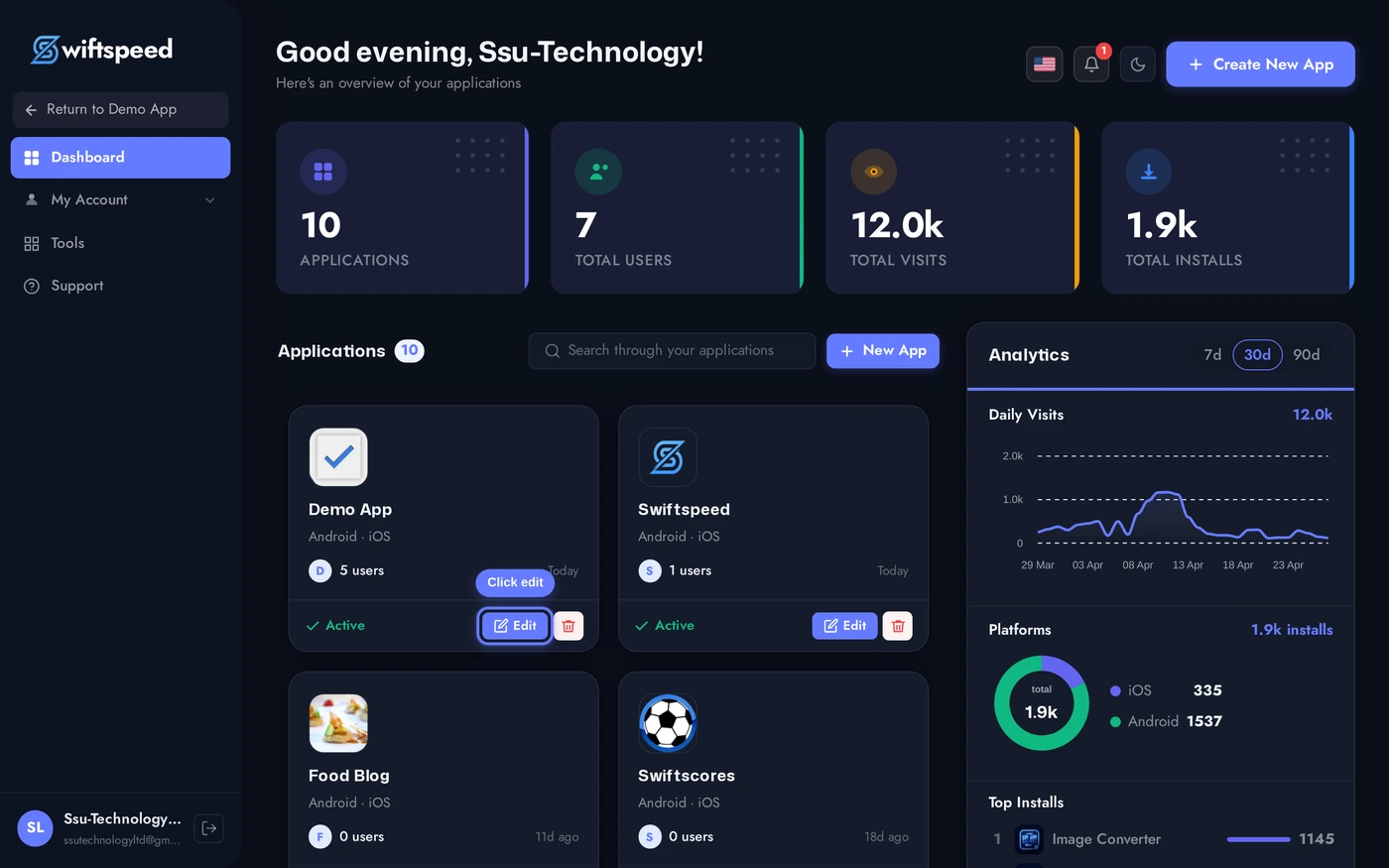
From your Swiftspeed dashboard, click the edit pencil on the mobile app you want to convert your WordPress site into.
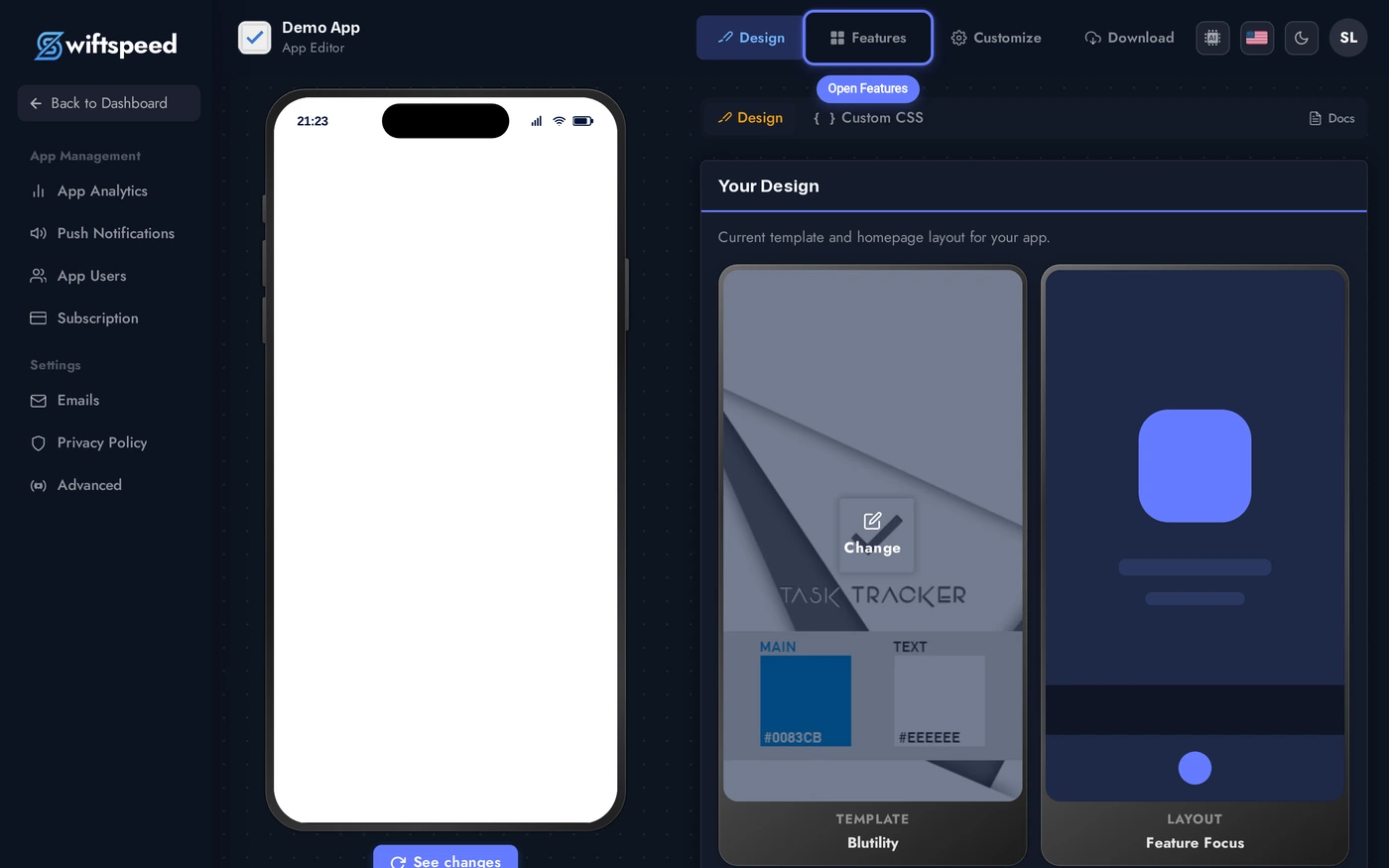
You'll land in the App Editor. Click Features in the top bar, that's where every page in your native mobile app lives, including the WordPress reader you're about to add.
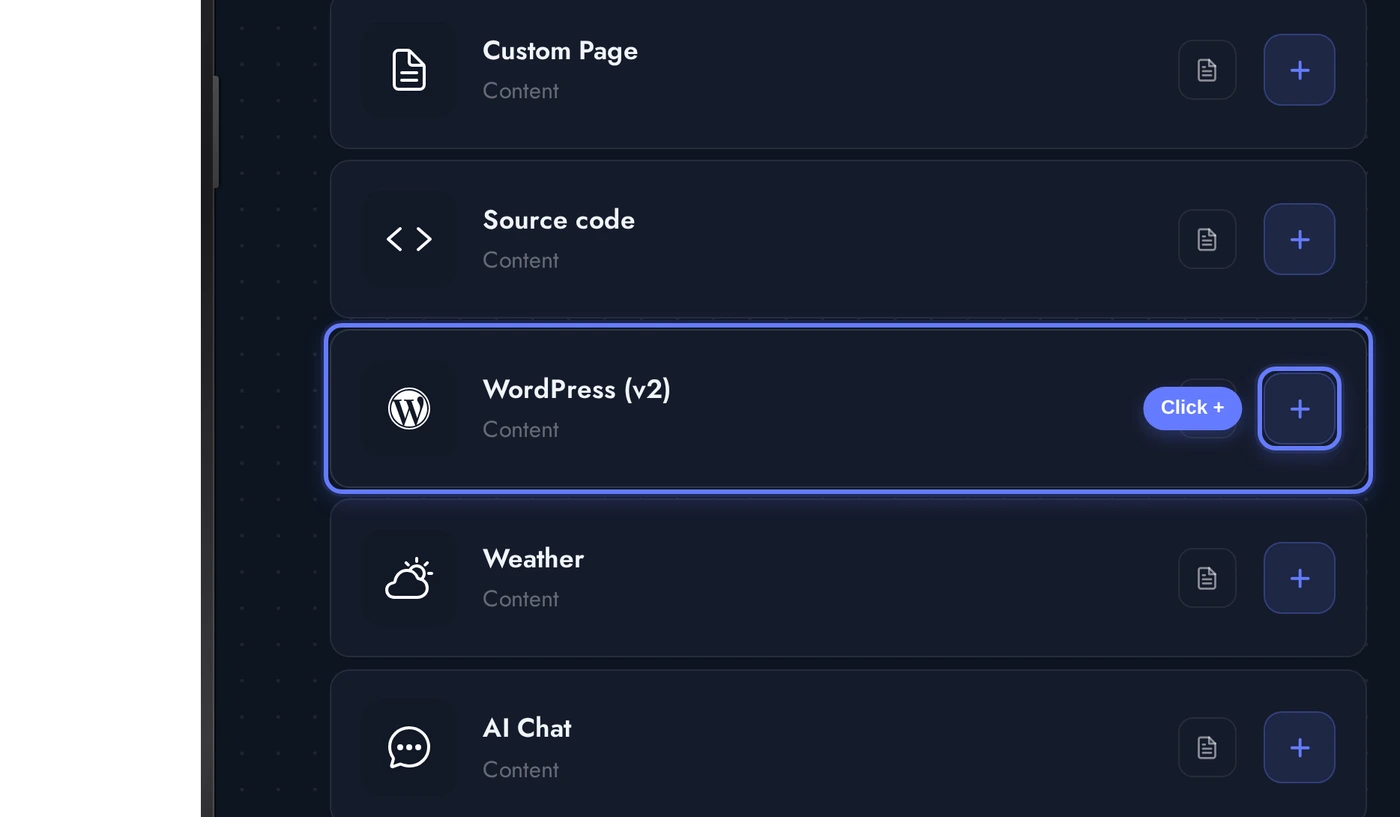
In the Add a Page list, find the WordPress card and click the + button on its right. This is the page that converts your WordPress content into a native mobile reading experience powered by your existing site.
Connecting Your WordPress Site to the Mobile App
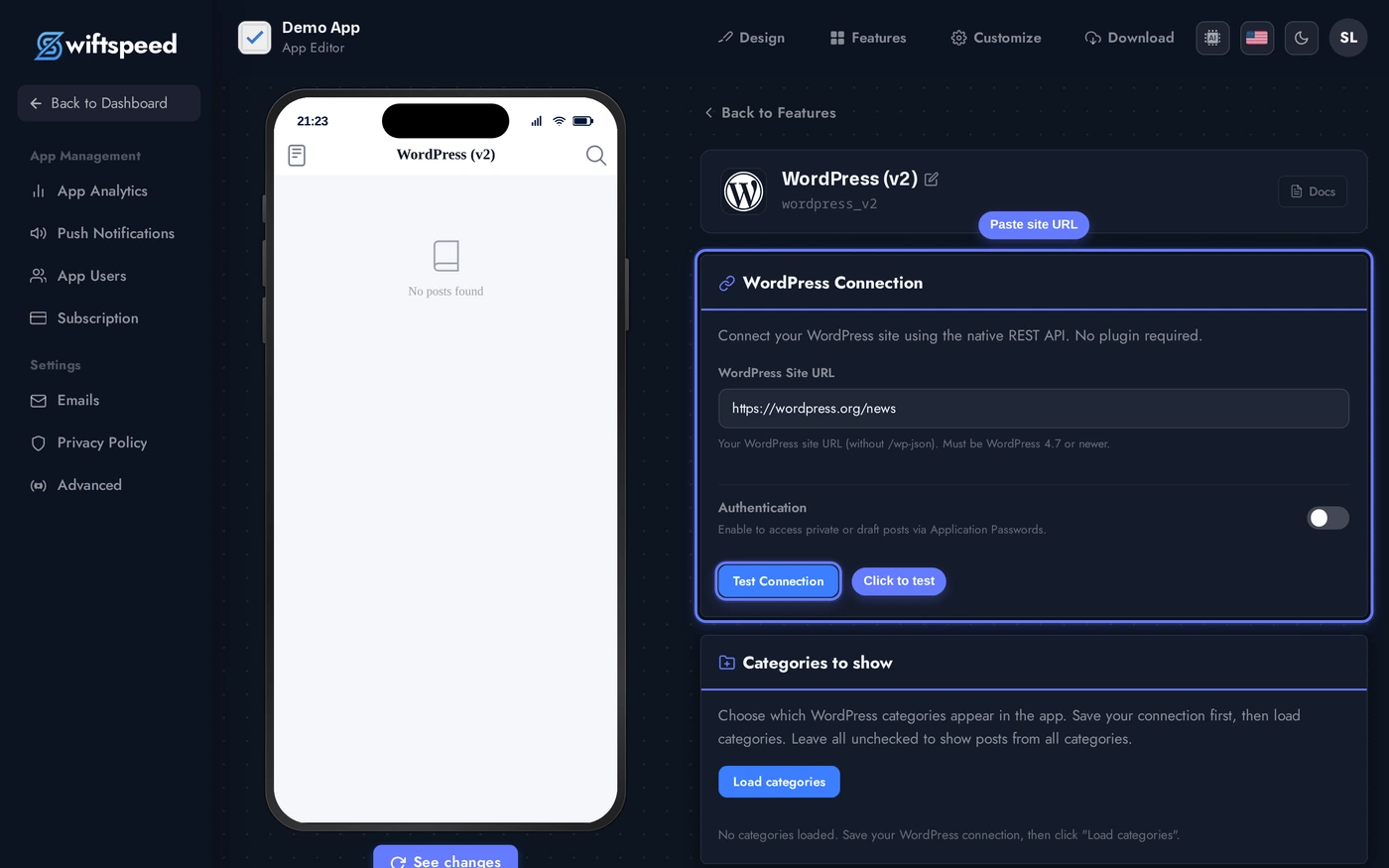
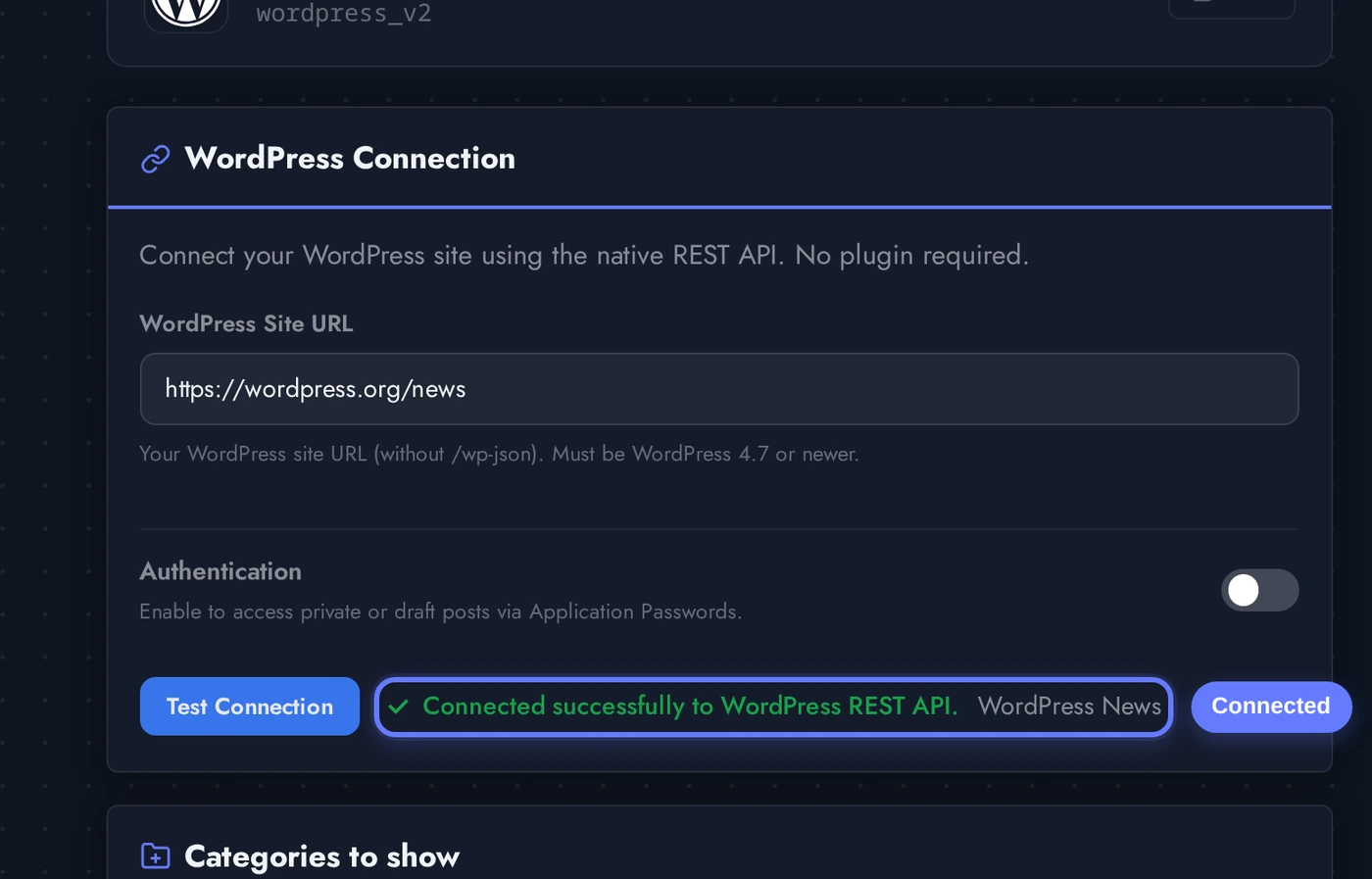
When the WordPress page is added, the editor opens directly on the connection card with a single field. Paste the full URL to your WordPress site and click Test Connection, that is all the WordPress mobile app needs to start syncing posts.
Paste your Site URL (the full https URL to your WordPress site, no trailing path required). For this walkthrough we are using https://wordpress.org/news, the official WordPress.org news blog. Click Test Connection. The mobile app calls your WordPress REST API once to confirm the site is reachable and the API is responding, then unlocks the rest of the editor.
Once Test Connection succeeds, a green check appears next to the URL field with the WordPress site name. Your WordPress site is now linked to the native mobile app, and every card below the connection card (Categories, Theme, Layout, Custom Colors, Display Options, Content Settings) is fully usable. Every change you make from here tunes how the WordPress mobile app looks and behaves.
Authenticating Your WordPress Site (For Private and Unpublished Posts)
By default the WordPress mobile app pulls only public, published posts, exactly what an anonymous reader would see on your site. If you also want the mobile app to surface private posts (visible to logged-in WordPress users only) or unpublished drafts and pending content, the connection card has an optional Authentication toggle. Flip it on and two fields appear: WP Username (any WordPress account with permission to see the content you want in the mobile app) and Application Password (a 24-character token generated inside that WordPress account, NOT the user's normal login password). Once saved, the mobile app authenticates every API call as that user, and any private or unpublished post that user can see on the WordPress site also appears inside the mobile app, in the categories you choose to display. This is how staff apps, internal newsletters, member-only blogs, and editorial preview apps get their content into the WordPress mobile app.
To generate an Application Password: in WP Admin, go to Users, pick the account, scroll to Application Passwords, type a name like "Mobile App", click Add New Application Password, and copy the 24-character string WordPress shows once. Paste it into the Application Password field. Application Passwords can be revoked any time from the same screen, and revoking one does not affect the user's normal login password or any other application that uses the WordPress site. Most WordPress to mobile app conversions never need this toggle, leave it off if all your content is publicly published.
Picking Which Categories Appear in the WordPress Mobile App
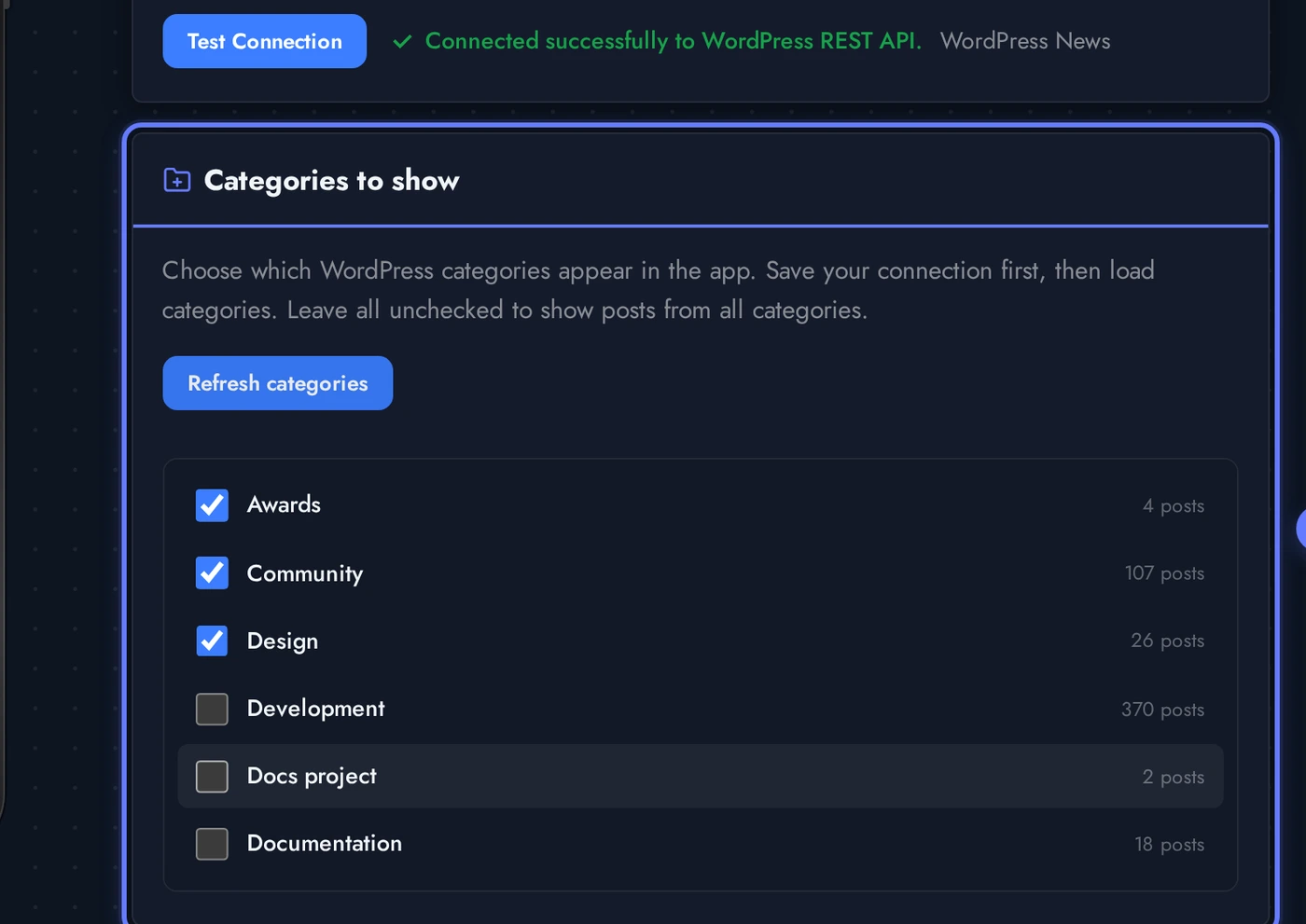
By default the mobile app shows every published post from your WordPress site. If you want to scope the mobile app to specific categories (e.g. only "News" and "Updates" but not "Internal"), use the Categories card.
Click Load Categories and the editor pulls every category from your WordPress site through the REST API, with the post count next to each one. Tick the categories you want to surface in the mobile app and the change saves automatically. Leave them all unticked to display every category, the WordPress mobile app falls back to the full feed in that case.
Themes for the WordPress Mobile App
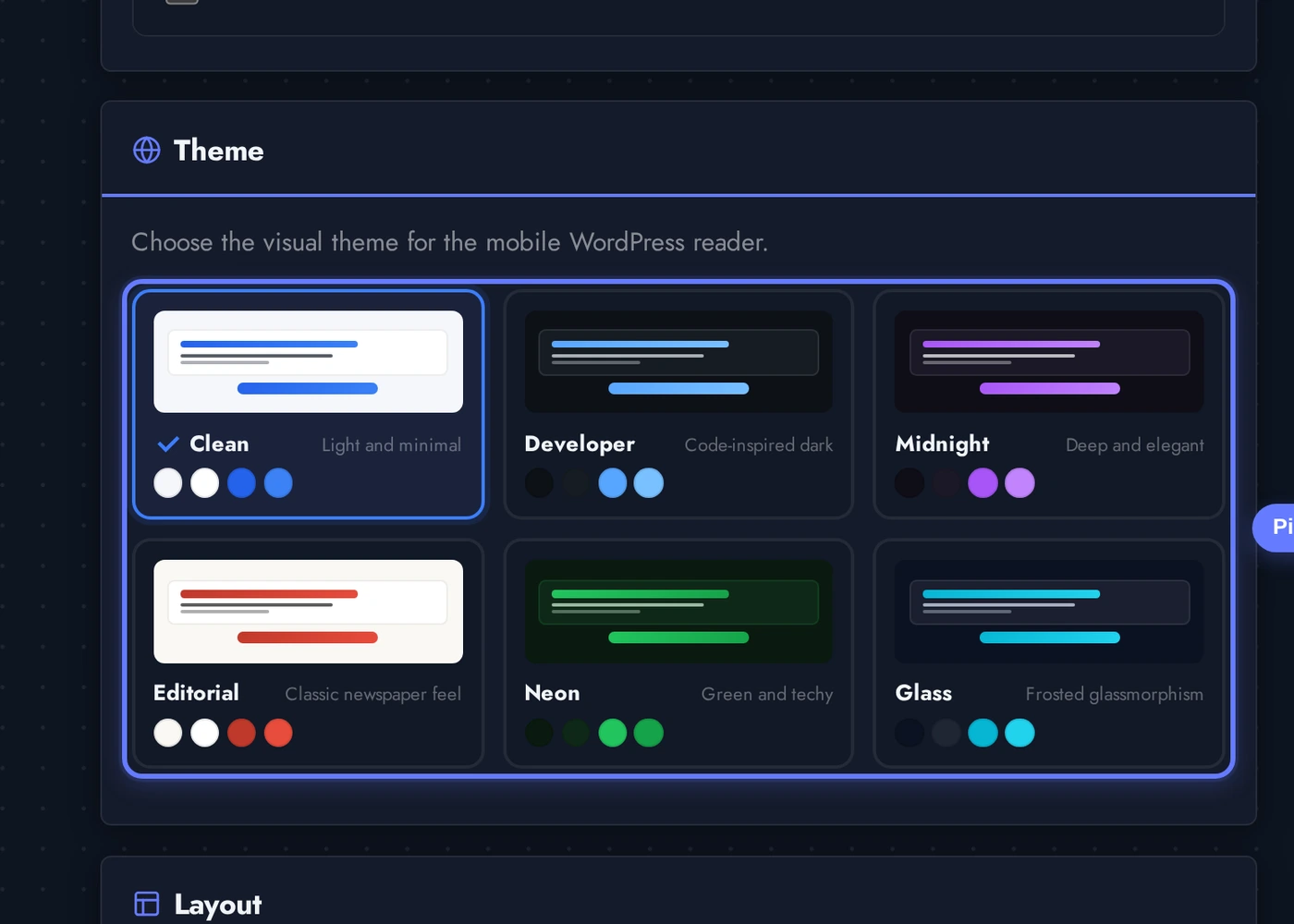
Pick a theme for the converted WordPress mobile app. Each theme is a complete visual identity (background, surfaces, accents, typography balance) tuned for native mobile reading. They are configured to look great out of the box, and any individual color is still overridable in the Custom Colors card below.
The themes available out of the box: Clean (light, neutral, default for most blogs), Developer (GitHub-dark, great for tech blogs), Midnight (deep purple, premium feel), Editorial (warm, magazine-like), Neon (high-contrast green-on-black), and Glass (translucent surfaces over a dark cyan base). Click any theme card to apply it instantly to the WordPress mobile app, the phone preview on the right updates in place without re-syncing.
Choosing a Layout
Layout controls how individual posts arrange themselves on the WordPress mobile app home screen. Three options:
Pick the layout that fits how your audience reads. Same as themes, layout updates the WordPress mobile app preview live without a re-sync, so try a couple before publishing.
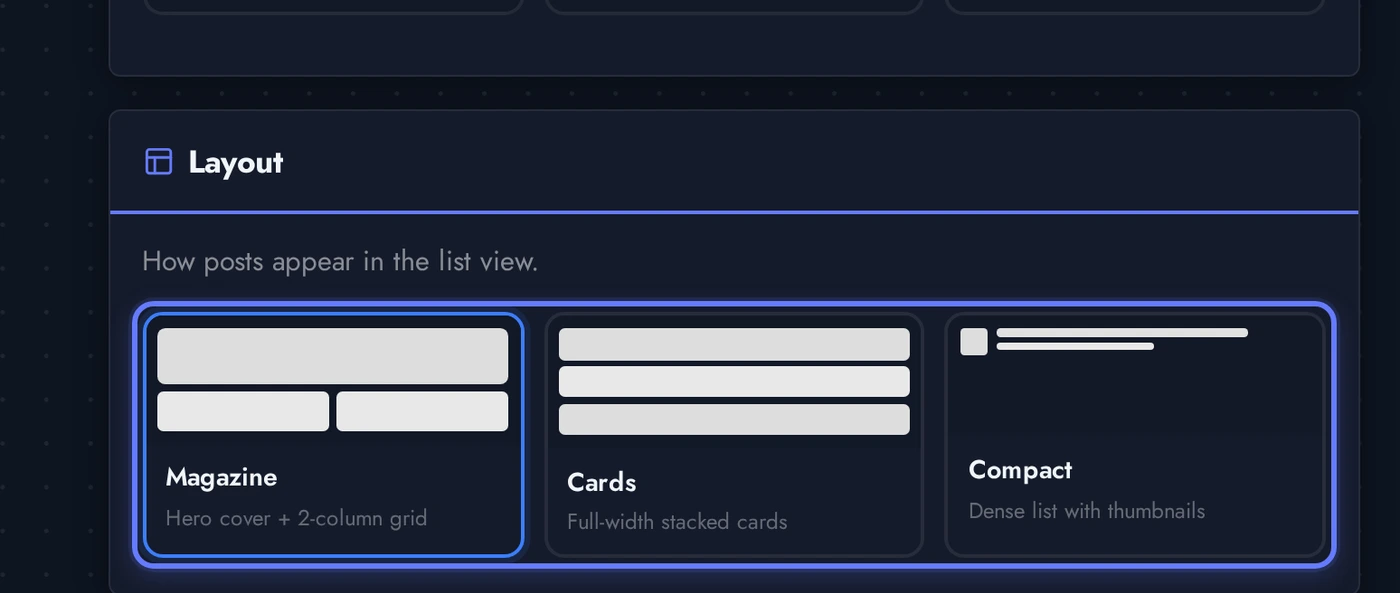
- Magazine (default): one large hero card on top with smaller cards below in a 2-column grid. Best for blogs with strong featured images.
- Cards: full-width stacked cards, one post per row. Reads well on smaller phones and for long-form content.
- Compact: dense list view with thumbnail + title + meta. Best for high-volume blogs and news WordPress mobile apps where users scan and skim.
Display Options and Content Settings
Two more cards fine-tune how the WordPress mobile app displays content. Display Options toggles the cover image, post thumbnails, excerpts, dates, authors, and category labels on or off. Content Settings controls how posts are sorted, how many appear per page, and how aggressively the WordPress mobile app caches them on the device.
- Show cover image: large hero image at the top of the WordPress mobile app feed, pulled from the most recent featured image. Off if you want a clean list.
- Show post thumbnails / excerpt / date / author / categories: per-row toggles for what appears alongside each post in the WordPress mobile app list.
- Sort by: published date (default), last modified, title, or post ID. Modified-date is useful for evergreen blogs that update old posts often.
- Posts per page: 5 to 50. The WordPress mobile app paginates the WordPress REST API in chunks of this size, lower numbers feel faster on slow networks, higher numbers reduce paging.
- Cache lifetime: how long the WordPress mobile app keeps a fetched feed before it asks the WordPress REST API again. 1 hour is a sane default; bump down for live news, bump up for low-volatility blogs.
- Strip shortcodes: removes WordPress-specific
[shortcode]markers from post content so they do not show up as raw text in the WordPress mobile app reader. Recommended on.
Live Preview of the WordPress Mobile App
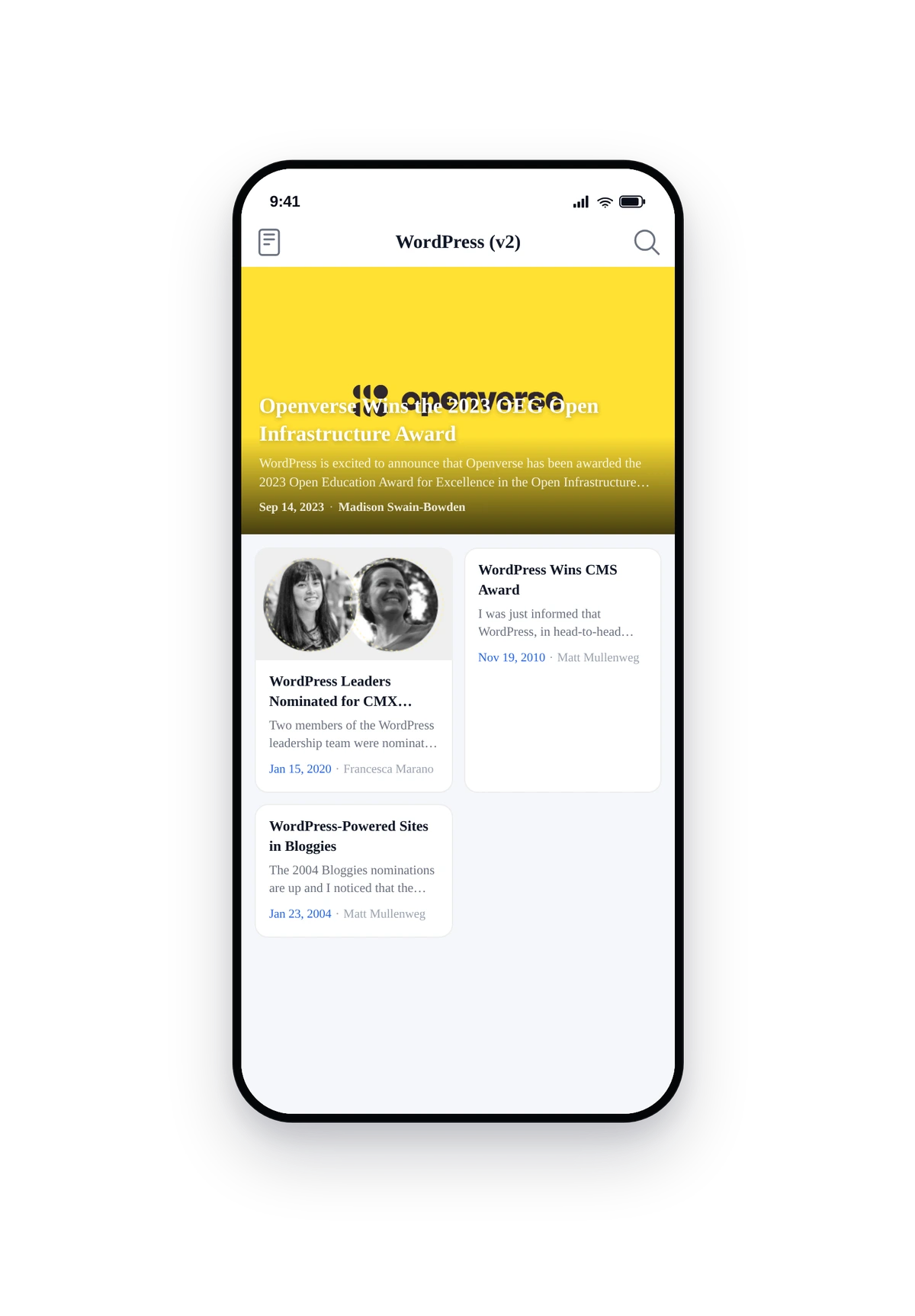
Here is how a connected WordPress site (this one is wordpress.org/news, the official WordPress.org blog) renders inside a real phone running the converted native WordPress mobile app. Same posts, same titles, same images, all pulled live from the WordPress REST API, dressed up in a clean native UI:
This is the actual native UI, not a mockup. Tap any post card to open the full article in a clean reader view with native typography, swipeable images, and tap-to-share. Pull down to refresh against the WordPress REST API. The WordPress mobile app caches the most recent feed locally so users can keep reading even when offline. This is your WordPress site, fully converted into a native iOS and Android reading app.
Tips and Troubleshooting for Your WordPress Mobile App
- Always use HTTPS. iOS blocks insecure http resources by default, so a WordPress site on plain http will not load inside the mobile app. Set up Let's Encrypt or your host's SSL before connecting.
- Pretty permalinks must be on. WP Admin, Settings, Permalinks, pick anything other than "Plain". The WordPress REST API the mobile app talks to will not respond to authenticated requests with plain permalinks.
- "Connection failed" on Test Connection? Confirm the URL has no trailing path (use
https://yourblog.com, nothttps://yourblog.com/wp-admin). Then visithttps://yourblog.com/wp-json/wp/v2/postsin a browser, you should see JSON. If you see a 404 or HTML error page, a security plugin or firewall rule is blocking the WordPress REST API; whitelist/wp-json/and try again. - Private posts not showing up in the WordPress mobile app? That feature requires authentication. Enable the Authentication toggle in the connection card, set the username to a WordPress user that can see those posts, and paste a valid Application Password.
- Featured images look soft on the converted mobile app? WordPress often serves smaller image sizes than retina displays need. Upload featured images at 1200x800 or larger and let WordPress resize down for the mobile app.
- Cache feels too slow to refresh. Drop the Cache lifetime in Content Settings to 5 or 15 minutes for live news WordPress mobile apps. Default of 1 hour is fine for most blogs.
- Categories card is empty after Load? That means the WordPress site has no categories with the posts you have permission to see, or the REST API is restricting category visibility. Publish at least one post in a category, or enable Authentication so the WordPress mobile app can see private categories.
- No plugin needed, ever. Some WordPress to mobile app conversion services require you to install a companion plugin on your WordPress site. Swiftspeed does not, the WordPress mobile app uses only the REST API that ships with WordPress core.